

06Templates (apps on your server)
Templates – one-click apps on your server
Install Nextcloud, Vaultwarden, n8n, WireGuard, TeamSpeak, Mumble or Minecraft with one click on a VPS or dedicated server – with help for errors.
In short
In the Server Hub, you pick an app under Templates for your server. Our script installs it, opens only the ports it needs in the firewall, gets an SSL certificate if needed and shows you the address, login details and next steps at the end. The templates are free. After that, the app is yours: you handle backups and updates yourself.
Which apps are available?
Section titled “Which apps are available?”| App | What it’s for | Needs | Domain |
|---|---|---|---|
| Nextcloud | Files, calendars, contacts | 2 GB RAM, 20 GB | Required |
| Vaultwarden | Password vault for the Bitwarden apps | 768 MB RAM, 3 GB | Required |
| n8n | Automations and webhooks | 2 GB RAM, 5 GB | Required |
| Uptime Kuma | Monitoring with a status page | 768 MB RAM, 3 GB | Optional |
| Docker with Portainer | Manage containers in the browser | 768 MB RAM, 5 GB | Optional |
| WireGuard VPN | Your own VPN with QR codes | 768 MB RAM, 3 GB | Optional |
| TeamSpeak 3 | Voice chat, free up to 32 slots | 768 MB RAM, 2 GB | – |
| Mumble | Free voice chat with no slot limit | 768 MB RAM, 1 GB | – |
| Minecraft | Minecraft Java as Paper, Fabric or Vanilla | 2 GB RAM, 10 GB | – |
| Velocity | Proxy for a Minecraft network | 768 MB RAM, 2 GB | – |
| FiveM | FiveM server with txAdmin | see page | – |
All of them run on Debian 12, Debian 13, Ubuntu 22.04 and Ubuntu 24.04 unless the app’s page says otherwise. The values are the minimum for the app itself – plan for more to fit your data.
How to install an app
Section titled “How to install an app”- Open the Server Hub and then your VPS or dedicated server.
- Click Templates on the left, then Install next to the app.
- Choose how it’s installed:
- On the running system: You enter your root password once. We use it to log in, create a one-time key and remove it again after the installation. We don’t store the password.
- Reinstall the server: All data on the server is deleted, and the app is set up right away.
- Fill in the fields (the domain for apps with HTTPS) and click Start installation.
- You see the progress step by step. At the end, the handover shows you the address, login details (on click) and the next steps.
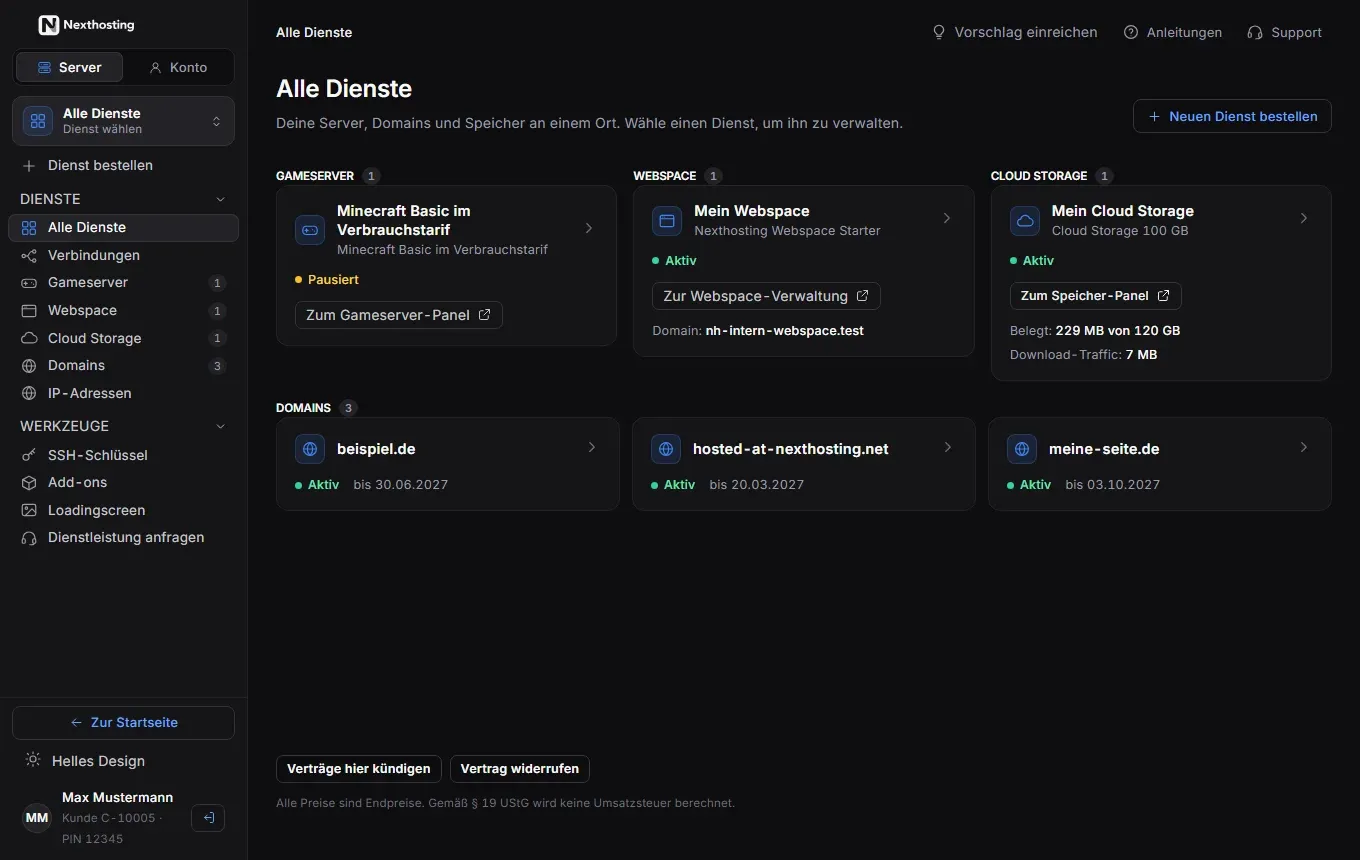
The Server Hub: choose your VPS or dedicated server here, then open Templates (Vorlagen).
While the installation runs (2 to 10 minutes, depending on the app), restart, stop, reinstall and backup of the server are locked. “Power off now” always works.
Domain for HTTPS
Section titled “Domain for HTTPS”Nextcloud, Vaultwarden and n8n need their own domain so they can get a regular SSL certificate from Let’s Encrypt. For Uptime Kuma, Portainer and the WireGuard management page, it’s optional.
The domain has to point to your server’s IP beforehand (A record). If it has an AAAA record, it must point to your server’s IPv6. If the domain is with Nexthosting, Connect domain in the Server Hub does this in one click. The template checks this before it starts and tells you exactly what’s still missing.
Several apps with HTTPS share one small proxy on ports 80 and 443 on a server – each with its own domain.
What the templates do for you
Section titled “What the templates do for you”- Only official downloads with a checksum, signature or pinned image (Docker digest).
- Firewall (ufw): only the app’s ports, SSH always stays open. If other services are already running, they stay reachable.
- The template creates admin accounts itself. An app’s setup page is never open to the internet.
- If you run a template again, it repairs the setup. Your data and login details stay.
Emails from your apps
Section titled “Emails from your apps”On VPS, the outgoing mail ports 25, 465 and 587 are blocked at first. For emails from Vaultwarden, n8n, Uptime Kuma or Nextcloud, use an external mail service that also offers port 2525, or request the unlock in the Server Hub, on the Firewall tab, at the fixed mail rule (with a short reason; the answer comes in your ticket). More in Securing your VPS.
Settings without SSH
Section titled “Settings without SSH”For TeamSpeak, Mumble, Minecraft and the Docker apps, there’s an App tab in the Server Hub after installation. More on this under App settings in the Server Hub.
If something doesn’t work
Section titled “If something doesn’t work”The Server Hub shows which step it got stuck on. For input or prerequisite errors (for example the domain doesn’t point to the server yet, the port is already in use, not enough RAM), it tells you what to do. For errors on the server, we automatically create a support ticket with the log. The full log is on your server under /var/log/nh-vorlage.log.