

08Cloud Storage
Set up custom alerts for storage and traffic
Set your own alert rules in Nexthosting Cloud Storage and get notified by email, Discord or webhook before your disk is full or your traffic runs out.
In short
Under Settings (Einstellungen), Custom alerts (Eigene Warnungen) you decide when you want to be notified: for example when your storage is 90% full or when an unusual amount is downloaded in one day. The message arrives by email, Discord or at your own webhook address. Each rule notifies you at most once per period.
Fixed notifications and custom alerts
Section titled “Fixed notifications and custom alerts”These are two separate things:
- Fixed notifications (Settings, Notifications): the panel notifies you at 80% used, 95% used and “Storage full”, by email or Discord as you choose. A lock, an announced deletion and a reached spending limit always come by email.
- Custom alerts (this page): rules with your own thresholds for exactly the values that matter to you.
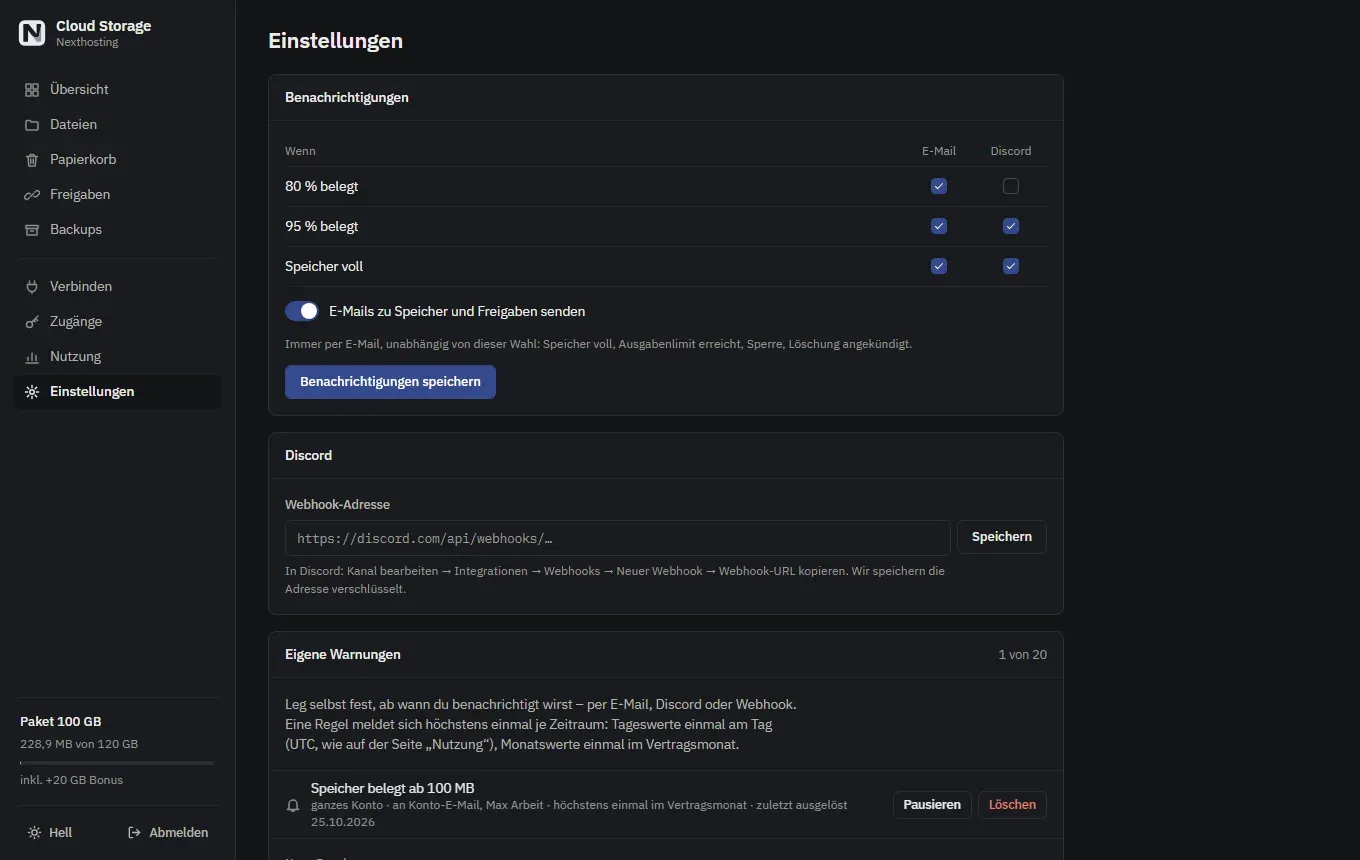
The settings: fixed notifications at the top, custom alerts below.
- Fixed notifications at 80%, 95% and “Storage full”, each by email or Discord
- Discord: webhook address of your channel
- Custom alerts: each rule with its target, period and the buttons Pause (Pausieren) and Delete (Löschen)
What can you monitor?
Section titled “What can you monitor?”| Measure | Scope | Period |
|---|---|---|
| Storage used | whole account or one bucket | continuous |
| Download traffic in the contract month | whole account | contract month |
| Download traffic in one day | all share links or one link | day |
| Requests in one day | whole account | day |
| Downloads via share links in one day | all share links or one link | day |
You enter the threshold in GB, as a percentage of your package (only for the whole account, for storage and monthly traffic) or as a count. Daily values are based on UTC, as on the Usage page. The panel checks all rules about every 5 minutes. A rule notifies you once a day for daily values and once per contract month for monthly values.
You can create up to 20 rules.
Create a rule
Section titled “Create a rule”- Open Settings, then Custom alerts.
- Under When (Wenn), choose the measure, and under For (Für), the scope (whole account, all share links, one bucket or one link).
- Enter the threshold and the unit.
- Under Notify (Benachrichtigen), tick at least one target. The account email is always included.
- Click Create rule (Regel anlegen).
In the rule list you can see when a rule last triggered. With Pause and Resume (Fortsetzen) you switch it off and on, and with Delete you remove it. A rule for a bucket or link that no longer exists is marked “Bucket or link no longer exists” and no longer sends anything.
Targets: where the message goes
Section titled “Targets: where the message goes”Under Targets (Ziele) you manage up to 10 targets of your own. A rule can have up to 5 of them, in addition to the account email.
The account email is always active. For a further address, the panel first sends you a confirmation email. Alerts only go there once the recipient clicks the link in it. The link is valid for 72 hours; if it expires, send a new email with Resend confirmation (Bestätigung erneut senden). At most 3 addresses can wait for confirmation at the same time.
Discord
Section titled “Discord”Create a webhook in Discord: edit channel, Integrations, Webhooks, New Webhook, copy the webhook URL. Enter it as a target. With Send test (Test senden) you check whether the message arrives. The address is stored encrypted.
Custom webhook
Section titled “Custom webhook”A custom webhook is an address on your system that accepts alerts as a message. The address must start with https://, be publicly reachable (internal networks are blocked), must not redirect, and must reply with a 2xx status within 5 seconds. Port 443 and ports from 1024 are allowed.
The panel sends the alert as a POST with JSON content. Important headers:
| Header | Content |
|---|---|
X-NH-Ereignis |
warnung or test |
X-NH-Zustellung |
a unique ID of the delivery |
X-NH-Signatur |
t=ZEIT,v1=SIGNATUR |
The JSON body of an alert contains these fields:
| Field | Content |
|---|---|
ereignis |
warnung (alert) |
id |
unique ID of this delivery (same as X-NH-Zustellung) |
zeit |
time of delivery in UTC (ISO 8601) |
kunde |
your customer number |
betreff, text |
subject and short text of the alert in the language of your account |
sprache |
language of the texts |
regel |
the rule that fired: id, messgroesse (metric), bereich (scope), bucket or link (depending on the scope, otherwise null), schwelle (threshold), einheit (unit) |
wert |
the measured value |
wert_einheit |
for rules in percent the reference value, otherwise null |
zeitraum, zeitraum_bis |
the period looked at and its end (UTC) |
warnung_id |
stays the same when the same alert is repeated, so you can spot duplicates |
A test message (ereignis = test) only contains id, zeit, kunde, betreff, text and sprache.
Every message is signed. The SIGNATUR is an HMAC-SHA256 (hexadecimal) with your webhook secret over ZEIT, a dot and the unchanged content. Also check that ZEIT is not older than 5 minutes. Example of the check in Node.js:
import { createHmac, timingSafeEqual } from 'node:crypto';
function signaturPruefen(kopfzeile, rohInhalt, geheimnis) {  const [t, v1] = kopfzeile.split(',').map((teil) => teil.split('=')[1]);  if (Math.abs(Date.now() / 1000 - Number(t)) > 300) return false;  const erwartet = createHmac('sha256', geheimnis).update(`${t}.${rohInhalt}`).digest('hex');  return timingSafeEqual(Buffer.from(erwartet), Buffer.from(v1));}
The secret is created with your first webhook and is shown only once. With Generate new secret (Neues Geheimnis erzeugen) you replace it. The old one then stops working immediately.
States of a target
Section titled “States of a target”| State | Meaning |
|---|---|
| active | Alerts arrive. |
| waiting for confirmation | The recipient has not yet clicked the link in the confirmation email. |
| confirmation expired | The link was valid for 72 hours. Send a new confirmation. |
| recipient unsubscribed | The address has unsubscribed from alerts. It cannot be entered again. |
| paused after errors | Several deliveries in a row failed. Fix the cause and click Reactivate (Wieder aktivieren). |
The number of alerts and tests per day is limited. The panel shows a message when you reach the limit.
Privacy
Section titled “Privacy”Which data Nexthosting stores for this is described in the privacy policy in the section on Cloud Storage. General information is explained in Privacy and DPA.
Frequently asked questions
Section titled “Frequently asked questions”I get no alert even though the threshold is exceeded.
Section titled “I get no alert even though the threshold is exceeded.”Check whether the rule is paused, whether it has at least one active target, and whether the target is “active”. A rule also notifies you only once per day or contract month. Also look in your spam folder.
Which threshold makes sense?
Section titled “Which threshold makes sense?”For storage, often 80% and 95%. For downloads, a daily value slightly above your normal day, so you notice unusually many requests right away, for example when a link suddenly spreads widely.
Can I send alerts to my team?
Section titled “Can I send alerts to my team?”Yes: a further email address (after confirmation), a Discord channel or a custom webhook.