

06Web hosting & WordPress
Web panel login for Webspace and WordPress
Log in to the Nexthosting web panel at webpanel.nexthosting.net, set a new password and find your websites, email, databases and backups.
In short
Your Webspace and WordPress hosting are managed in the web panel: webpanel.nexthosting.net. The easiest way in is one click: in the customer account open Dienste (services) → Deine Produkte (your products) → Ansehen (view) and click the Login button on your web hosting’s product page. Alternatively, log in directly at webpanel.nexthosting.net with the email address of your shop account and set your password via Passwort vergessen? (Forgot password?). The welcome email contains no login details.
Customer account and web panel: two different areas
Section titled “Customer account and web panel: two different areas”| Area | Address | Used for |
|---|---|---|
| Customer account | nexthosting.net/account | Ordering, invoices, contracts, cancellation, tickets |
| Web panel | webpanel.nexthosting.net | Websites, domains, email, databases, files, backups, PHP, SSL |
You handle everything to do with money and contracts in the customer account, and everything technical about your website in the web panel. For an overview of all areas, see Where do I find what?.
Way 1: One click from the customer account (recommended)
Section titled “Way 1: One click from the customer account (recommended)”You do not need a web panel password of your own for this.
- Log in to the customer account.
- In the Dienste (services) menu open Deine Produkte (your products) and click Ansehen (“view”) next to your Webspace or WordPress hosting.
- On the product page, in the Übersicht (overview) tab, click the large Login button at the bottom.
- The web panel opens and you are logged in.
Way 2: Directly at webpanel.nexthosting.net
Section titled “Way 2: Directly at webpanel.nexthosting.net”The welcome email (“Dein Produkt … ist nun verfügbar”, your product is now available) only says that you manage your product via the customer portal. It contains no login details, user name or password. For a direct login you set your password yourself: the web panel user is registered under the email address of your shop account. Open the login page, click Passwort vergessen? (Forgot password?), enter that address and set a password via the link in the email (see below).
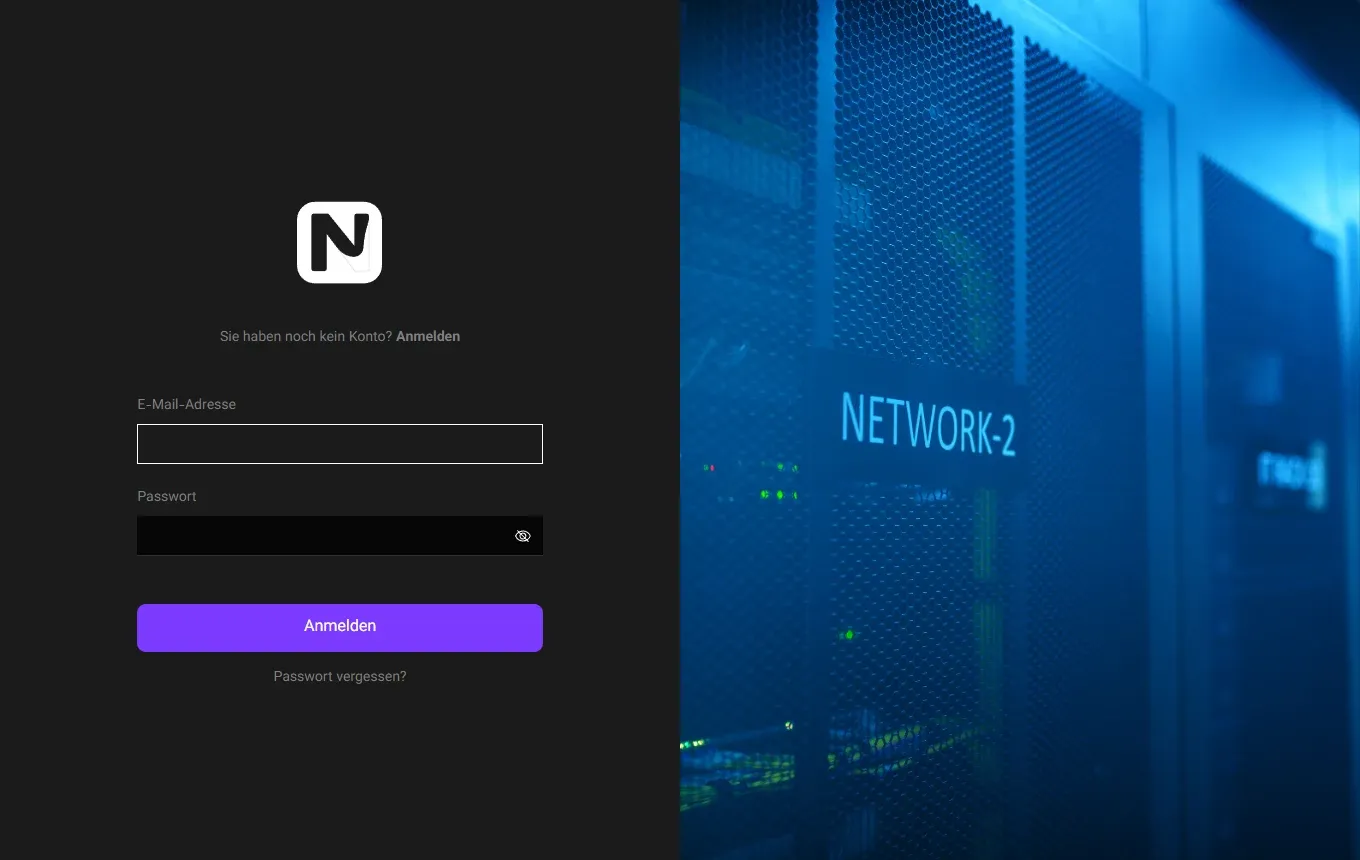
The login page of the web panel.
- Email address of your shop account (this is how your web panel login is set up)
- Password (the eye icon makes it visible)
- Anmelden (Log in)
- Passwort vergessen? (Forgot password?) – lets you set a new password via email
- Open webpanel.nexthosting.net in your browser.
- Enter the email address of your shop account and your web panel password.
- Click Anmelden.
- You land on the overview. The main areas are in the sidebar on the left, for example Websites.
Forgotten password
Section titled “Forgotten password”- On the login page, click Passwort vergessen? (Forgot password?).
- Enter the email address of your shop account.
- Open the email with the link and set a new password.
The web panel password is a separate password. It is not automatically the same as the password of your customer account, your mailboxes or your WordPress admin.
How the web panel is organized
Section titled “How the web panel is organized”The names of the menu items depend on the language set in the web panel. This help uses the names as they appear in the interface; where they may be named differently in German, the function is given alongside.
| Where | What you do there | Guide |
|---|---|---|
| Websites (sidebar) | See all websites, create new ones, clone, staging sites | Create a website |
| Website → Domains | Add domains and subdomains, set the primary domain, DNS records | Managing DNS records |
| Website → Files | File manager in the browser | Uploading files |
| Website → Databases | Databases and users, phpMyAdmin | Databases and phpMyAdmin |
| Website → WordPress / WP Toolkit | WordPress updates, plugins, themes, one-click login | Maintaining WordPress |
| Website → Advanced → Developer tools | PHP version, php.ini, cron jobs, SSH, Redis, PHP error log | PHP settings |
| Website → Advanced → Backups | View and restore backups | Backups |
| Website → Advanced → Security | SSL certificates | SSL and HTTPS |
| Website → Advanced → Redirects | Redirects (301/302) | Error 404 and redirects |
| Email (sidebar) | Mailboxes and forwarding | Email mailboxes |
When you click a website, its Dashboard opens. The website’s areas (Domains, Files, Databases …) are along the top, and the less frequently used tools are under Advanced.
Securing your access
Section titled “Securing your access”- Use a long password that you use nowhere else. A password manager helps.
- If the web panel offers two-factor authentication in your profile, turn it on.
- Do not give your web panel password to service providers. For file access there are separate FTP or SSH accounts that you can delete again after the work is done (Uploading files).
- More tips in Account security and Website security.
Frequently asked questions
Section titled “Frequently asked questions”Can I log in to the web panel with my customer account login?
Section titled “Can I log in to the web panel with my customer account login?”Not directly at webpanel.nexthosting.net: there a web panel password of its own applies. But you get in without that password if you use the Login button on your web hosting’s product page in the customer account. For a direct login use the email address of your shop account; you set a password via Passwort vergessen? (Forgot password?).
I have several web hosting contracts. Do I need several logins?
Section titled “I have several web hosting contracts. Do I need several logins?”That depends on how the contracts were set up. If you do not see all your websites after logging in, send the contract numbers to Support.
The web panel does not load. What should I do?
Section titled “The web panel does not load. What should I do?”Check the status page, which has an entry called “Webpanel”. If everything is green there, clear your browser cache or try another browser. More in Status page and maintenance.