

04Game guides
Rent and set up a Garry's Mod server – guide
How to set up your Garry's Mod server at Nexthosting – plans, joining with connect, DarkRP and TTT in one click, Workshop collection, FastDL and admin rights.
In short
You order a plan, the server sets itself up after payment, and your players connect with connect address:port in the game console or via the server browser. You set up DarkRP, Trouble in Terrorist Town (TTT) and Sandbox with one click in the panel under Vorlagen (templates), and Workshop addons via the ID of your collection.
At Nexthosting, Garry’s Mod runs on its own server with console, file manager, SFTP, backups and FastDL. Slots are not limited – you set the number of players yourself. This page takes you from ordering to your first join and explains where the important files are.
The process in four steps
Section titled “The process in four steps”- OrderChoose plan and gamemode
- Server startsusually within a few minutes
- after payment
- Copy the addressin the panel, at the top of the server header
- Connect in the gameConsole or server browser
Plans and prices
Section titled “Plans and prices”All plans have DDoS protection, the panel and a location in Frankfurt am Main. The plans differ in memory (RAM), processor power, storage and extras (as of October 2026, final prices under § 19 German VAT Act, no setup fee). Current prices are on the Garry’s Mod page in the shop.
| Plan | Price per month | RAM | CPU | Storage | Backups | Port forwards | Databases |
|---|---|---|---|---|---|---|---|
| Basic | €9.99 | 3 GB | 100% | 20 GB | 1 | 1 | 1 |
| Advanced | €14.99 | 6 GB | 100% | 30 GB | 3 | 1 | 2 |
| Premium | €19.99 | 8 GB | 100% | 40 GB | 3 | 1 | 5 |
| Community | €26.99 | 12 GB | 125% | 60 GB | 5 | 2 | 10 |
| Custom configuration | from €6.23 | freely selectable | free | flexible | – | – | – |
FastDL, Workshop integration and your own Lua addons come with every plan. As a rule of thumb, the shop page suggests about 1 to 2 GB of RAM per 10 active players: DarkRP with 32 slots runs well on 6 to 8 GB, TTT with 16 to 24 players on 4 to 6 GB. Many large Workshop addons need more. More on this at All games and plans at a glance.
First steps after ordering
Section titled “First steps after ordering”- Open your customer account, go to Dienste (services) → Deine Produkte (your products) → Ansehen (view) and click Gameserver-Panel öffnen. Details: Opening the panel.
- Wait until the status at the top of the server header says Läuft (running). The first start downloads the game and can take a while.
- Copy the address in the server header (IP address and port, for you e.g.
195.201.57.54:35600). The copy button is right next to it. - In the Startvariablen (startup variables) under Konfiguration → Start, set the gamemode, map, maximum number of players and your Workshop collection. Then restart the server.
- Connect yourself as a test (see below).
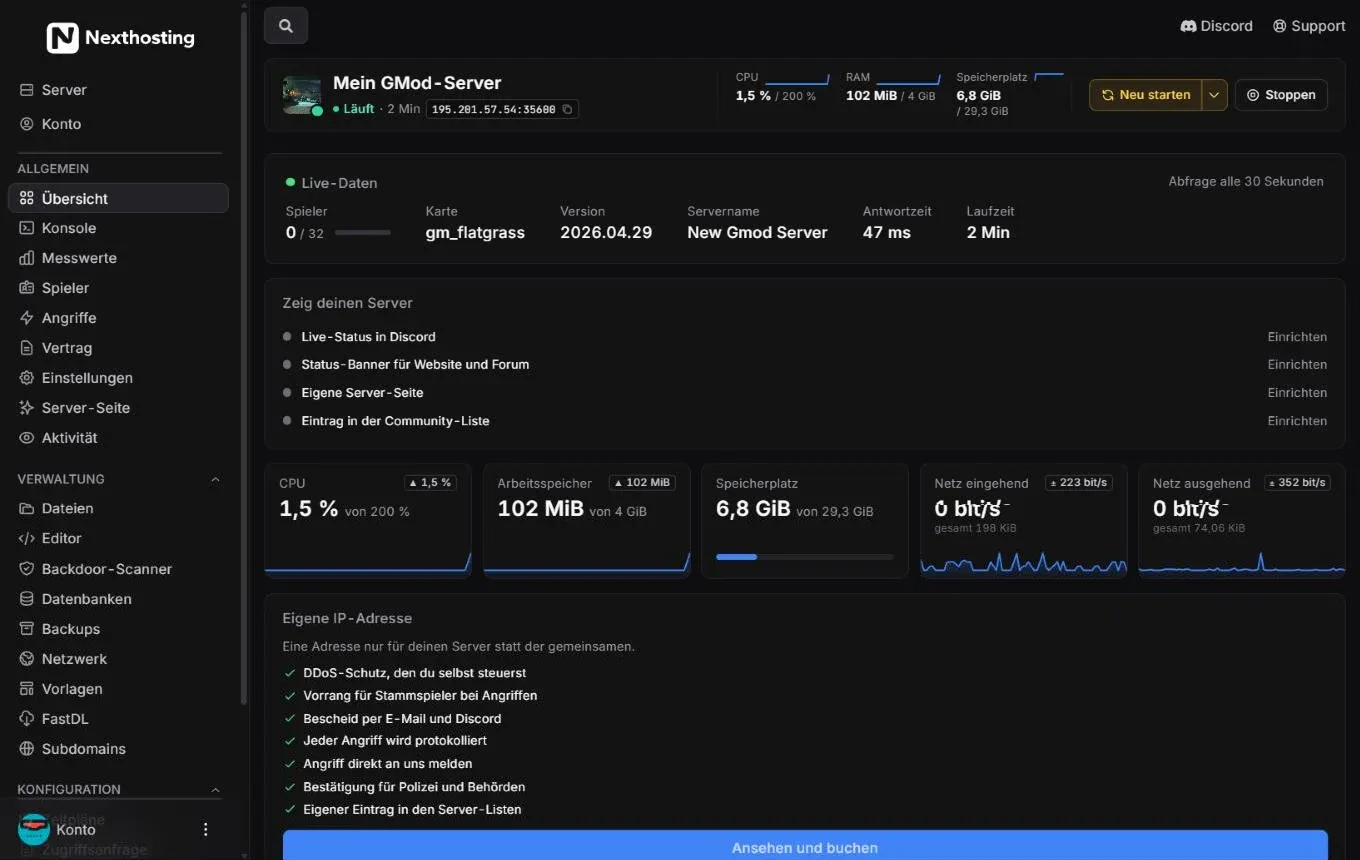
Your server’s overview – here a Garry’s Mod example server.
- Address with IP and port to copy – your players need this
- Restart (the arrow next to it: schedule a restart) and stop
- Live data: players, map, version, response time, uptime
- Console in the sidebar
How players join
Section titled “How players join”The address consists of an IP address and a port. The port is different for every server – use exactly the one your panel shows.
- Start Garry’s Mod. Switch on the developer console (Options → Keyboard → Advanced → “Enable developer console”) and open it with the
~key or^, depending on your keyboard layout. - Enter:
connect 195.201.57.54:35600(use your own address). - If the server has a password, enter
password your-passwordbeforehand or type it into the dialog.
Main menu → Find Multiplayer Game (server browser). Your server appears in the Internet tab with name, gamemode, map and player count as soon as it has registered with Steam. Use Favorites to save it for later.
In the Steam client: View → Game Servers → Favorites → Add a Server (the menu names depend on your Steam language) and enter the address. After that the server is in the game’s favourites list.
Console and commands
Section titled “Console and commands”The console shows everything your server outputs and accepts commands. In the example below you can see the startup: mounted addons, the loaded server.cfg and the connection to Steam. You can filter errors and warnings at the top.
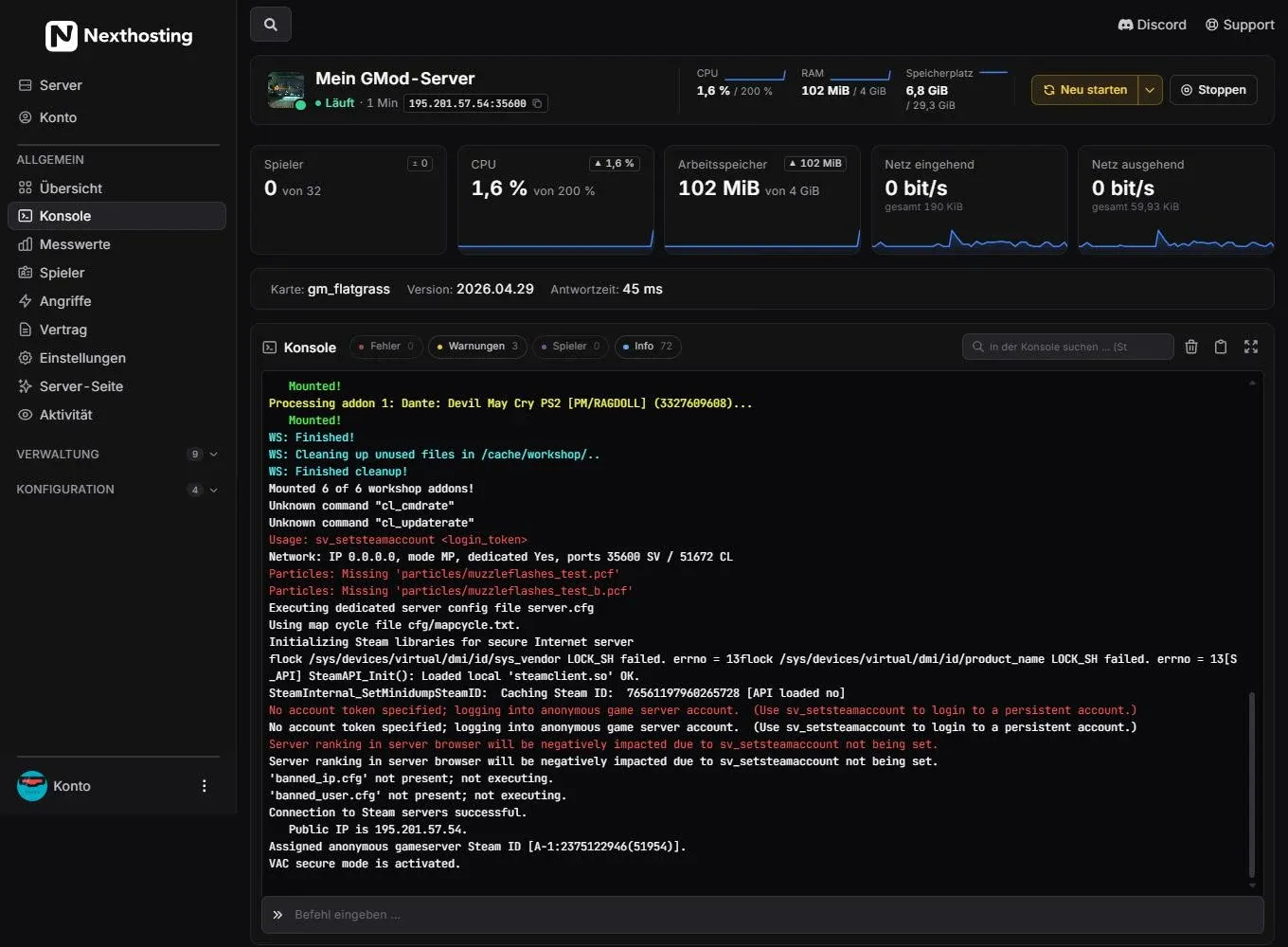
The console of the Garry’s Mod server.
- Filters for errors, warnings, players and info
- Server output (here: Workshop addons are being mounted)
- Input line for commands
Useful commands in the panel console:
| Command | Effect |
|---|---|
status |
shows the server name, map and connected players |
changelevel gm_flatgrass |
switches the map |
kick Name / banid 0 SteamID |
kicks or bans a player |
say Text |
sends a message to everyone |
sv_password secret |
sets a password while the server is running |
More help on using it: Console and controls.
Changing gamemode: DarkRP, TTT, Sandbox
Section titled “Changing gamemode: DarkRP, TTT, Sandbox”In the panel under Vorlagen (templates) you will find the one-click setup. On the overview page it appears at the bottom as the box Ein-Klick-Einrichtung (one-click setup):
- DarkRP – roleplay with jobs and an economy. The server must be stopped for this.
- Trouble in Terrorist Town – only changes start variables.
- Sandbox – back to building and playing without rules. Only changes start variables.
- There is also ULX Admin-Mod as a template if you want to manage rights by command.
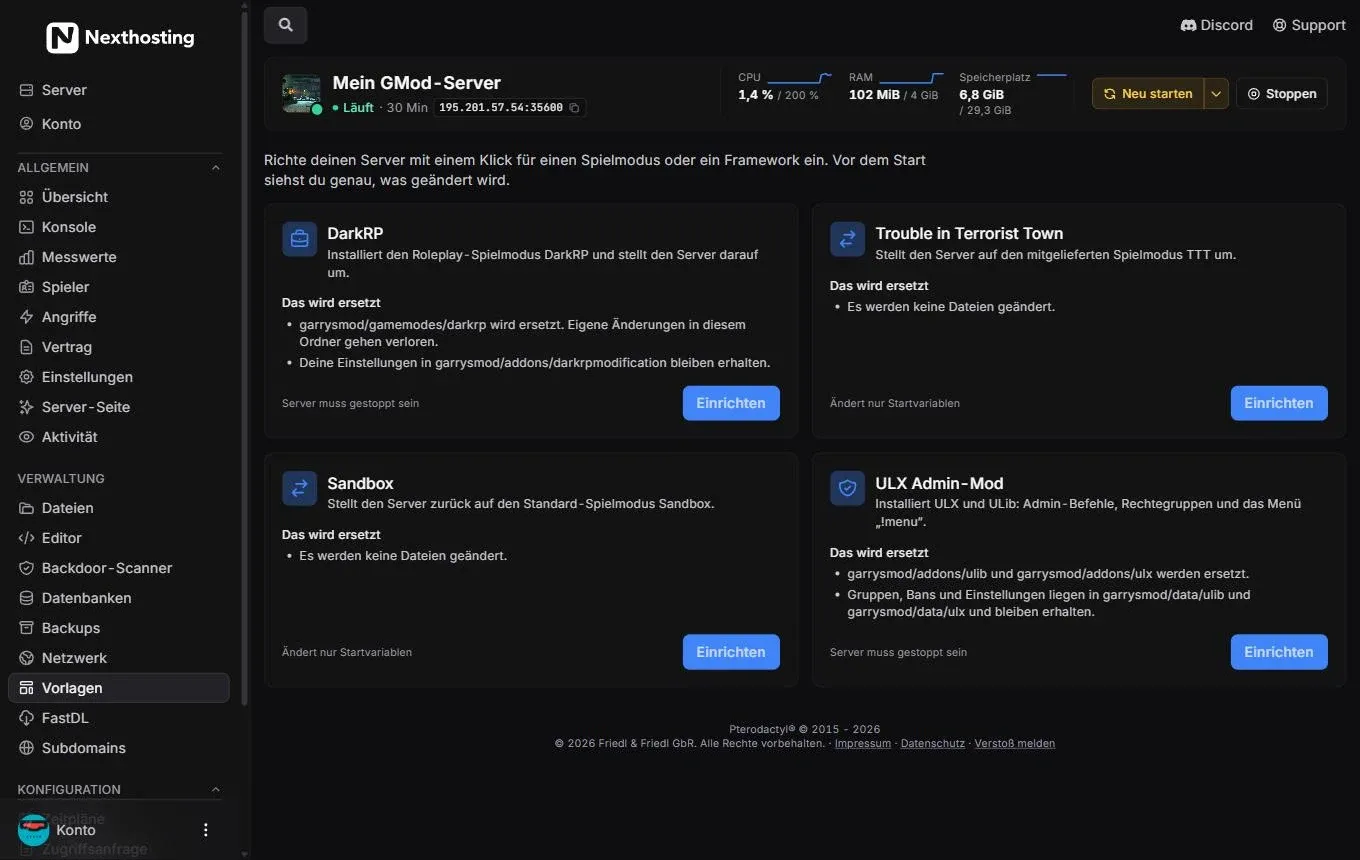
The Vorlagen (templates) page shows what will be changed before you set anything up.
- Set up DarkRP (replaces the folder garrysmod/gamemodes/darkrp, the server must be stopped)
- Set up Trouble in Terrorist Town (only changes start variables)
- Set up Sandbox (only changes start variables)
- Set up ULX admin mod (replaces the ulx and ulib folders, groups and bans are kept)
The same entries are also at the bottom of the overview, together with the Verlauf (history; 24 hours, 7 or 30 days) – this shows you whether your RAM is enough.
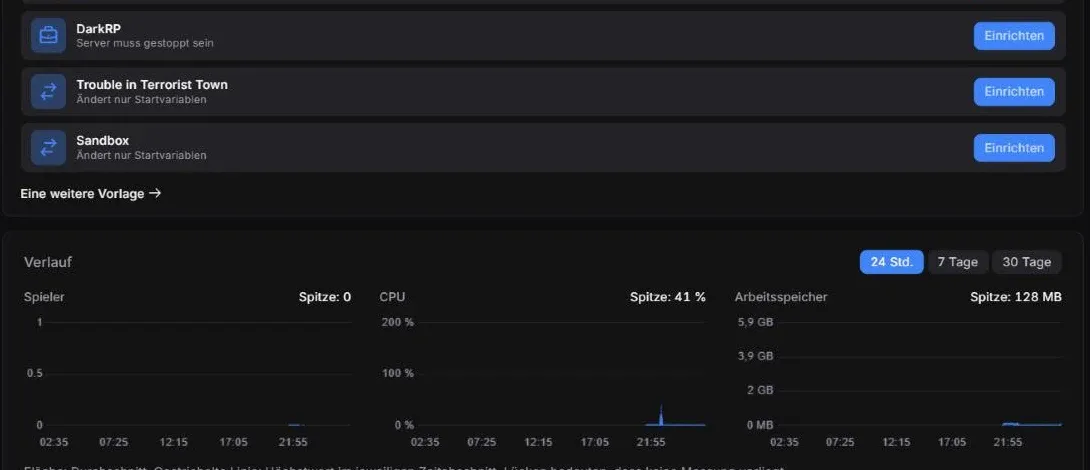
One-click setup and history.
- History for 24 hours, 7 or 30 days
Before every template, the panel shows what will be installed or replaced, and offers a backup. Accept it, especially for DarkRP. Background: Templates, mods and modpacks and Backups.
Workshop addons and your own addons
Section titled “Workshop addons and your own addons”- Create a collection in the Steam Workshop containing all the addons your server should load.
- The Workshop ID is the number at the end of the collection’s address (
…/filedetails/?id=123456789). - Enter the ID in the startup variables in the field for the Workshop collection and restart the server. The server downloads the addons at startup.
- Upload your own addons (Lua folders) to
garrysmod/addonsusing the file manager or SFTP. File manager and SFTP: Files, editor and SFTP.
You can also register individual Workshop addons in a Lua file with resource.AddWorkshop("ID"). This makes your players download the content when they join. For large servers the collection is easier to maintain.
FastDL and loading screen
Section titled “FastDL and loading screen”FastDL is a fast download route for maps, materials, models and sounds. You switch it on in the panel with one click (section FastDL); Nexthosting provides the files from its own infrastructure and enters the address in your server.cfg. You do not need your own web space. The details are in FastDL and loading screen.
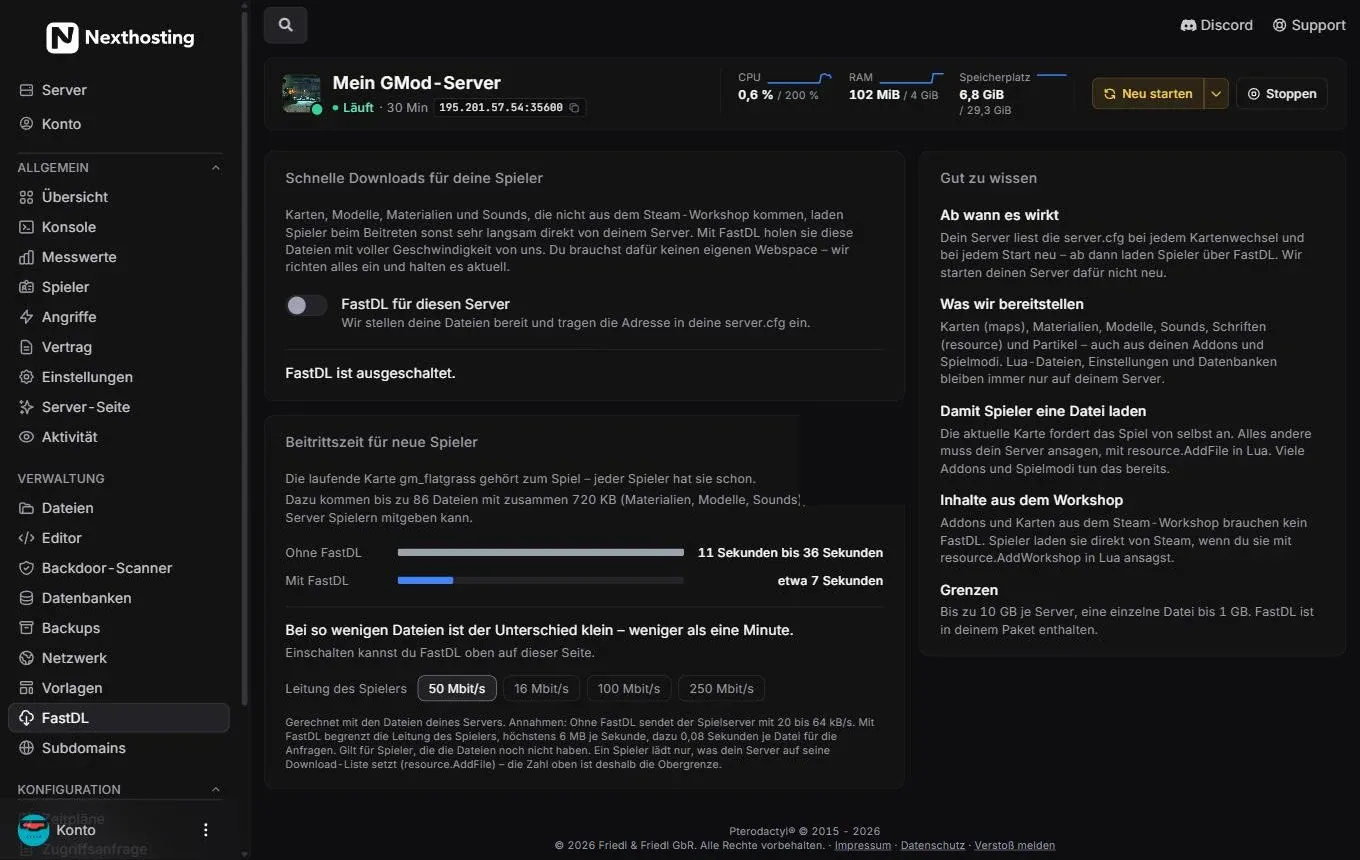
The FastDL page (still switched off here).
- Switch FastDL für diesen Server (FastDL for this server)
- Calculation of how much faster new players join with FastDL – FastDL takes effect from the next map change or start
The loading screen generator gives you a ready-made sv_loadingurl line for the loading screen. As a customer you create it at tools.nexthosting.app (up to 10 designs), copy the line into garrysmod/cfg/server.cfg and restart.
Important files
Section titled “Important files”Directorygarrysmod
Directorycfg
- server.cfg Server name, passwords, rules
- mapcycle.txt Map rotation
- addons Your own addons
- gamemodes Your own gamemodes
- data Data from addons
Directorylua
Directoryautorun
- server Lua files that run at startup
A basic skeleton for garrysmod/cfg/server.cfg. Open the file in the Editor or the file manager, change only the lines you need, and restart:
hostname "[DE] My DarkRP server"sv_password ""rcon_password "a-long-secret-password"sv_region 3sv_kickerrorlimit 0sv_region 3 assigns the server to Europe. You enter the gamemode, map, player count and Workshop collection in the startup variables, however, not in the file. Some lines for FastDL and the loading screen are set automatically – only change them if you know what you are doing.
Admin rights and player management
Section titled “Admin rights and player management”- With ULX: set up the ULX Admin-Mod template and give yourself rights in the panel console:
ulx adduser YourName superadmin(the player must be online). - With SAM or FAdmin: follow the addon’s instructions. You grant rights in the console or in their configuration.
- Player management in the panel: under Spieler (players) you switch on a small Lua file, after which you kick and ban players directly in the panel. It works with SAM, ULX/ULib, FAdmin or its own list.

Player management is switched on with one click. More on this: Tools, scanner and player management.
Anyone who should help manage the server is best given their own access instead of your password: Friends and sub-users.
Cleaning up storage and checking addons
Section titled “Cleaning up storage and checking addons”If you switch the Workshop collection or remove addons, the old files stay on the server and keep counting towards your storage. In the Einstellungen (settings) there is the box Workshop-Speicher (Workshop storage) with the button Speicher prüfen (check storage) for this.
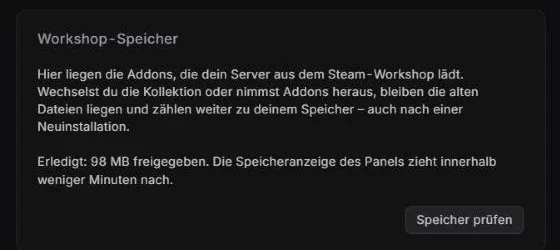
The Workshop storage box.
- Speicher prüfen cleans up Workshop files that are no longer needed – the panel’s display catches up after a few minutes
The backdoor scanner (sidebar, group Verwaltung, “management”) checks addons and files for hidden malicious functions (“backdoors”). A run is especially worthwhile for addons from unreliable sources. You start it with Jetzt prüfen (check now) or switch on the regular check every 24 hours.
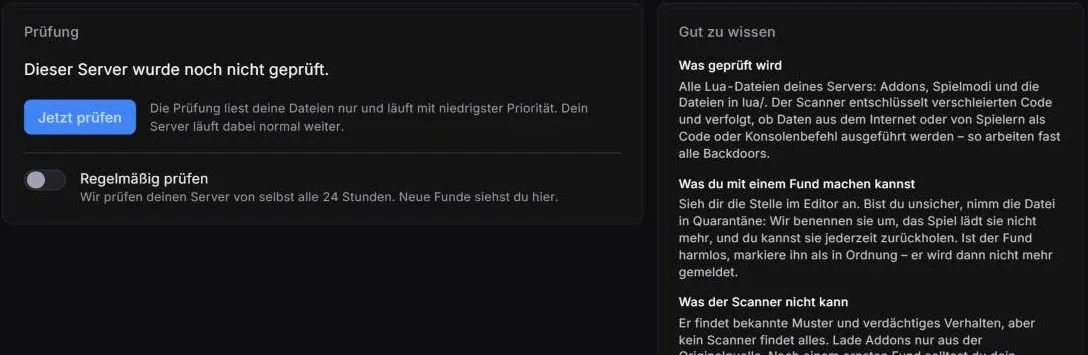
The backdoor scanner with the “Gut zu wissen” (good to know) info box.
Typical problems
Section titled “Typical problems”| Problem | Cause and solution |
|---|---|
| Server does not start or hangs | Read the console from the top. Usually it helps to remove the most recently installed addon. Check whether a line in server.cfg has a typo. |
| “Workshop addon missing” or error symbols in the game | Check the collection ID, restart the server, switch on FastDL. |
| Server is not in the server browser | It takes a few minutes after startup. Until then connect with connect. Check whether a password is set. |
| Lag with many players | Look for RAM and CPU peaks in the Verlauf (history), reduce addons or add more RAM: Extend server and Boost. |
| Storage full | Check storage in the panel, clean up Workshop-Speicher, delete old backups. |
| Players load forever | Switch on FastDL, offer maps and content via FastDL, use a loading screen. |
If that does not help, use Problem melden (report a problem) in the panel: it creates a ticket with an automatic diagnosis (Reporting a problem).
Frequently asked questions
Section titled “Frequently asked questions”How many players fit on my server?
Section titled “How many players fit on my server?”There are no fixed slots. You set the number in the startup variables; the plans differ in RAM and performance. The player numbers in the plans are guidelines and depend on addons and map.
Which plan suits DarkRP?
Section titled “Which plan suits DarkRP?”For small DarkRP servers Basic is enough. With many Workshop addons, custom jobs and an active community Advanced is the better choice, because extensive Lua scripts need more RAM.
Can I switch later?
Section titled “Can I switch later?”Yes. Moving up is possible at any time, with the difference charged pro rata. Moving down happens at the end of the term. World, addons and settings are kept. More: Changing plan and upgrades.
Are backups included?
Section titled “Are backups included?”Yes, 1 to 5 backup slots depending on the plan. You back up with one click or on a schedule and restore with one click. See Backups and databases.