

03Game server panel
Server overview in the game server panel explained
The overview page of your Nexthosting game server explained – header, live data, load, one-click setup, history and SFTP access, with screenshots.
In short
The Übersicht (overview) is the start page of every server. At a glance it shows whether your server is running, how many players are online and how heavily it is loaded. From here you set up game modes with one click and find your SFTP login details.
The upper part
Section titled “The upper part”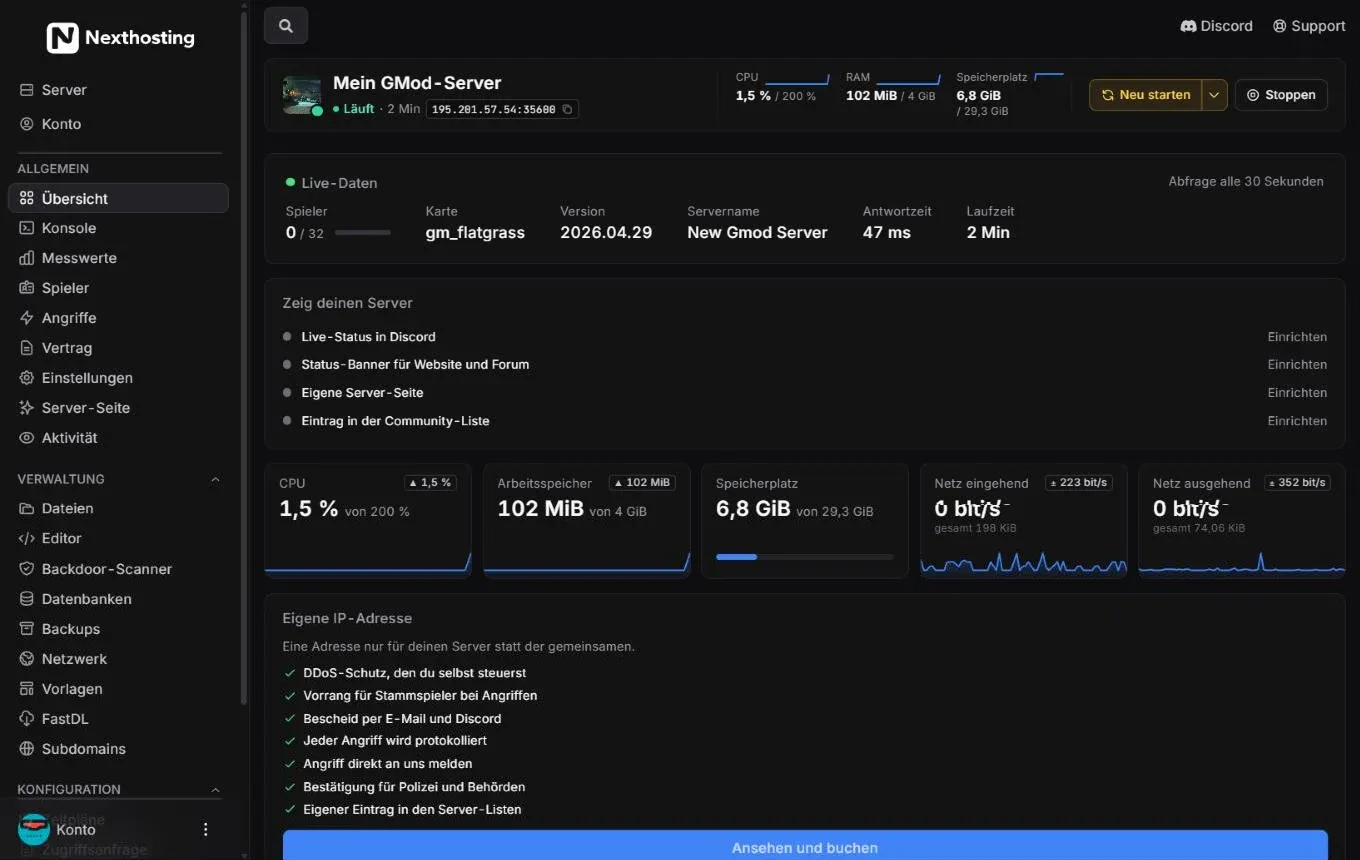
Header, live data, “Zeig deinen Server” (show your server), load and the offer for a dedicated IP address.
- Header: server name, status (“Läuft” – running), how long it has been running, and the address with a copy icon
- Load in the header: CPU, RAM and storage, each with your limit
- Control buttons: Neu starten (“restart”), arrow for “schedule a restart”, Stoppen (“stop”)
- Live-Daten (live data) from the game
- Zeig deinen Server (show your server) – Discord status, banner, server page, community list
- Tiles with current load and a small history
- Eigene IP-Adresse (dedicated IP address) box
Header and address
Section titled “Header and address”The header appears on every page of the server. Your players need the address (IP and port, for example 195.201.57.54:35600) to connect. Clicking the copy icon puts it on the clipboard. If the server is stopped, a green Starten (“start”) button appears there instead. More on this under Console and controls.
The numbers for CPU, RAM and storage show the current value and the limit of your plan. For the CPU, 100 % stands for one core – so “200 %” means two cores.
Live data
Section titled “Live data”The Live-Daten box queries the game server itself, every 30 seconds. It shows:
| Field | Meaning |
|---|---|
| Spieler (players) | Players online / maximum slots |
| Karte (map) | Currently loaded map, e.g. gm_flatgrass |
| Version | Version of the game server |
| Servername (server name) | Name under which the server appears in the game’s server list |
| Antwortzeit (response time) | How quickly the server answers the query |
| Laufzeit (uptime) | How long the server has been running without a restart |
Not every game answers this query. If the player count or map is missing, it is usually down to the game, not your server.
Show your server
Section titled “Show your server”Here you set up how your community sees your server: Live-Status in Discord (live status in Discord), Status-Banner für Website und Forum (status banner for website and forum), Eigene Server-Seite (your own server page) and Eintrag in der Community-Liste (entry in the community list). Each item has a link Einrichten (“set up”). Everything about it is under Show your server: Discord, banner, page.
The tiles show CPU, RAM, storage as well as Netz eingehend (network in) and Netz ausgehend (network out). The small line below is the history of the last few minutes, the small box at the top right the change. For longer periods and details, open the metrics.
Dedicated IP address
Section titled “Dedicated IP address”The box explains what your own address gives you – for example DDoS protection that you control yourself, priority for regular players during attacks and an entry of your own in the server lists. Ansehen und buchen (“view and book”) takes you to the booking. See Dedicated IP address.
The lower part
Section titled “The lower part”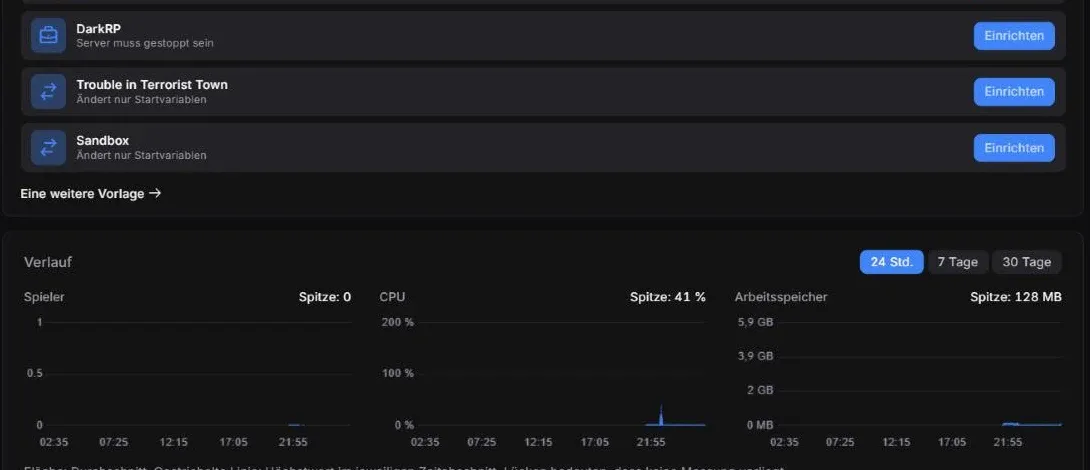
One-click setup and history on the overview of a Garry’s Mod server.
- Einrichten (“set up”) starts a template
- Eine weitere Vorlage (one more template) opens all templates
- Time range of the history: 24 Std. (24 h), 7 Tage (7 days), 30 Tage (30 days)
- Peak (Spitze) in the selected time range
One-click setup
Section titled “One-click setup”Here you set up typical extensions and game modes without copying files yourself. For Garry’s Mod, for example, these are:
- FastDL – “Schnelle Downloads für deine Spieler” (fast downloads for your players)
- Ladebildschirm (loading screen) – “Kostenlos für deinen Server” (free for your server), button Gestalten (“design”)
- DarkRP – “Server muss gestoppt sein” (the server must be stopped)
- Trouble in Terrorist Town and Sandbox – “Ändert nur Startvariablen” (only changes startup variables)
Which entries appear depends on the game. How templates work in detail is explained under Templates, mods and modpacks.
History
Section titled “History”The Verlauf (history) shows players, CPU and RAM over 24 hours, 7 days or 30 days. The filled area is the average, the dashed line the peak within each time slice. Gaps mean there is no measurement for that time – for example because the server was off.
Server details and SFTP access
Section titled “Server details and SFTP access”Further down the overview you find the Serverdaten (server details): status, “Läuft seit” (running since), hostname, IP, node and server ID. This information helps support when you ask a question.
The SFTP-Zugang (SFTP access) box shows the address sftp://nodede1.nexthosting.net:2022 and your SFTP username (panel-username.server-id). SFTP öffnen (“open SFTP”) starts a suitable program if one is installed. Your SFTP password is your panel password. The detailed guide is under Files, editor and SFTP.
Frequently asked questions
Section titled “Frequently asked questions”Why does the CPU show more than 100 %?
Section titled “Why does the CPU show more than 100 %?”100 % corresponds to one full processor core. If your plan has two cores, the display can go up to 200 %.
The live data shows 0 players although someone is online.
Section titled “The live data shows 0 players although someone is online.”The query runs every 30 seconds – wait a moment. If it stays at 0, check in the console whether the server has fully started. Some games do not report their player count.
What do MiB and GiB mean?
Section titled “What do MiB and GiB mean?”These are size units based on 1024 instead of 1000. 1 GiB is about 1.07 GB. In practice you can read them like MB and GB.