

03Game server panel
Files, editor and SFTP for your game server
Manage the files of your Nexthosting game server – file manager in the browser, editor like VS Code, and SFTP with FileZilla or WinSCP, step by step.
In short
You make small changes right in the browser: under Dateien (files – the file manager) and Editor. For many or large files – such as a whole world or an addon folder – use an SFTP program like FileZilla or WinSCP. Address: sftp://nodede1.nexthosting.net:2022, password = your panel password.
The file manager
Section titled “The file manager”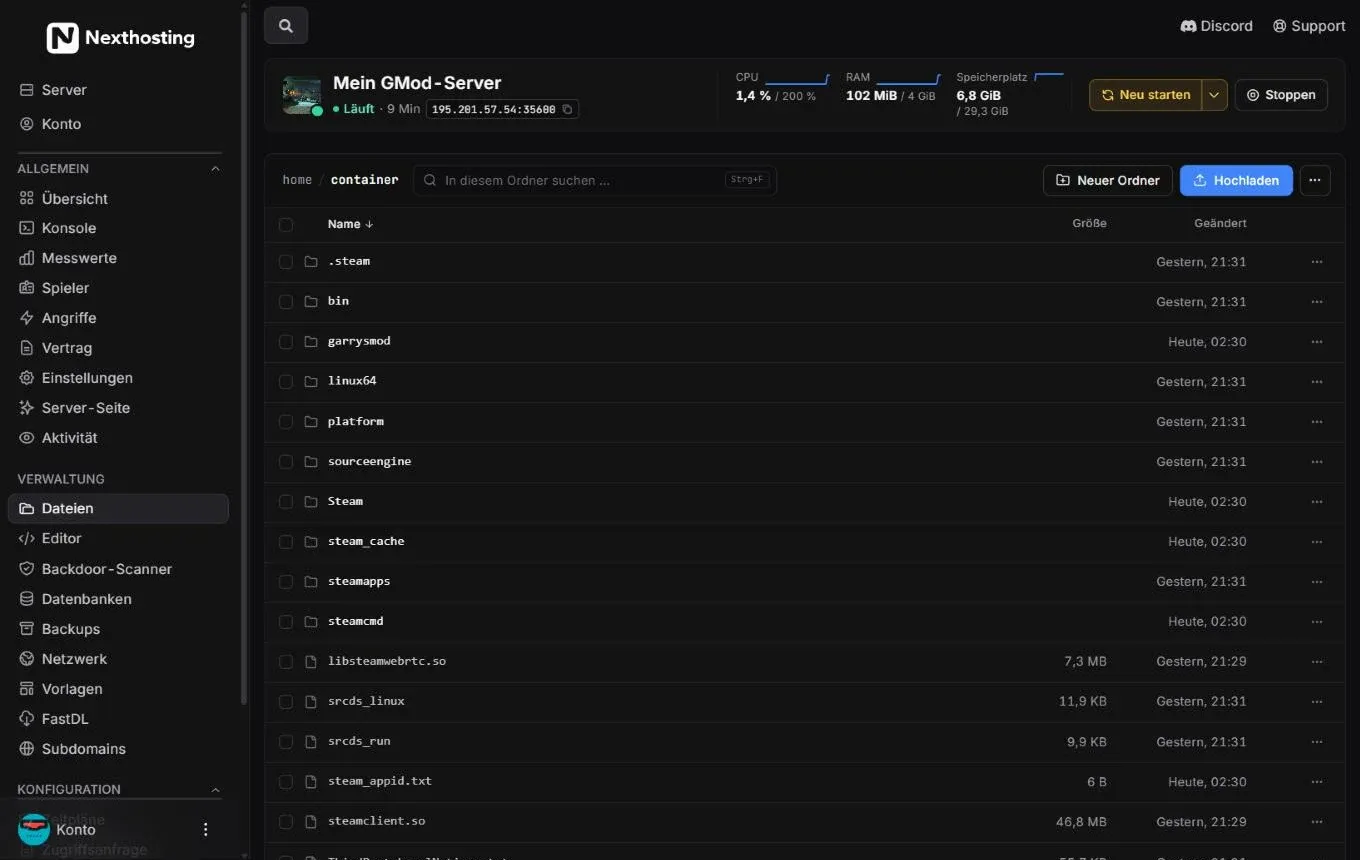
The file manager shows the main folder of your server.
- Path – click a part of it to jump back
- Search “In diesem Ordner suchen …” (“search in this folder …”, shortcut Ctrl+F)
- Neuer Ordner (“new folder”)
- Hochladen (“upload”)
- Columns Name, Größe (size), Geändert (modified) – click to sort
- Open folders with a click
- “…” menu of a row with more actions
This is how you work with the file manager:
- Open a folder: click its name. Use the path at the top to go back.
- Edit a file: click a text file – it opens in the editor.
- Upload: choose Hochladen or simply drag files into the window.
- Several files: tick the boxes on the left and then work on them together.
- More actions: via the “…” menu of a row, for example rename, move, delete or extract an archive.
At the bottom of the list you can see how many folders and files the current folder contains.
How a Garry’s Mod server is laid out
Section titled “How a Garry’s Mod server is laid out”The main folder (shown in the path as home/container) holds the game’s program files. Your own content almost always belongs in the game folder, which for Garry’s Mod is garrysmod:
Directorygarrysmod
Directoryaddons/ your own addons, one folder per addon
- …
Directorycfg
- server.cfg server name, password, loading screen, FastDL
- mount.cfg
Directorydata/ data from addons (e.g. ULX groups and bans)
- …
Directorygamemodes/ game modes such as darkrp
- …
Directorylua
Directoryautorun
Directoryserver/ Lua files that run at startup
- …
Directorymaps/ maps
- …
Directorysteam_cache/ addons downloaded from the Steam Workshop
- …
Directorybin/
- …
- srcds_run the server’s start program
Other games are laid out similarly but have their own folder names – for example plugins and world for Minecraft or oxide/plugins for Rust. Details are in the game guides.
The editor
Section titled “The editor”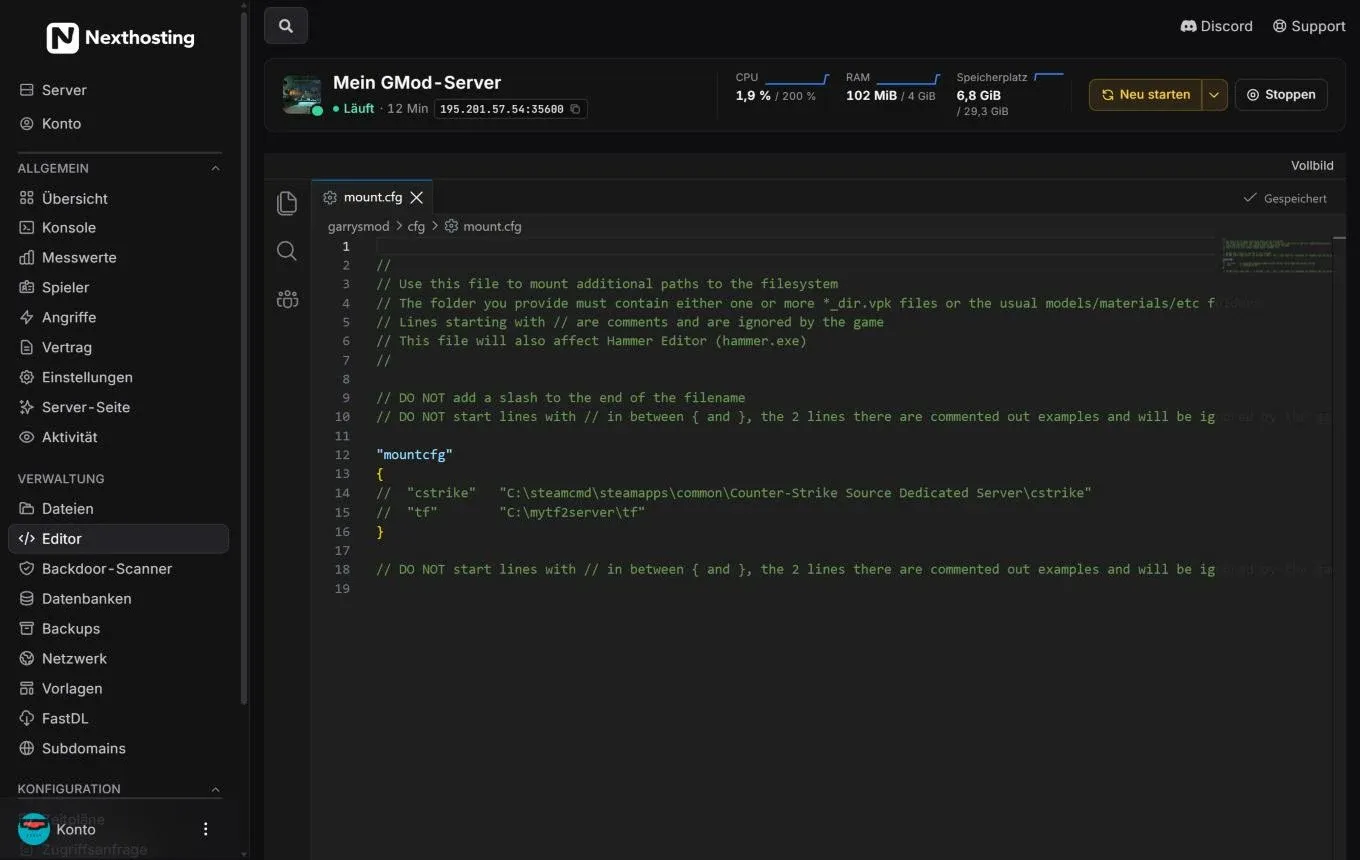
The editor works like Visual Studio Code – with tabs, code colouring and search.
- Sidebar of the editor: files, search and collaborative editing
- Tabs of the open files
- Path bar, here
garrysmod > cfg > mount.cfg - Line numbers
- Gespeichert (saved) indicator
- Vollbild (full screen)
The editor recognises many file types (Lua, CFG, JSON, YAML, properties) and colours them. At the bottom a status bar shows line, column, character encoding and language. On the right edge you see a small preview of the whole file.
Keyboard shortcuts
Section titled “Keyboard shortcuts”| Shortcut | Function |
|---|---|
| Ctrl + S | Save |
| Ctrl + F | Search in the file |
| Ctrl + H | Search and replace |
| Ctrl + P | Go to file |
| F1 | All commands |
| Ctrl + B | Show and hide the sidebar |
| Alt + W | Close file |
Editing together
Section titled “Editing together”Several people can edit the same file at the same time, for example you and an admin of your team. The Allein (“alone”) button shows whether someone else is currently working on it. Who may join in is set via subusers – see Friends and subusers.
SFTP: transfer files with a program
Section titled “SFTP: transfer files with a program”SFTP is an encrypted connection for transferring files. You need a program for it, for example FileZilla (Windows, macOS, Linux) or WinSCP (Windows). There is no SSH access to the command line for game servers.
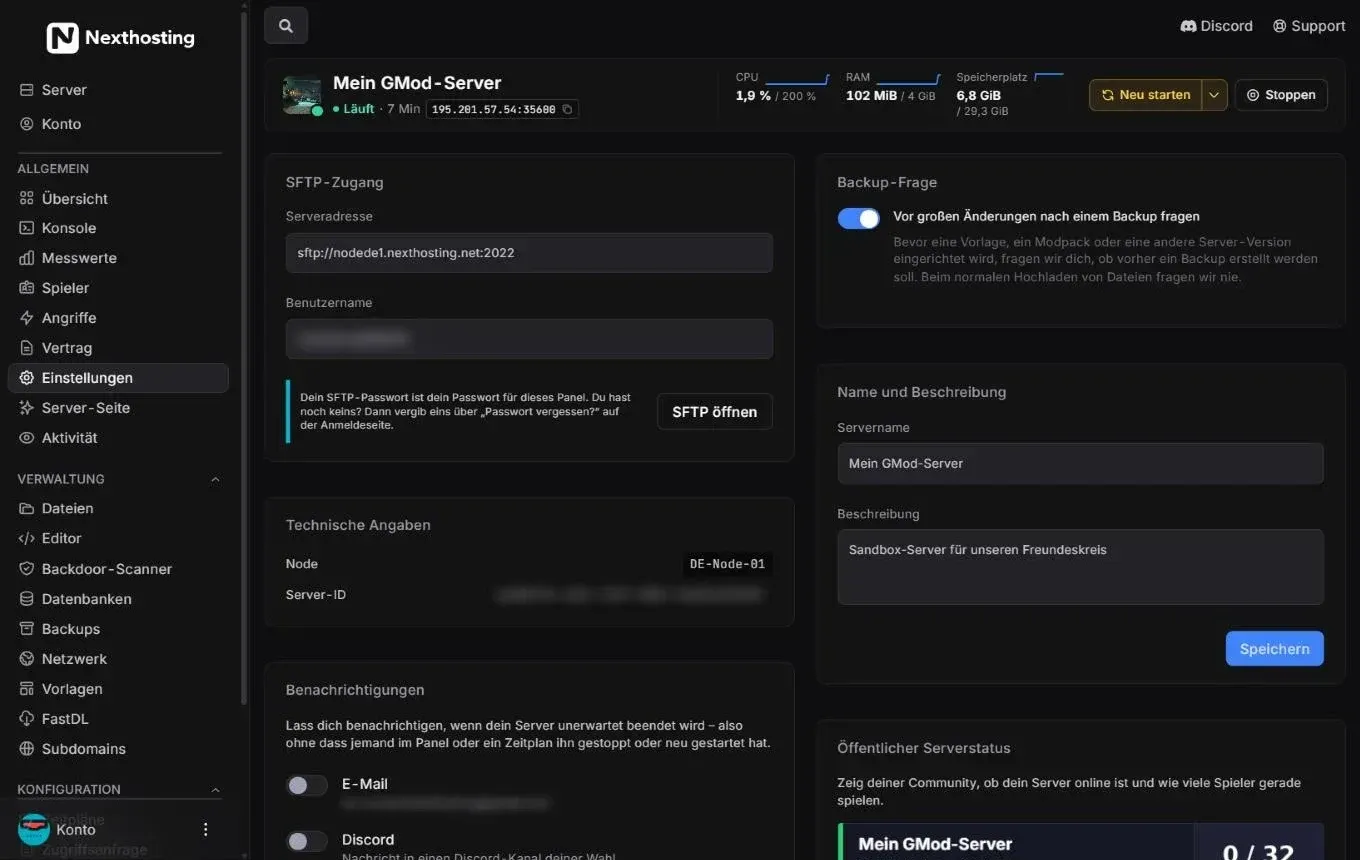
Your SFTP details are under Einstellungen (settings) and on the Übersicht (overview).
- Server address
- Your personal username for this server
- Note about the password
- SFTP öffnen (“open SFTP”) starts an installed SFTP program
Your login details
Section titled “Your login details”| Field in the program | Entry |
|---|---|
| Protocol | SFTP (not FTP) |
| Server / host | nodede1.nexthosting.net |
| Port | 2022 |
| Username | panel-username.server-id, shown in the panel under Einstellungen |
| Password | your panel password |
Your SFTP password is your password for the panel. If you do not have one yet, set it via “Forgot password?” on the login page – see Open the panel.
- Download FileZilla Client from the official site filezilla-project.org and install it.
- Open File → Site Manager and click New Site.
- Choose SFTP – SSH File Transfer Protocol as the protocol.
- Enter
nodede1.nexthosting.netas host and2022as port. - Choose Normal as the logon type and enter username and password.
- Click Connect. The first time, FileZilla asks whether you trust the server key – confirm.
- On the right you now see your server’s files. Drag files from the left (your computer) to the right to upload them.
- Download WinSCP from winscp.net and install it.
- In the login window choose New Site.
- Set the file protocol to SFTP.
- Enter
nodede1.nexthosting.netas host name and2022as port number. - Enter username and password and click Login.
- Confirm the server key the first time.
- Drag files back and forth between the left side (your computer) and the right side (your server).
Frequently asked questions
Section titled “Frequently asked questions”Can I give my friends SFTP access?
Section titled “Can I give my friends SFTP access?”Yes. Invite them as subusers and give them the permission for files. Each person then logs in with their own username and password. Do not share your own password.
Why can’t I see the file I just uploaded?
Section titled “Why can’t I see the file I just uploaded?”Reload the list and check that you are in the right folder. In SFTP programs, “Refresh” (F5) often helps.
How do I get a Minecraft world onto the server?
Section titled “How do I get a Minecraft world onto the server?”Stop the server, upload the world folder via SFTP and replace the existing folder. Then restart the server. Details are in the Minecraft guide.