

03Game server panel
Open the game server panel and log in
How to open the Nexthosting game server panel straight from your customer account, set your own panel password and fix common login problems.
In short
The easiest way to open the panel is from your customer account on nexthosting.net: Dienste (services) → Deine Produkte (your products) → Ansehen (view) → button Gameserver-Panel öffnen (open game server panel). That is one click, no extra password. You can also log in directly at panel.nexthosting.net; for that you need a panel password of your own, which you set via “Forgot password?” on the login page.
Way 1: From the customer account (recommended)
Section titled “Way 1: From the customer account (recommended)”Once your game server has been provisioned, you can get into the panel straight from the customer account. The customer account creates a one-time, signed login link for this. So you do not have to remember a second password.
- Open the customer accountnexthosting.net/account
- Dienste → Deine Produkteclick Ansehen at the game server
- Gameserver-Panel öffnenbutton on the product page
- one-time link
- The panel is openyou are logged in
- Log in at nexthosting.net/account. How that works is explained under Register and log in.
- In the Dienste (services) menu open Deine Produkte (your products) and click Ansehen (“view”) next to your game server.
- At the top of the action block on the product page, click Gameserver-Panel öffnen (“open game server panel”). The panel opens in a new tab and you are logged in right away.
- You land on Deine Server (your servers). Click Server verwalten (“manage server”) next to your server.
Shortcut: on the start page of the customer account (Übersicht, overview), every game server in the Deine Dienste (your services) box has a small Panel button. It also opens the panel directly.
The start page “Deine Server”
Section titled “The start page “Deine Server””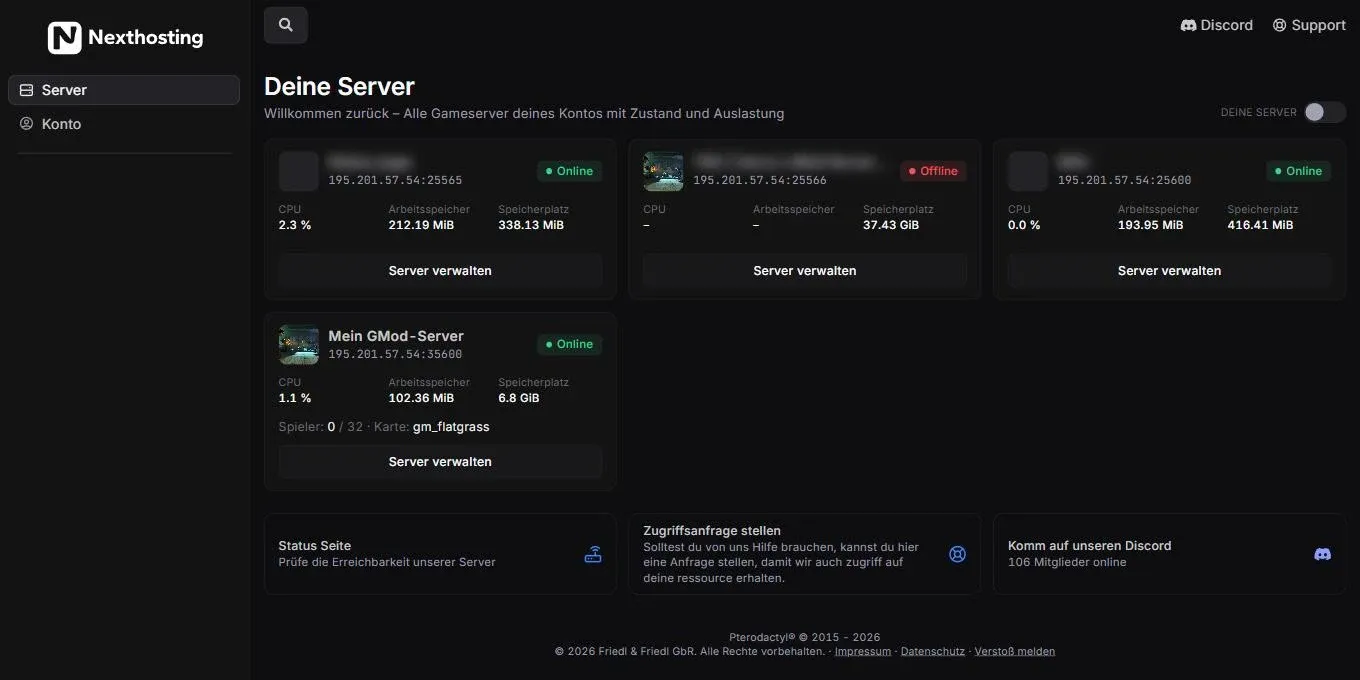
After logging in you see all game servers of your account with their state and load.
- Deine Server (your servers) – all game servers of your account
- Name, address and status (Online or Offline), below that CPU, RAM and storage; for running servers also players and map
- Server verwalten (“manage server”) opens the server
- Status Seite (status page) – check whether the Nexthosting servers are reachable
- Zugriffsanfrage stellen (make an access request) – if you need help, this is how you give the Nexthosting team access to your server
- Invitation to Nexthosting’s Discord server
Way 2: Directly at panel.nexthosting.net
Section titled “Way 2: Directly at panel.nexthosting.net”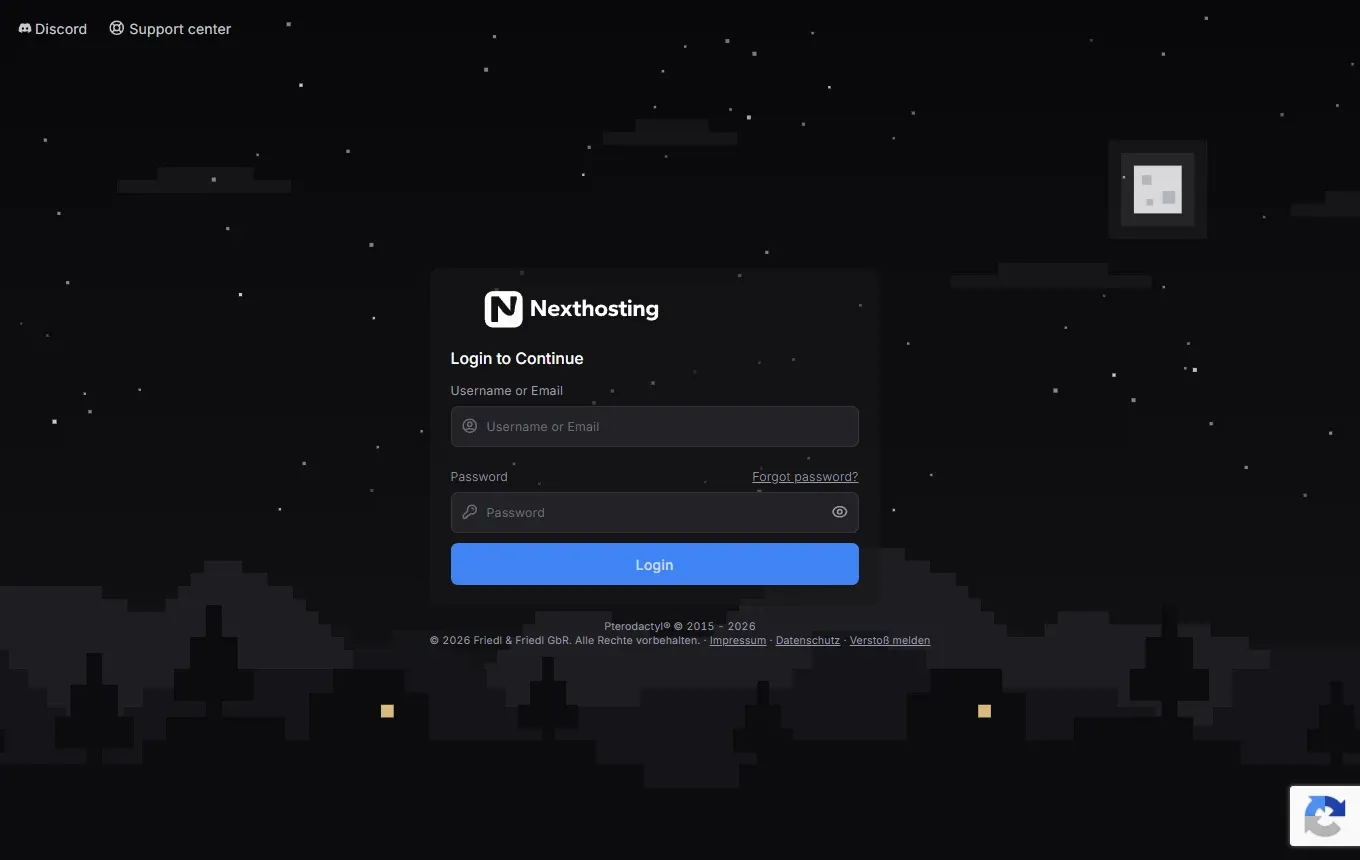
The panel’s login page. It is currently labelled in English.
- Username or Email – your panel username or your email address
- Password – your panel password
- Forgot password? – link to set or reset the password
- Login – log in
- Links to Discord and to support
For this way you need a panel password of your own. Your customer account password does not work here – the customer account and the panel are two separate logins.
Set your own panel password
Section titled “Set your own panel password”When the shop created your panel account, it first got a random password that nobody knows. You need a password of your own for SFTP and for logging in directly.
- Open panel.nexthosting.net.
- Click Forgot password?.
- Enter the email address of your customer account and submit the form.
- Open the email and click the link. It is valid for 60 minutes.
- Choose a new, secure password.
You then use the same password for SFTP as well. The access details are under Files, editor and SFTP.
Login does not work?
Section titled “Login does not work?”Frequently asked questions
Section titled “Frequently asked questions”Is my panel password the same as in the customer account?
Section titled “Is my panel password the same as in the customer account?”No. The customer account on nexthosting.net and the panel have separate passwords. If you change one, the other stays the same.
I cannot see my server in the list. What can I do?
Section titled “I cannot see my server in the list. What can I do?”Check in the customer account whether the contract is active and paid. For locked or paused servers the Gameserver-Panel öffnen button does not appear. A locked contract (for example because of an open invoice) is only released again after payment – see Late payment and lock.
Can friends log in with my access?
Section titled “Can friends log in with my access?”Do not share your login details. Invite friends as subusers with their own permissions instead – see Friends and subusers.