

03Game server panel
Game server settings and startup parameters
The settings of your Nexthosting game server explained – SFTP, backup question, notifications, reinstall, Workshop storage and startup variables.
In short
Under Einstellungen (settings) you find SFTP access, the backup question, name and description, notifications, the public server status and reinstalling. You change the Startvariablen (startup variables) under Konfiguration → Start – for example map, player count or Workshop collection.
The “Einstellungen” page
Section titled “The “Einstellungen” page”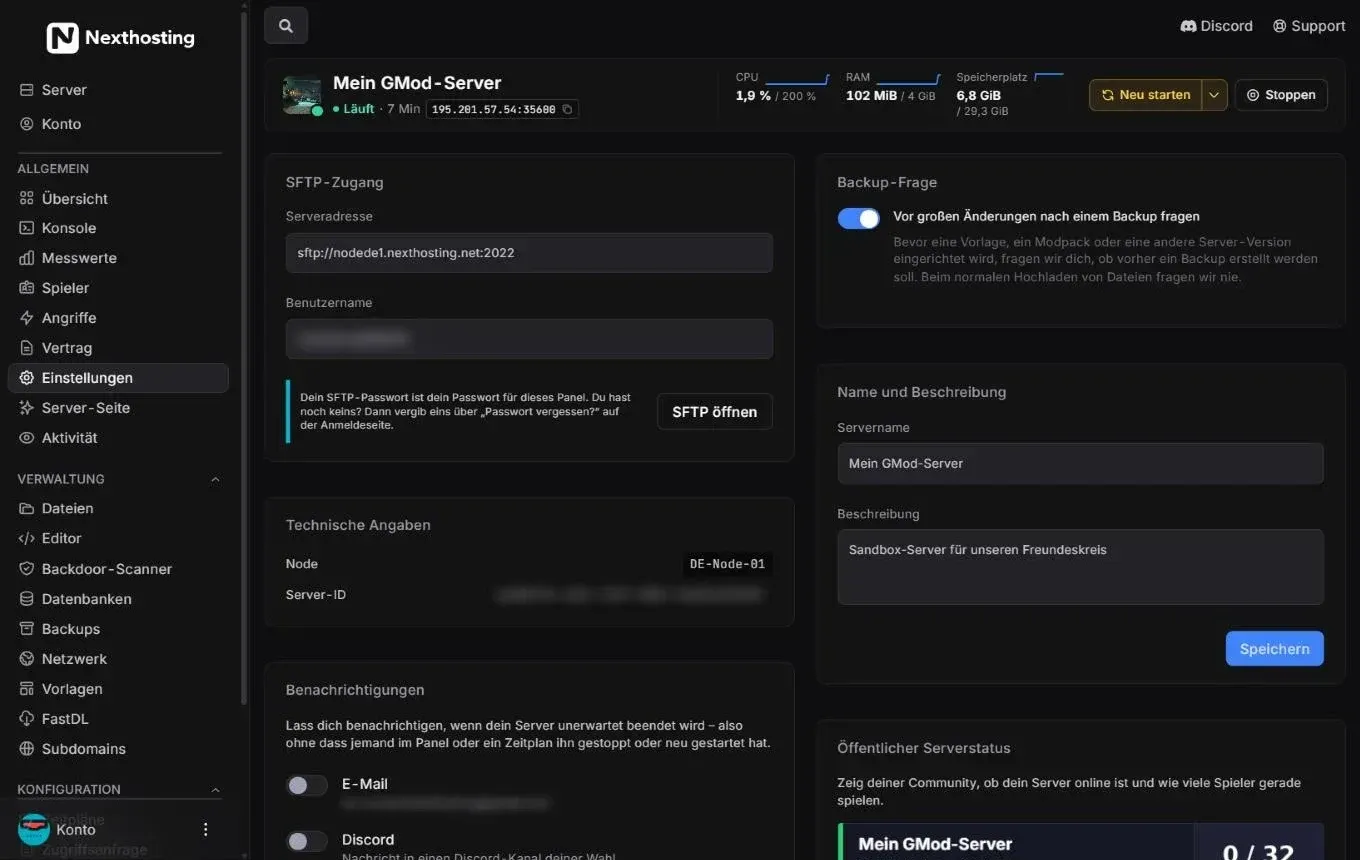
The upper part of the settings. Further down come the reinstall option and – for Garry’s Mod – the Workshop storage.
- SFTP-Zugang (SFTP access) – server address, username, SFTP öffnen (“open SFTP”)
- Backup-Frage (backup question) – switch “Vor großen Änderungen nach einem Backup fragen” (ask about a backup before big changes)
- Name und Beschreibung (name and description)
- Technische Angaben (technical details) – node and server ID
- Benachrichtigungen (notifications) on unexpected shutdown
- Öffentlicher Serverstatus (public server status)
SFTP access
Section titled “SFTP access”Here you find the server address and your username for SFTP. Your SFTP password is your panel password. The step-by-step guide for FileZilla and WinSCP is under Files, editor and SFTP.
Backup question
Section titled “Backup question”If Vor großen Änderungen nach einem Backup fragen is switched on, the panel asks you, before a template, a modpack or another server version is set up, whether a backup should be created first. It never asks when you simply upload files. It is best to leave the switch on.
Name and description
Section titled “Name and description”The Servername (server name) is the name in the panel and in the “Deine Server” list. The Beschreibung (description) helps you tell several servers apart. Click Speichern (“save”) to apply changes.
Technical details
Section titled “Technical details”Node is the machine your server runs on, the Server-ID is your server’s unique number. Give both when you contact support.
Notifications
Section titled “Notifications”Get notified when your server is shut down unexpectedly – that is, without anyone in the panel or a schedule having stopped or restarted it. Channels: E-Mail and Discord (a message to a Discord channel of your choice). Optionally also for persistently high load. Setup is described under Metrics and notifications.
Public server status
Section titled “Public server status”Here you switch on the live status in Discord and the status banner for your website and forum, and request the entry in the community list. See Show your server: Discord, banner, page.
Reinstall the server
Section titled “Reinstall the server”At the very bottom of the settings you find Server neu installieren (reinstall server). This stops the server and runs the game’s installation script again. It helps when program files are damaged or an update went wrong.
Workshop storage (Garry’s Mod)
Section titled “Workshop storage (Garry’s Mod)”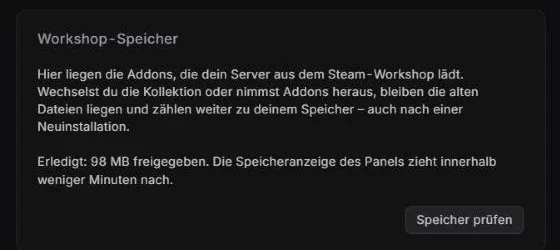
After checking, the panel reports how much storage has been freed.
- Speicher prüfen (“check storage”)
Your Garry’s Mod server downloads addons from the Steam Workshop. If you switch the collection or remove addons, the old files stay behind and keep counting towards your storage – even after a reinstall. With Speicher prüfen you clear away these old addons. The panel’s storage display catches up within a few minutes.
The Workshop storage applies to this one server only – two servers do not share Workshop files.
Startup parameters under “Start”
Section titled “Startup parameters under “Start””Under Start in the Konfiguration group you see the command your server starts with and can change the startup variables. Startup variables are settings that are passed to the game at startup.
Typical startup variables for Garry’s Mod:
| Variable | Meaning |
|---|---|
| Map (Karte) | Map the server starts with, e.g. gm_flatgrass |
| Game mode (Spielmodus) | e.g. sandbox, terrortown or darkrp |
| Max players (Maximale Spieler) | Number of slots |
| Workshop collection (Workshop-Kollektion) | ID of your Steam Workshop collection |
Which variables exist and what they are called depends on the game. Some shop pages (for example Terraria) call them “Start-Einstellungen” – in the panel it is always the Start menu item. For Minecraft there is also a version switcher.
- In the sidebar, open the Konfiguration group and then Start.
- Change the value of the variable you want. Many fields save automatically as soon as you leave them.
- Restart the server so the new value takes effect.
Frequently asked questions
Section titled “Frequently asked questions”I changed a startup variable but nothing happens.
Section titled “I changed a startup variable but nothing happens.”Startup variables only apply after a restart. Afterwards check in the console whether the server uses the new value.
Can I change the startup command myself?
Section titled “Can I change the startup command myself?”The startup command is fixed for your game. What you may change is shown below it as variables. If you need something special, ask support.
Does a reinstall delete my world?
Section titled “Does a reinstall delete my world?”It can, depending on the game. So always back up first.