

03Game server panel
Game server schedules and automatic restarts
How to schedule automatic restarts, backups and commands for your Nexthosting game server – with "Neustart planen" or your own schedules in the panel.
In short
For a single restart with advance warning, use the arrow next to Neu starten (“restart”) → Neustart planen (schedule a restart). For anything that should repeat regularly – nightly restarts, backups, chat messages – create a schedule under Zeitpläne (schedules, in the Konfiguration group).
Schedule a restart
Section titled “Schedule a restart”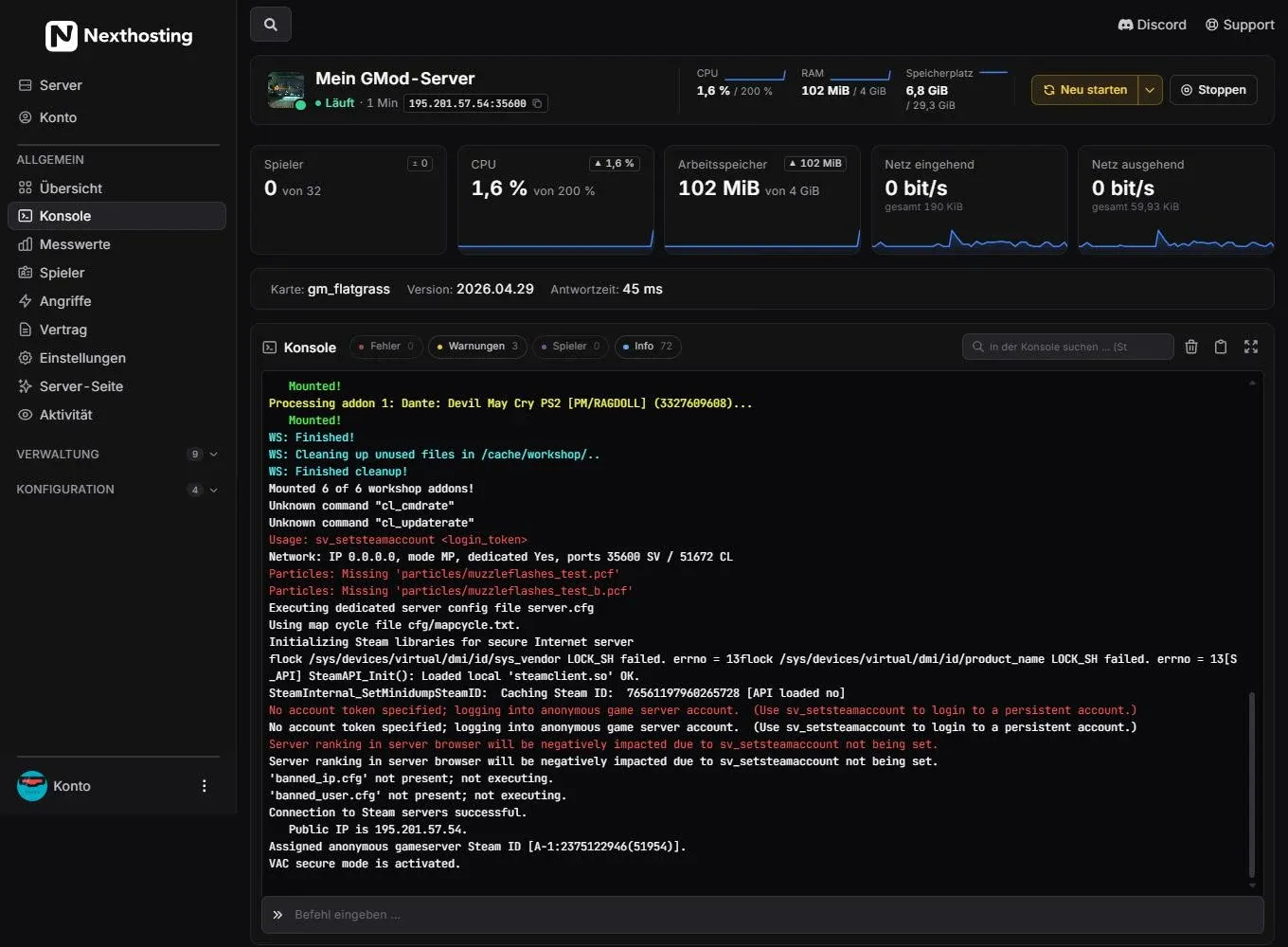
The small arrow next to “Neu starten” is visible on every page of the server.
- Arrow next to Neu starten → Neustart planen (schedule a restart)
- Click the arrow next to Neu starten.
- Choose Neustart planen and set the time.
- Confirm. The panel creates a schedule for this.
- First warningMessage in the game chat
- Second warningshortly before the restart
- RestartServer boots up again
- Players reconnect
So your players are told twice and can save or log out beforehand. You will then find the schedule under Zeitpläne, where you can change or delete it. “Neustart planen” exists for games where Nexthosting has enabled it.
Create your own schedule
Section titled “Create your own schedule”A schedule has two parts: when it runs and what it does. The “what” is one or more tasks that are executed one after another.
- Open Zeitpläne in the Konfiguration group.
- Create a new schedule and give it a name, for example “Restart at night”.
- Set when it should run – using the fields minute, hour, day of month, month and day of week (see the examples below).
- Decide whether the schedule should only run while the server is running, and switch it to active.
- Save and add tasks, for example a command, an action such as restart, or a backup.
- For tasks that should run one after another, enter a delay in seconds.
Understanding time entries
Section titled “Understanding time entries”The time is given in the so-called cron format: five fields, where an asterisk * means “every”.
| Minute | Hour | Day | Month | Weekday | Meaning |
|---|---|---|---|---|---|
0 |
5 |
* |
* |
* |
every day at 05:00 |
30 |
4 |
* |
* |
1 |
every Monday at 04:30 |
0 |
*/6 |
* |
* |
* |
every 6 hours on the hour |
0 |
3 |
* |
* |
0,3 |
Sundays and Wednesdays at 03:00 |
For the weekday, 0 stands for Sunday, 1 for Monday and so on.
Example: nightly restart with a warning
Section titled “Example: nightly restart with a warning”| Order | Task | Delay |
|---|---|---|
| 1 | Command say Restart in 5 minutes |
– |
| 2 | Command say Restart in 1 minute |
240 seconds |
| 3 | Action: restart | 60 seconds |
The command for chat messages depends on the game – in Garry’s Mod and Minecraft it is say.
Example: daily backup
Section titled “Example: daily backup”Create a schedule for 04:00 with a task Backup erstellen (create backup). Keep in mind that the number of backup slots is limited. If all are in use, delete old backups, otherwise no new one can be created. More under Backups and databases.
Frequently asked questions
Section titled “Frequently asked questions”My schedule does not run.
Section titled “My schedule does not run.”Check that it is active and that the time entry is right. If “only when the server is running” is set, nothing happens while the server is stopped. A backup fails when all backup slots are in use.
Which time zone do schedules run in?
Section titled “Which time zone do schedules run in?”Look at the time the panel shows for the schedule (“next run”), and after the first run check in the console that the time fits.
Can I test a schedule right away?
Section titled “Can I test a schedule right away?”Set a time a few minutes in the future as a test and check in the console whether the tasks are carried out.