

07Domains, DNS & SSL
Register a domain or transfer it to Nexthosting
Check and register a domain at Nexthosting, transfer it with the auth code, or keep it at your current provider and point it to your product via DNS.
In short
On nexthosting.net/domain-anlegen you check whether your preferred address is available and register it. A domain that already lives elsewhere can be transferred to Nexthosting with the auth code (also called the EPP code) – or you can leave it at your old provider and simply point it to your Nexthosting product via DNS.
Which route suits you?
Section titled “Which route suits you?”Check and register a domain
Section titled “Check and register a domain”A domain is the address people type into their browser, for example meinprojekt.de. At Nexthosting you start with the domain check.
- Open nexthosting.net/domain-anlegen.
- Type your preferred domain without spaces into the Wunschdomain prüfen field (check your preferred domain), for example
meinprojekt.de. Below the field you will find popular endings such as.de,.com,.net,.eu,.shop,.onlineand.io. - Click Domain prüfen (check domain). You will see whether the address is available and what it costs. The price depends on the ending and is shown only in the domain check.
- Add the domain to your cart, log in and pay. Many domains are active shortly after ordering and payment; depending on the ending it can take longer.
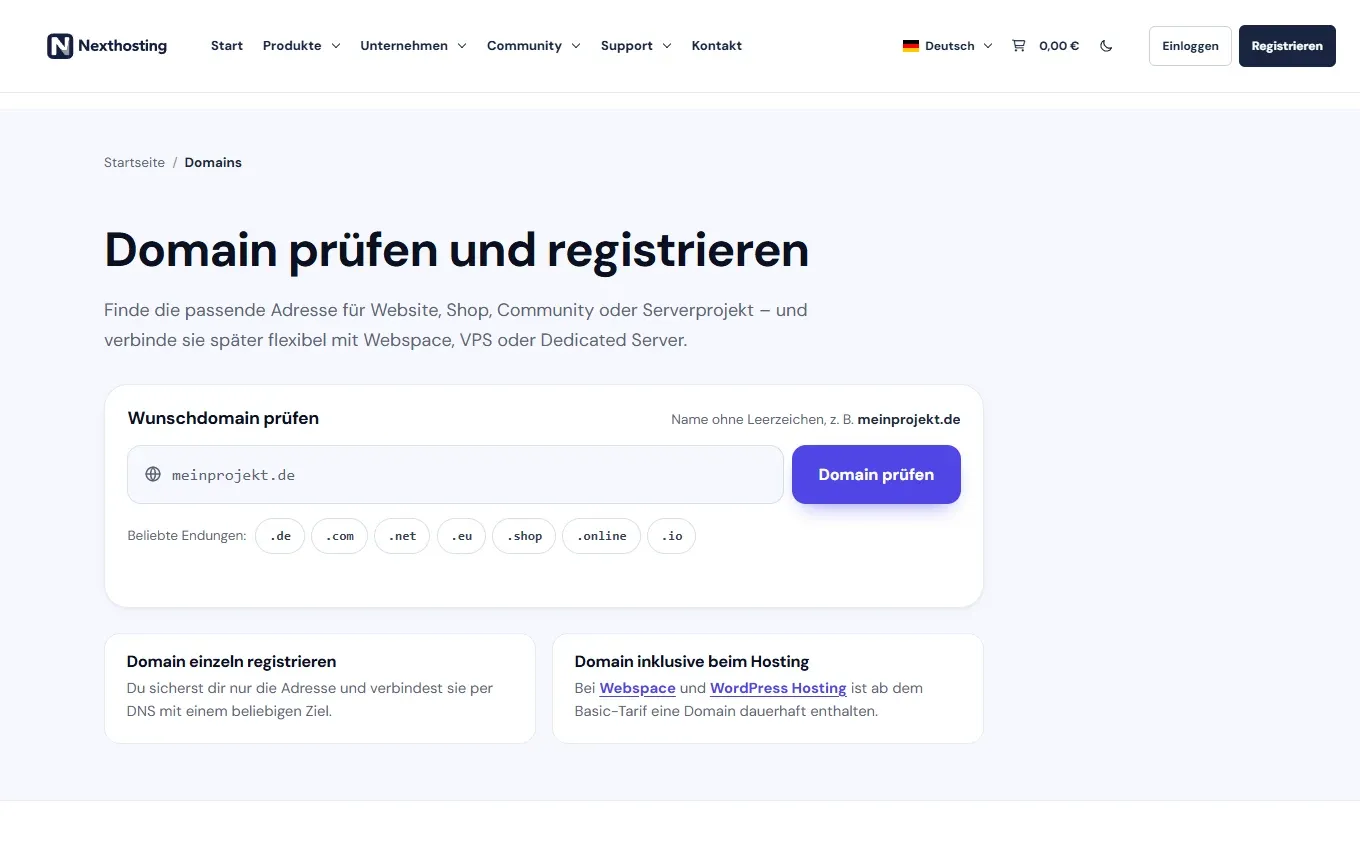
The domain check in the shop.
- Type in your preferred domain
- Check availability
- Click a popular ending
- Note: with web hosting and WordPress hosting, a domain is included from the Basic plan
What to think about beforehand:
- Short and memorable. No long chains of hyphens, no easily swapped digits.
- Ending.
.deis common for sites in Germany, while.comand.netare known internationally. Newer endings such as.shopor.onlinealready say something about the content. - Protecting your data. On its home page, Nexthosting advertises WHOIS protection. What applies to your ending is shown during checkout.
- Who owns the domain? Enter yourself or your club correctly as the owner. Only the owner may later transfer or delete the domain.
Included domain with web hosting
Section titled “Included domain with web hosting”With web hosting and WordPress hosting, one domain is permanently included from the Basic plan; the Business web hosting plan includes two. The Starter plan does not include a domain; there you use one of your own. The included domain can be chosen from the endings .de, .at, .eu, .com, .net, .org and .ch. It is registered and renewed free of charge for as long as the plan runs (as of October 2026, details on the web hosting page).
How to connect the domain to your website afterwards is explained in Connect a domain to your website.
Transfer a domain to Nexthosting
Section titled “Transfer a domain to Nexthosting”In a transfer, the domain changes its registrar, meaning the organisation that manages it. The website itself does not move.
- Prepare at the old providerRemove the lock, get the auth code
- Code
- Transfer at NexthostingEnter the domain and the auth code
- ConfirmAnswer the emails from the old and new provider
- Days
- Transfer completesDuration depends on the ending
- Domain is at Nexthosting
- At your current provider: Remove the transfer lock (often called “domain lock” or “registrar lock”) and have the auth code issued. This is a password for exactly this domain. Depending on the ending, it is called auth code, AuthInfo or EPP code.
- Check the contact details. The domain owner’s email address must be correct, because confirmation emails are sent there.
- At Nexthosting: In the domain check on nexthosting.net/domain-anlegen, choose the Umziehen (transfer) route and enter the domain and the auth code.
- Confirm and wait. Answer any queries by email. Depending on the ending, the transfer takes a few hours to several days.
- Afterwards: In your customer account and in the domain section, check that the domain is at Nexthosting and that your DNS records are still correct.
Good to know:
- For many endings, a domain cannot be transferred again right after registration or a previous transfer. This is a rule of the registries, not of the provider.
- If the domain expires at the old provider in a few days, renew it there first, otherwise the transfer can fail.
- You cannot cancel a domain and keep it at the same time: without a transfer instruction it can expire after advance notice. This is stated in the terms and conditions (section 11; the text of the terms and conditions is binding).
Leave the domain at your old provider
Section titled “Leave the domain at your old provider”You do not have to transfer anything. Your domain can stay with your current provider and still point to your Nexthosting website or game server. To do this, you enter at the old provider either the Nexthosting nameservers ns1.nexthosting.net and ns2.nexthosting.net (for web hosting and WordPress hosting) or individual DNS records (A, AAAA, CNAME, SRV). How this works is explained in:
Frequently asked questions
Section titled “Frequently asked questions”How long does registration take?
Section titled “How long does registration take?”Many domains are active shortly after ordering and payment. For some endings it takes longer because the registry checks the request first.
Where do I find my auth code?
Section titled “Where do I find my auth code?”At your current provider in the domain area, usually under “Transfer” or “Domain details”. Nexthosting cannot retrieve it for you there.
Does my website stay online during the transfer?
Section titled “Does my website stay online during the transfer?”Yes, as long as the nameservers and DNS records stay the same. Do not change anything during the transfer that is not necessary, and check the records afterwards.
Can I also use the domain without web hosting?
Section titled “Can I also use the domain without web hosting?”Yes. You can register a domain on its own and later connect it via DNS to web hosting, a VPS or a dedicated server.