

03Game server panel
Show your server – Discord status, banner and server page
Show your Nexthosting game server for free in Discord, as a status banner, on a server page of your own and in the community list.
In short
Four free ways to make your server known: a live status message in Discord, a status banner for your website and forum, a server page of your own at server-XXXX.nexthosting.app and an entry in the community list on nexthosting.net. You switch each feature on individually and can switch it off again at any time.
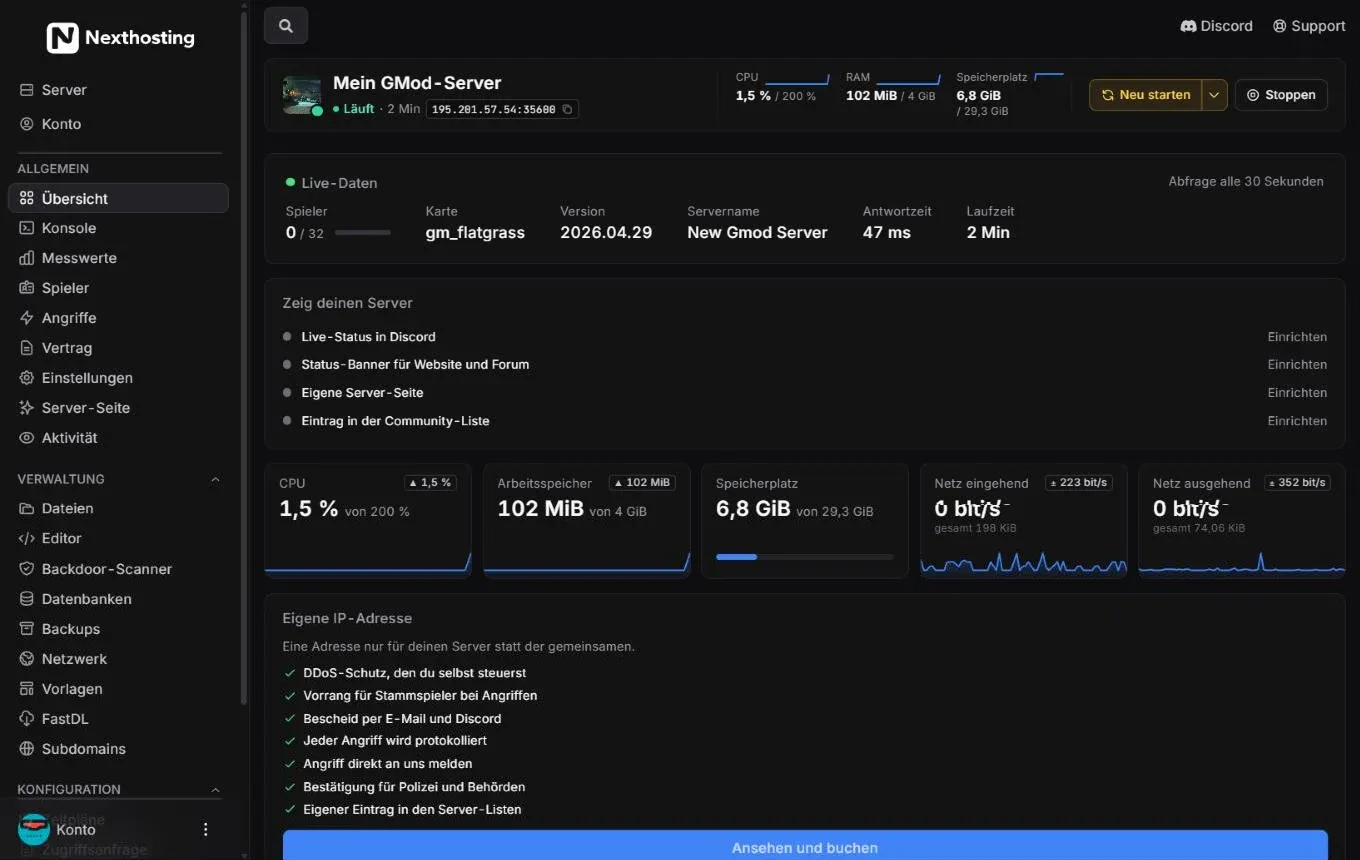
On the overview you find all four ways in the “Zeig deinen Server” (show your server) box.
- Zeig deinen Server with live status in Discord, status banner, server page of your own and entry in the community list – each with Einrichten (“set up”)
- Server-Seite (server page) in the sidebar
Live status in Discord and status banner
Section titled “Live status in Discord and status banner”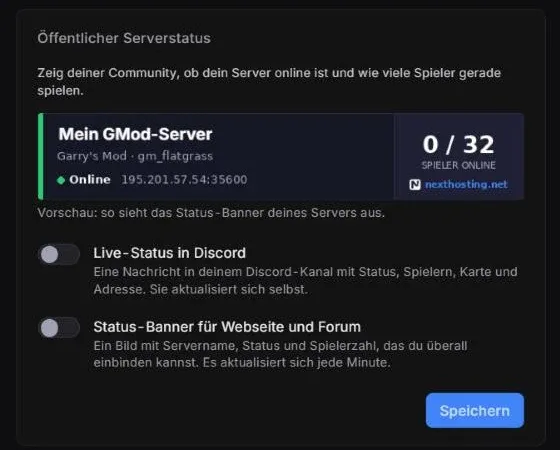
The “Öffentlicher Serverstatus” (public server status) box under Einstellungen (settings).
- Preview of the status banner
- Live-Status in Discord (live status in Discord)
- Status-Banner für Webseite und Forum (status banner for website and forum)
- Speichern (“save”)
A message in your Discord channel with status, players, map and address. It updates itself – no new message is posted, the old one is edited. You do not need a bot for this, just a webhook of your channel.
- Create a webhook in Discord: channel settings → Integrations → Webhooks → New Webhook → Copy Webhook URL.
- In the panel, open Einstellungen → Öffentlicher Serverstatus.
- Switch on Live-Status in Discord and paste the webhook address.
- If you like, set a sender name and image.
- Click Speichern. The message appears in the channel.
An image with server name, status and player count that you can embed anywhere – on your website, in the forum or in the Steam group. It updates every minute.
- Open Einstellungen → Öffentlicher Serverstatus.
- Switch on Status-Banner für Webseite und Forum and save.
- Copy the embed code the panel shows.
- Paste it into your website or forum.
Your own server page
Section titled “Your own server page”With Server-Seite (server page) you build a small web page of your own for your server – without web space and without programming. It lives at an address like server-1234.nexthosting.app (your four-digit ID).
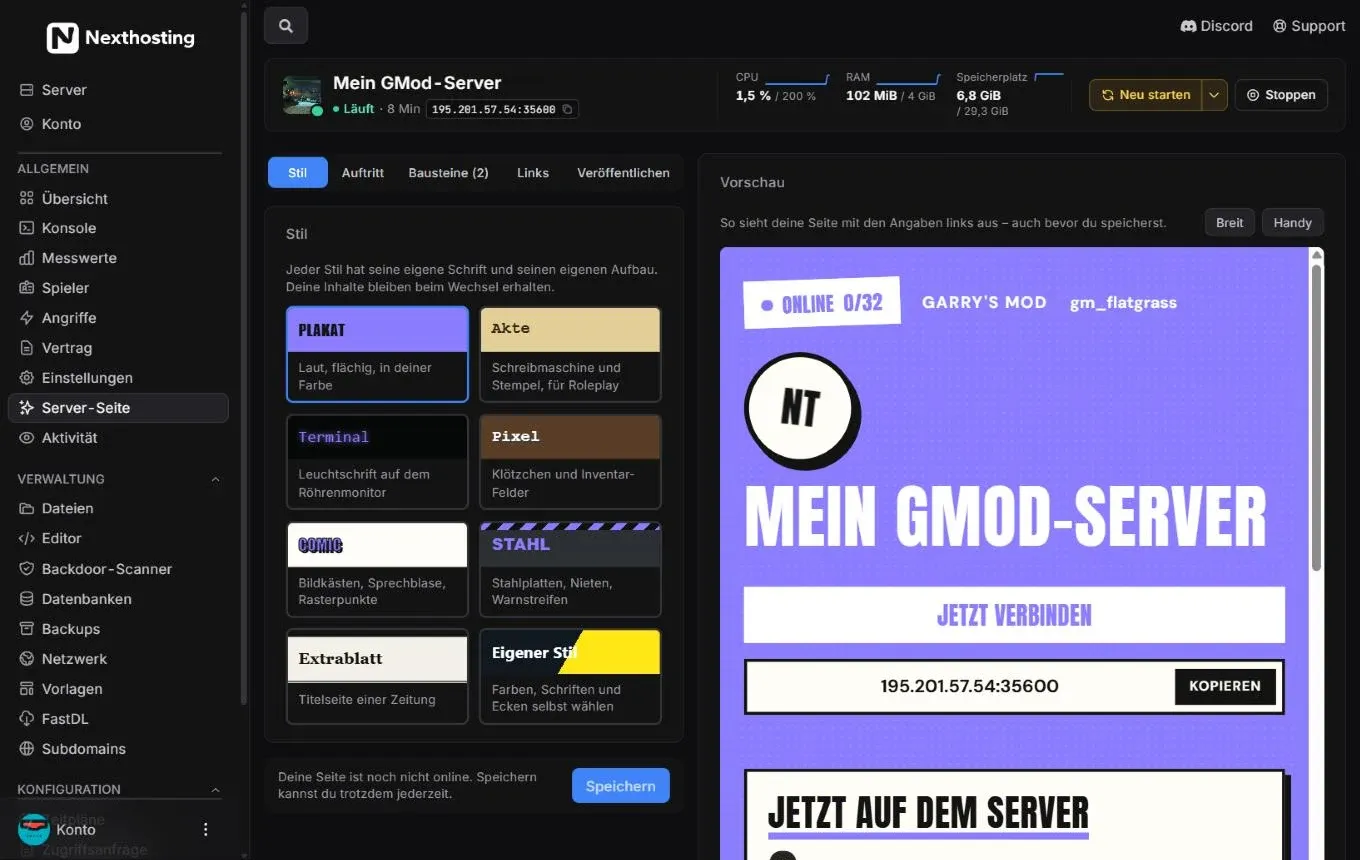
On the left you put the page together, on the right you see straight away how it looks.
- Tabs Stil (style), Auftritt (appearance), Bausteine (blocks), Links and Veröffentlichen (publish – put the page online)
- Styles to choose from, here Plakat (poster)
- Eigener Stil (custom style) – choose colours, fonts and corners yourself
- Notice “Deine Seite ist noch nicht online. Speichern kannst du trotzdem jederzeit.” (your page is not online yet; you can save at any time) and Speichern
- Vorschau (preview) with your details – even before you save
- Switch the preview: Breit (wide) or Handy (phone)
The styles
Section titled “The styles”| Style | Effect |
|---|---|
| Plakat (poster) | loud, flat, in your colour |
| Akte (file) | typewriter and stamp, for roleplay |
| Terminal | glowing text on a tube monitor |
| Pixel | blocks and inventory slots |
| Comic | panels, speech bubble, halftone dots |
| Stahl (steel) | steel plates, rivets, warning stripes |
| Extrablatt (extra edition) | front page of a newspaper |
| Eigener Stil (custom style) | choose colours, fonts and corners yourself |
Every style has its own font and its own layout. Your content is kept when you switch.
Blocks
Section titled “Blocks”Under Bausteine (blocks) you add content, for example live status, chart, text, rules, steps to join, facts, schedule, team, frequently asked questions, links, countdown, a Google document, a YouTube video, the Discord widget, a notice or Twitch. Content from third-party providers such as YouTube or Twitch is only loaded by visitors after a click.
- Open Server-Seite in the sidebar.
- Choose a look under Stil.
- Under Auftritt, set logo, accent colour, slogan and keywords.
- Under Bausteine, add content and arrange it.
- Under Links, enter for example Discord or your website.
- Click Speichern and put the page online under Veröffentlichen.
Entry in the community list
Section titled “Entry in the community list”On nexthosting.net/community-server customers present their servers. Player count and status come directly from the server and are at most a minute old.
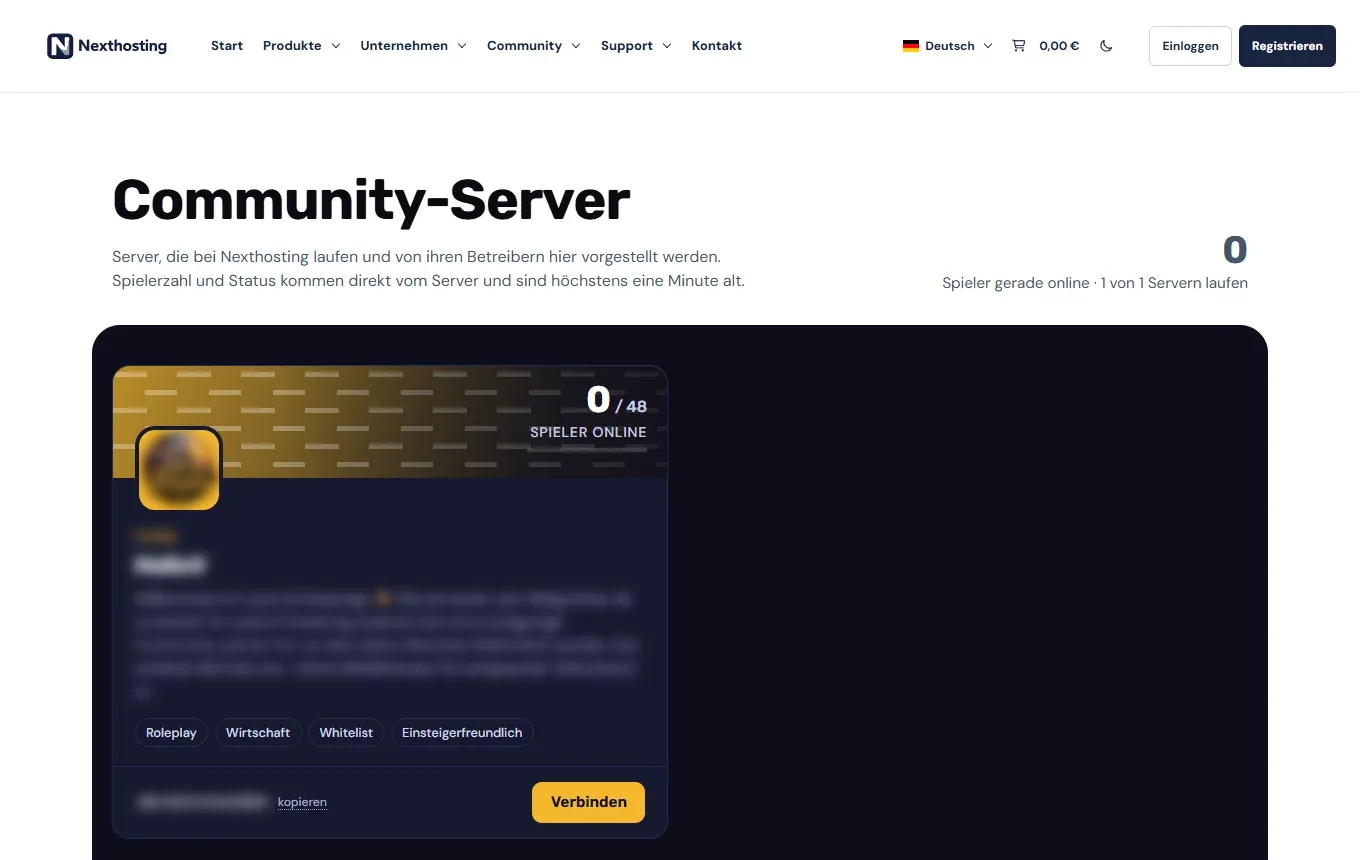
This is what an entry in the community list looks like. Which servers are listed there changes over time.
- Request in the panelEinstellungen → Öffentlicher Serverstatus
- Logo, slogan, colourtogether with the server page
- Review by Nexthostingafter a quick look
- Entry is online
List entry and server page share logo, accent colour, slogan and keywords. Nexthosting reviews every request before it appears and may reject or remove entries that break the rules. There is no entitlement to being listed.
Frequently asked questions
Section titled “Frequently asked questions”The Discord message no longer updates.
Section titled “The Discord message no longer updates.”If the webhook was deleted in Discord or the message was removed, no more updates arrive. Create a new webhook, enter it in the panel and save.
Can I use a domain of my own for the server page?
Section titled “Can I use a domain of my own for the server page?”The server page lives at a Nexthosting address. Link to it from your own website or your Discord.
What happens to the page and the entry when my contract ends?
Section titled “What happens to the page and the entry when my contract ends?”When the contract ends, the publication ends too. Public entries and logos are deleted.