

04Game guides
Rent a Minecraft server – setup guide
How to set up your Minecraft Java server at Nexthosting – plans, joining, Paper, Fabric and Forge, modpacks, Bedrock crossplay and server.properties.
In short
You choose a plan, and after payment your Minecraft server sets itself up. You set the server type and version in the panel with one click, and modpacks and plugins via the installer. Your friends enter your address under Multiplayer → Add Server – at Nexthosting this is free as a subdomain under .nexthosting.app.
This guide applies to Minecraft Java Edition. You bring in console and mobile (Bedrock) players with one click – see further below.
The process in four steps
Section titled “The process in four steps”- OrderChoose plan and server name
- Server startsusually within a few minutes
- after payment
- Copy the addressin the panel, or use the subdomain
- Connect in the gameMultiplayer → Add Server
Plans and prices
Section titled “Plans and prices”As of October 2026, cancellable monthly, final prices under § 19 German VAT Act (no VAT charged), no setup fee. Current prices: Minecraft in the shop.
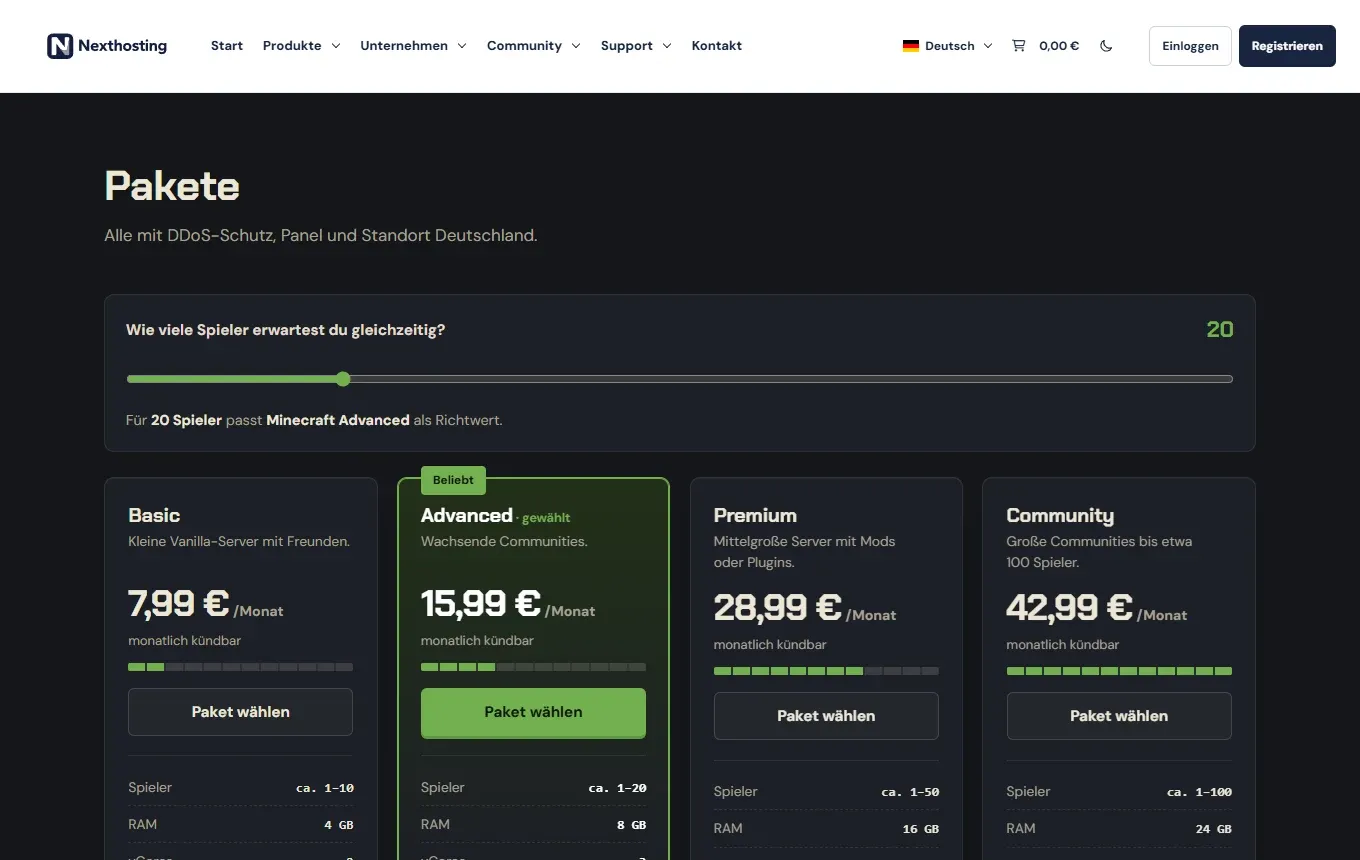
The plan cards in the shop with the player slider.
| Plan | Price per month | Players (guideline) | RAM | vCores | Storage | Backups | Port forwards | Databases |
|---|---|---|---|---|---|---|---|---|
| Basic | €7.99 | 1–10 | 4 GB | 2 | 20 GB NVMe | 2 | 2 | 1 |
| Advanced | €15.99 | 1–20 | 8 GB | 3 | 40 GB | 5 | 5 | 3 |
| Premium | €28.99 | 1–50 | 16 GB | 5 | 80 GB | 5 | 7 | 5 |
| Community | €42.99 | 1–100 | 24 GB | 7 | 120 GB | 10 | 10 | 10 |
| Custom configuration | from €8.22 | – | free | free | free | – | – | – |
Player numbers are guidelines and depend on the world, plugins and mods – there are no fixed slots. For modpacks, RAM decides. Small vanilla servers run on Basic, plugin servers on Advanced, larger modpacks rather from Premium. If it is not enough, you move up or add RAM (Extend server and Boost).
First steps
Section titled “First steps”- Open the panel from your customer account: Dienste (services) → Deine Produkte (your products) → Ansehen (view) → Gameserver-Panel öffnen (Opening the panel).
- Wait for the status Läuft (running). The first start installs the server.
- In the Versions-Wechsler (version switcher), choose the server type and version if you want something other than the default, and install it. Back up your world with one click first.
- Under Subdomains, create your free address, e.g.
survival.nexthosting.app. You can change the name at any time. - Make yourself an operator: command
op YourNamein the console.
How players join
Section titled “How players join”- Start Minecraft and choose the version (players need the same version as the server, and with mods also the matching mod loader).
- Multiplayer → Add Server.
- Choose any server name, enter the subdomain (e.g.
survival.nexthosting.app) orIP:Portunder Server Address, then Done. - Click the server in the list and choose Join Server. Alternatively, Direct Connection.
Only after setting up Bedrock crossplay (see below). Then: Play → Servers → Add Server, enter the address and the port named in the panel under Bedrock-Crossplay.
Server types and versions
Section titled “Server types and versions”All Java versions from 1.8 are possible, including snapshots. In the Versions-Wechsler you choose type and version with a click:
| Type | What it is for |
|---|---|
| Vanilla | official server, also snapshots |
| Paper, Purpur, Pufferfish | fast servers with plugin support (recommended for most) |
| Spigot, CraftBukkit | the classic for Bukkit plugins |
| Forge, Fabric | mods and modpacks (NeoForge and Quilt for individual mods) |
| Folia | regional multithreading for very large worlds |
| Velocity, Waterfall | proxies for networks of several servers |
Plugins, mods and modpacks
Section titled “Plugins, mods and modpacks”- Plugins (Paper, Purpur, Spigot): in the Plugin-Installer you install plugins from Modrinth and SpigotMC with one click; depending on the plan, Hangar (Premium) and CurseForge (from Advanced) are added, and the Community plan has all sources. By hand, you put
.jarfiles in thepluginsfolder and restart. - Modpacks: in the panel under Modpacks & Mods you search for a modpack from Modrinth and install it. Before that, the panel asks about a backup, and the
modsfolder is emptied. - Individual mods: for Fabric, Forge, NeoForge and Quilt, you search for individual mods on Modrinth under Modpacks & Mods → Mods.
- Your own files: you upload everything via the file manager or SFTP: Files, editor and SFTP.
More background on the one-click setups: Templates, mods and modpacks. On Forge or Fabric servers, all players need the same mods in the same version.
Bedrock crossplay with Geyser and Floodgate
Section titled “Bedrock crossplay with Geyser and Floodgate”With one click in the panel section Bedrock-Crossplay, you install Geyser and Floodgate. Then console and mobile players can join your Java server (Paper, Purpur or Fabric). The address is the same as for Java; the port is shown in the panel.
Important files and server.properties
Section titled “Important files and server.properties”- server.properties Basic settings
- ops.json Operators
- whitelist.json Whitelist
- banned-players.json Banned players
- plugins Plugins (Paper & co.)
- mods Mods (Forge, Fabric)
- world The world
Directorylogs
- latest.log Current log
You edit server.properties conveniently in the Properties-Editor with labelled fields, or in the file manager. Important values:
motd=Welcome to our server!max-players=20difficulty=normalgamemode=survivalwhite-list=falseonline-mode=trueview-distance=10Only change online-mode if you know exactly why. After every change, restart the server. You do not change the port and address in the file but via the panel (Network, ports and subdomains).
Admin, whitelist and commands
Section titled “Admin, whitelist and commands”You enter commands in the panel console without a slash (Console and controls):
| Command | Effect |
|---|---|
op Name / deop Name |
give or take operator rights |
whitelist on and whitelist add Name |
only approved players may join |
kick Name, ban Name, pardon Name |
kick, ban or unban a player |
save-all |
save the world immediately |
stop |
shut the server down cleanly (better than a hard stop) |
For co-managers without their own password: Friends and sub-users.
Typical problems
Section titled “Typical problems”| Problem | Solution |
|---|---|
| “Outdated client/server” when joining | Players and server need the same version. Players choose the matching one in the launcher, or you change the server version. |
| Server crashes at startup | Read the console from the top. Usually a faulty plugin or a mod that does not match the version. Remove whatever was added last. |
| “Can’t keep up!” or lag | Check RAM and CPU in the history. Lower the view distance (view-distance), check plugins, bigger plan or Boost. |
| Server will not start because storage is missing | Delete old backups and world copies or add storage. |
| Timeout when connecting | Check the address (typos, port); the server must show Läuft (running). With your own domain, check the SRV record. |
If nothing helps: Problem melden (report a problem) in the panel creates a ticket with a diagnosis and the end of your log (Reporting a problem).
Frequently asked questions
Section titled “Frequently asked questions”Can I upload my world?
Section titled “Can I upload my world?”Yes. Stop the server, upload the world folder via the file manager or SFTP (pack large folders as an archive first and unpack them in the file manager) and check level-name in server.properties.
Which Minecraft versions are available?
Section titled “Which Minecraft versions are available?”All Java versions from 1.8, including snapshots. You switch the version in the panel.
How many players fit on the server?
Section titled “How many players fit on the server?”No fixed slots. You set the maximum in server.properties. The plan figures are guidelines.
Are there backups?
Section titled “Are there backups?”Yes, 2 to 10 slots depending on the plan, manually or on a schedule (Schedules and restarts).