

05VPS & dedicated servers
Discord bot hosting at Nexthosting – bots, token and invite
Nexthosting Discord bot hosting from €2.99: the bot plans, how to create a bot in the Discord Developer Portal, get the token and invite the bot.
In short
At Nexthosting your Discord bot runs around the clock on its own instance under your name and profile picture, from €2.99/month (as of October 2026). For that you need a bot of your own, which you create in the Discord Developer Portal. You store its token with your bot plan.
The bot plans
Section titled “The bot plans”Every bot runs as its own instance. It appears on your Discord server with the name and profile picture you give it.
| Plan | Price from (as of October 2026) |
|---|---|
| Discord Serverstatus Bot (server status bot; based on Game Server Watcher) | €2.99/month |
| Discord Musikbot (music bot; Muse) | €3.99/month |
| Discord Community Bot (Red-DiscordBot) | €4.99/month |
| Discord Community Bot Plus (Bastion) | €4.99/month |
| SinusBot Hosting (Discord and TeamSpeak) | €4.99/month |
| Discord All-in-One Bot (Ree6) | €6.99/month |
What exactly a bot can do is stated on the respective product page in the shop.
Current plans and prices are in the shop.
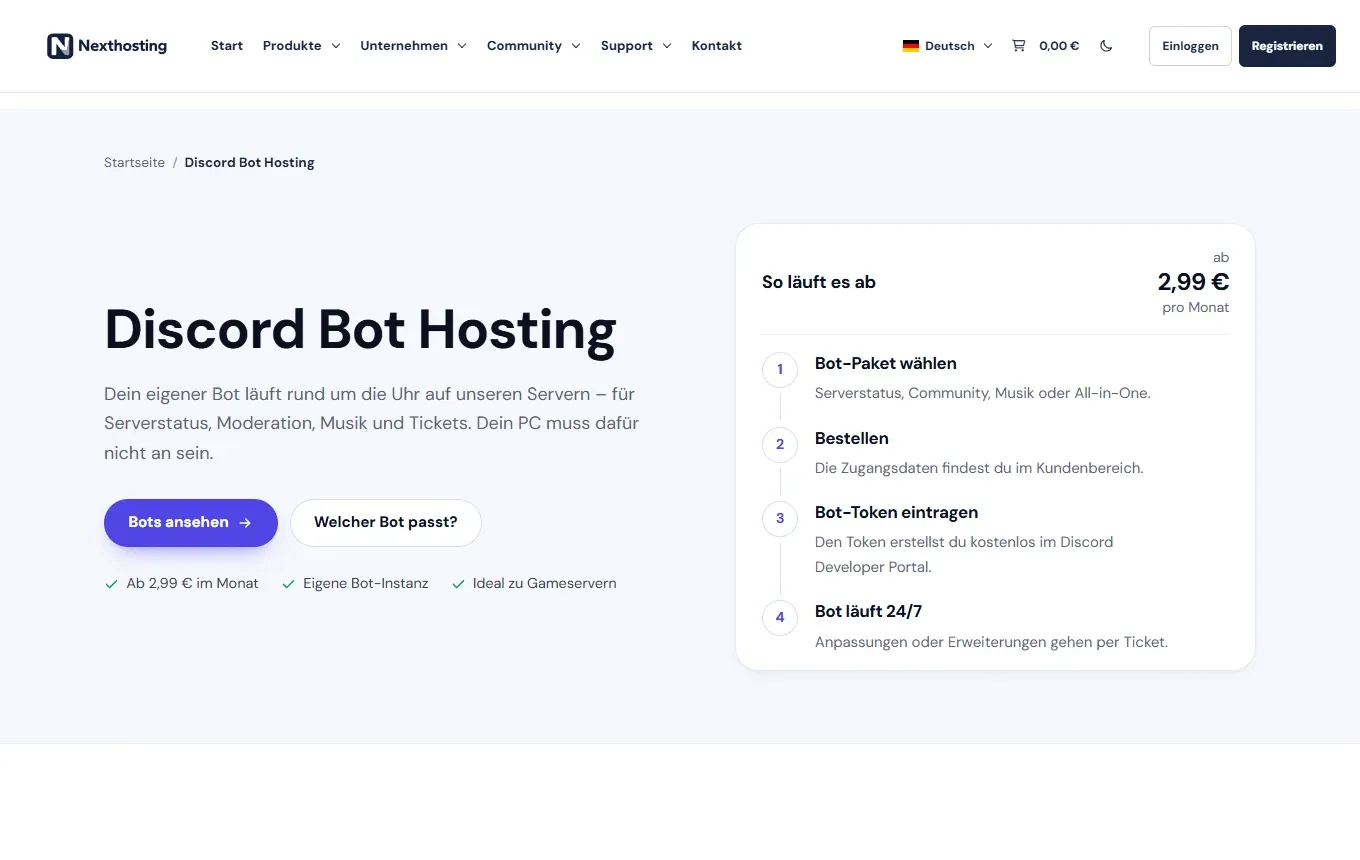
The bot hosting page with the steps from ordering to a running bot.
The process
Section titled “The process”- Choose a bot planand order it
- Create a bot in the Developer Portal
- Copy the tokenand keep it secret
- Store the token with the bot plan
- Invite the bot to your server
- Bot runs around the clock
You need the bot token because Nexthosting hosts the program, but the bot gets its own Discord account with its own name and profile picture. You generate the token at Discord, not at Nexthosting.
Create a bot in the Discord Developer Portal
Section titled “Create a bot in the Discord Developer Portal”The Developer Portal is Discord’s official site for bots. You log in there with your normal Discord account.
-
Open the Developer Portal. Go to discord.com/developers/applications and log in.
-
Create an application. At the top right, click New Application, enter the name of your bot, accept the terms and click Create. The name later appears as the bot’s name.
-
Open the “Bot” section. On the left side, click Bot. There you can change the bot’s name and profile picture.
-
Get the token. In the Bot section, click Reset Token and confirm. Discord shows the token only once. Copy it immediately and save it in a safe place. If you lose it, you have to generate a new one.
-
Enable the permissions you need. Further down in the Bot section you find the Privileged Gateway Intents. Which ones you need depends on the bot. Many bots need Message Content Intent, moderation bots usually also Server Members Intent. Your bot’s documentation tells you which. Only turn on what is necessary.
-
Generate the invite link. On the left, go to OAuth2 and there to OAuth2 URL Generator. Under Scopes, tick
botandapplications.commands. The Bot Permissions appear below. Select the permissions your bot needs, for example reading and sending messages. At the bottom the Generated URL appears. Click Copy. -
Invite the bot. Open the copied address in your browser. Select the server the bot should join and click Authorize. You must have the Manage Server permission on that server. The bot then appears in the member list, offline at first.
As soon as your bot plan is set up with the token and running, Discord shows the bot as online.
Store the token with the bot plan
Section titled “Store the token with the bot plan”Where to enter the token, you see after ordering under the bot plan in your customer account. If you would like help with that, Nexthosting offers setup assistance on request. Write a ticket or use the contact form for it. Never send the token in a public message, only in the way support explicitly suggests to you.
Complete Discord server setup by a partner
Section titled “Complete Discord server setup by a partner”If you want not just a bot but a whole Discord server built for you, there is a partner: Donnerfausts Serverschmiede. The partner builds your Discord server and sets up bots. Indicative prices, as of October 2026:
| Service | Indicative price |
|---|---|
| Consultation | from €10 |
| Server setup | €50 to €75 |
| Bot setup | €15 to €35 |
| Express | additional €15 |
This is an offer from the partner, not a standard Nexthosting product. The terms are in the shop.
Frequently asked questions
Section titled “Frequently asked questions”Do I need programming skills?
Section titled “Do I need programming skills?”No. The ready-made bots in the plans are ready to use. You only need the Discord account, a bot in the Developer Portal and the token.
My bot is offline. What do I check?
Section titled “My bot is offline. What do I check?”Is the token correct? If you reset it, the old one is invalid. Are the necessary intents turned on in the Developer Portal? Is the bot plan running in the customer account? If everything is right, write a ticket with the name of the bot.
Can a bot run on several servers?
Section titled “Can a bot run on several servers?”A bot can be invited to several servers. You invite it to each additional server with the same link. The limits depend on the bot program.
What does the bot cost if I cancel?
Section titled “What does the bot cost if I cancel?”How to cancel products is explained under Contracts and cancellation. You can see the term of your bot plan in the order and in the customer account.