

03Game server panel
Report a game server problem with diagnostics
How to report a problem with your game server at Nexthosting straight from the panel – with automatic diagnostics, access request and the right details.
In short
With Problem melden (report a problem) in the panel you create a support request in your name. The panel automatically attaches diagnostics – plan limits, state, startup command, monitoring history and the last console lines. That way support does not have to ask follow-up questions first. If you want the team to look at your server itself, additionally make an Zugriffsanfrage (access request).
Before you report: a quick check yourself
Section titled “Before you report: a quick check yourself”“Problem melden” in the panel
Section titled ““Problem melden” in the panel”You find Problem melden in the panel for your server, for example on the Übersicht (overview) and in the Konsole (console).
- Report a problemdescribe it briefly
- Diagnostics are createdautomatically, credentials masked
- Ticket in your namewith diagnostics in the customer account
- Reply from supportby email and in the customer account
- Open your server in the panel and choose Problem melden.
- Briefly describe what is happening: what did you do, what did you expect, what happened instead, since when?
- Check which details are sent along. You can deselect the last console lines.
- Send the report. A ticket is created in your customer account, with your server assigned to it directly.
What the diagnostics contain
Section titled “What the diagnostics contain”| Detail | What it is for |
|---|---|
| Plan limits | Does the server still fit its plan? |
| State of the server | running, stopped, starting, crashed |
| Startup command | Are the startup variables right? |
| Monitoring history | Were there crashes or outages? |
| Last console lines | the actual error message (can be deselected) |
| For Minecraft: end of the log and crash report | exact cause of a crash |
Credentials in these details are masked.
Access request: the team looks at your server
Section titled “Access request: the team looks at your server”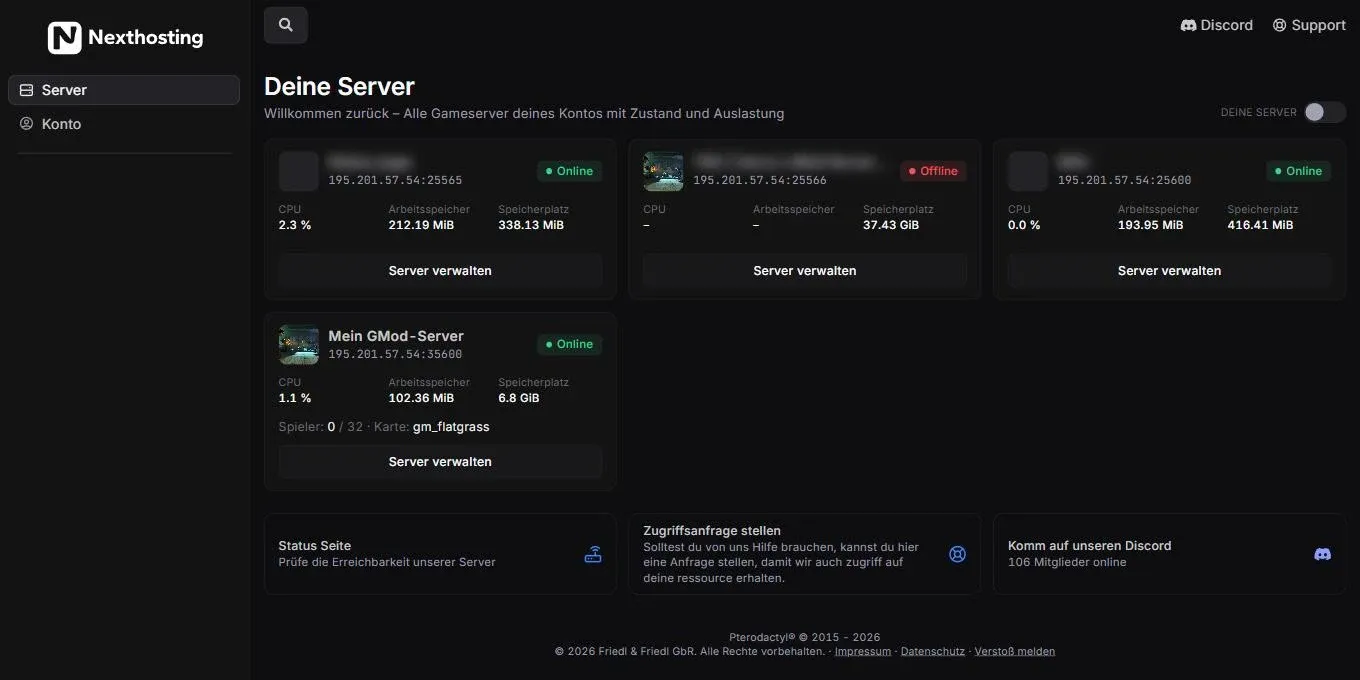
On the panel’s start page you find the access request, the status page and the way to support.
- Zugriffsanfrage stellen (make an access request) – “Solltest du von uns Hilfe brauchen, kannst du hier eine Anfrage stellen, damit wir auch Zugriff auf deine Ressource erhalten.” (If you need help from us, you can make a request here so that we get access to your resource too.)
- Status Seite (status page)
- Support
Some problems can only be solved if someone from the team looks directly at your files or settings. That is what the Zugriffsanfrage is for – on the panel’s start page and in your server’s sidebar under Konfiguration (configuration). Make one when support asks you to or when you explicitly want the team to look at your server.
Other ways to reach support
Section titled “Other ways to reach support”| Way | When |
|---|---|
| Ticket in the customer account (Support → Supportanfragen) | preferred – your product is assigned directly |
| Email to support@nexthosting.net | when you cannot get into your account right now |
| Contact form at nexthosting.net/kontakt | without logging in |
| Discord | questions to the team and community, with no promised response time |
Support hours: Monday to Friday 09:00–18:00, first reply usually within 24 hours – a target, not a guarantee. Everything else under Support.
Frequently asked questions
Section titled “Frequently asked questions”I do not see “Problem melden”.
Section titled “I do not see “Problem melden”.”The item only appears for the server’s owner when the shop knows a contract for this server. If you are an invited user, ask the owner. Otherwise write a ticket in the customer account.
How quickly do I get a reply?
Section titled “How quickly do I get a reply?”During support hours, usually within 24 hours. With the “Priorisierter Support” (priority support) add-on your request is handled preferentially – but there is no fixed response time even then.
My server is under attack. Is that a case for “Problem melden”?
Section titled “My server is under attack. Is that a case for “Problem melden”?”With a dedicated IP address, it is better to use Angriff melden (“report attack”) under Angriffe – then you also get a report. Without a dedicated IP, write a ticket. See DDoS protection and attacks.