

01Getting started
Where do I find what? All Nexthosting addresses at a glance
Customer account, game server panel, web panel, protection panel, status page and loading screen tool from Nexthosting – what each is for and how to log in.
In short
Nexthosting has several addresses because each task has its own place: contracts and invoices in the customer account, game servers in the game server panel, websites in the web panel. The table below tells you where to go for what and how to log in.
All addresses at a glance
Section titled “All addresses at a glance”| What | Address | What it is for | Login |
|---|---|---|---|
| Customer account | nexthosting.net/account | Contracts, invoices, tickets, payments, Guthaben (account credit) | Email and password, Discord, Google, Twitch, Steam or passkey |
| Game server panel | panel.nexthosting.net | Controlling game servers: console, files, backups, settings | Directly from the customer account (Dienste → Deine Produkte → Ansehen → Gameserver-Panel öffnen), or with panel username and panel password |
| Web panel | webpanel.nexthosting.net | Websites, WordPress, email mailboxes, databases | One click on Login at your web hosting product in the customer account, or the email address of your shop account plus a password (via “Passwort vergessen?”) |
| Webmail | webmail.nexthosting.net | Reading and writing email in the browser | Full email address and mailbox password |
| Protection panel | schutz.nexthosting.net | DDoS filter for your own IP address | Only via a link from the shop, no password |
| Status page | status.nexthosting.net/status/nh | Viewing outages and maintenance | No login needed |
| Loading screen tool | tools.nexthosting.app | Building loading screens for Garry’s Mod | With the customer account |
| Discord | Link in the shop menu under Support | Chatting with the community, no promised response time | Discord account |
You reach the login page of the customer account in the shop via Einloggen (log in). What exactly is in the account is explained in the customer account overview.
Customer account
Section titled “Customer account”The customer account is the control center. Here you see your contracts and invoices, write tickets to support, manage payments and see your Guthaben (account credit). Your support PIN is on the start page (Übersicht, overview) in the Support box; Neu generieren (generate new) creates a new one. From here you get into the panels.
The account menu has the items Übersicht (overview), Dienste (services), Domains, Finanzen (finances), Support and Konto (account). Behind them are pages such as Deine Produkte (your products), Deine Verträge (your contracts), Deine Rechnungen (your invoices), Guthaben (account credit), Mandate (mandates), Supportanfragen (support requests), Dokumente (documents) and Einstellungen (settings).
- View and cancel contracts (Deine Verträge): Contracts and cancellation
- Download invoices as PDF (Deine Rechnungen): Invoices
- Open a ticket (Supportanfragen): Support
Game server panel
Section titled “Game server panel”In the panel you control every game server: start and stop, console, files, backups, databases, ports and settings. You usually get in directly from the customer account. The login page looks like this:
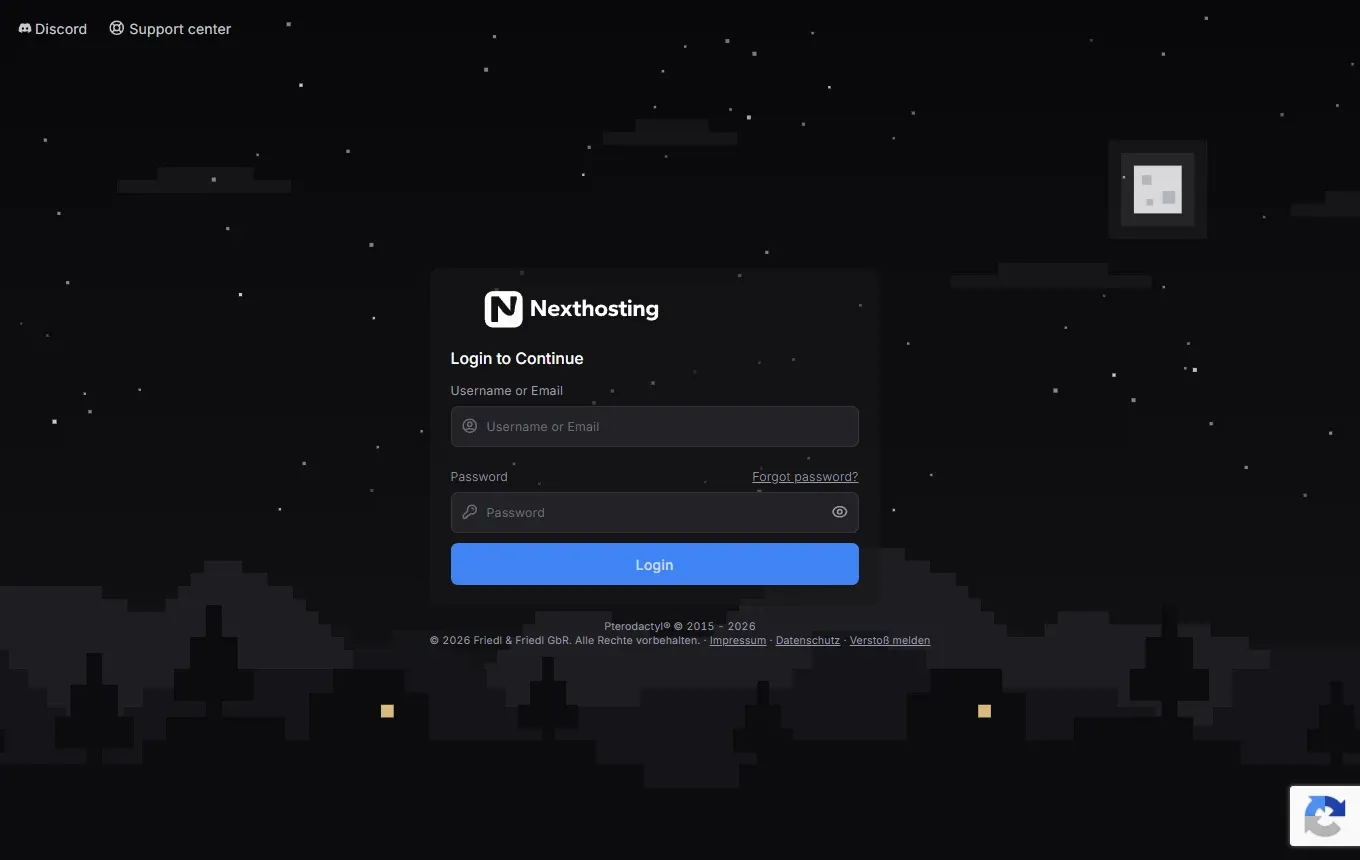
The panel login page is in English. The route from the customer account is more convenient because you do not have to enter a password there.
If you need your own panel password, for example for SFTP, you set it with Forgot password? on this page. More: Open the panel and Files, editor and SFTP.
Web panel
Section titled “Web panel”The web panel comes with Webspace and WordPress Hosting. There you create websites, install WordPress, set up email mailboxes and databases, and make backups.
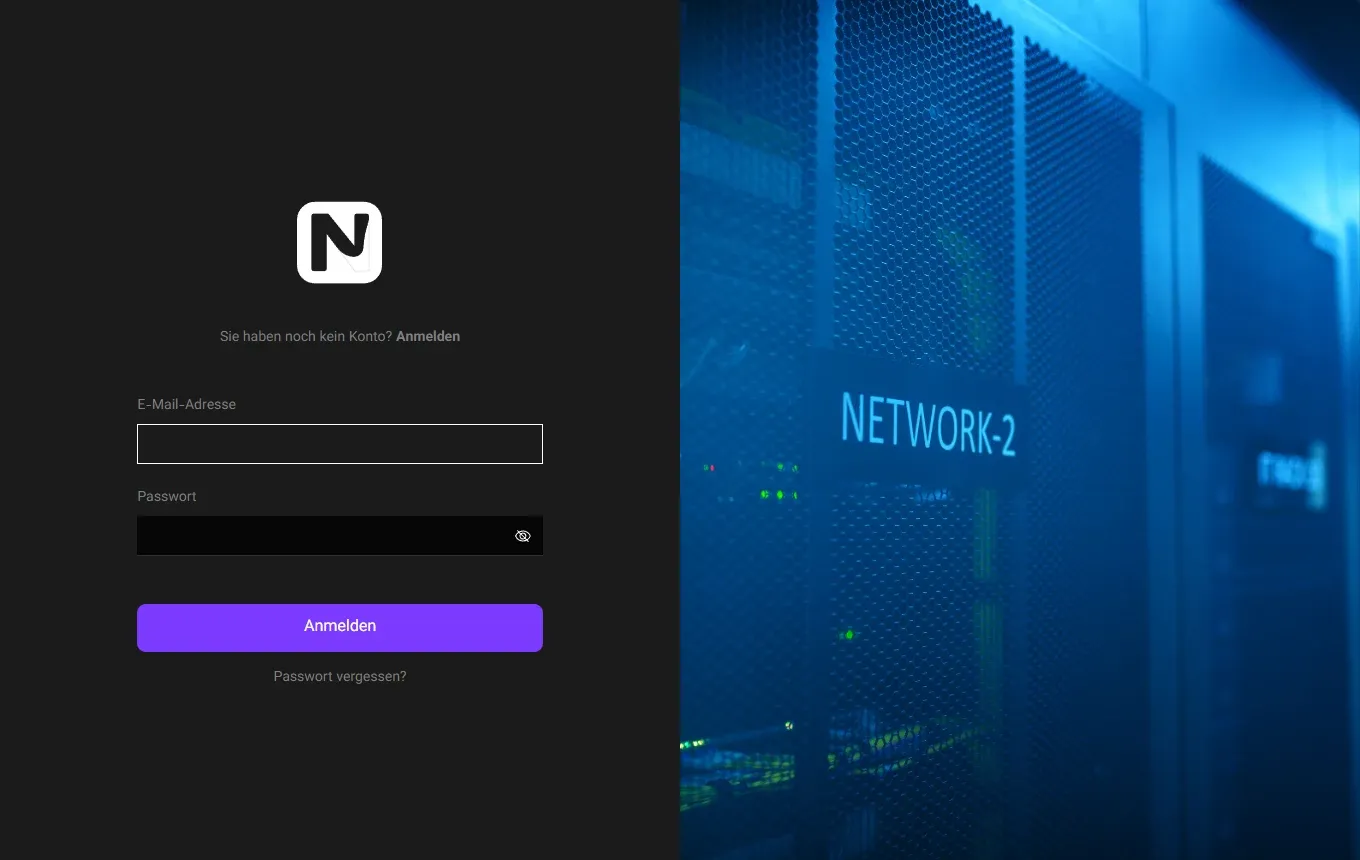
The login page of the web panel.
The easiest way in is one click: Dienste → Deine Produkte → Ansehen → Login button. Alternatively use the login page with the email address of your shop account and Passwort vergessen?. The details are under Web panel access.
You read and write your email in the browser via webmail at webmail.nexthosting.net. You log in with your full email address and the mailbox password. How to set up an email program is explained under Email mailboxes.
Protection panel
Section titled “Protection panel”The protection panel only exists for game servers with their own IP address. There you set how strict the DDoS filter for your address is, see traffic and attacks, and can block countries. There is no password login: you get in through a signed link from the shop. In the game server panel, the Angriffe (attacks) area leads you there. More: Your own IP address and DDoS protection and attacks.
Status page
Section titled “Status page”The status page shows whether Nexthosting services are currently running and announces maintenance. You do not need an account for it.
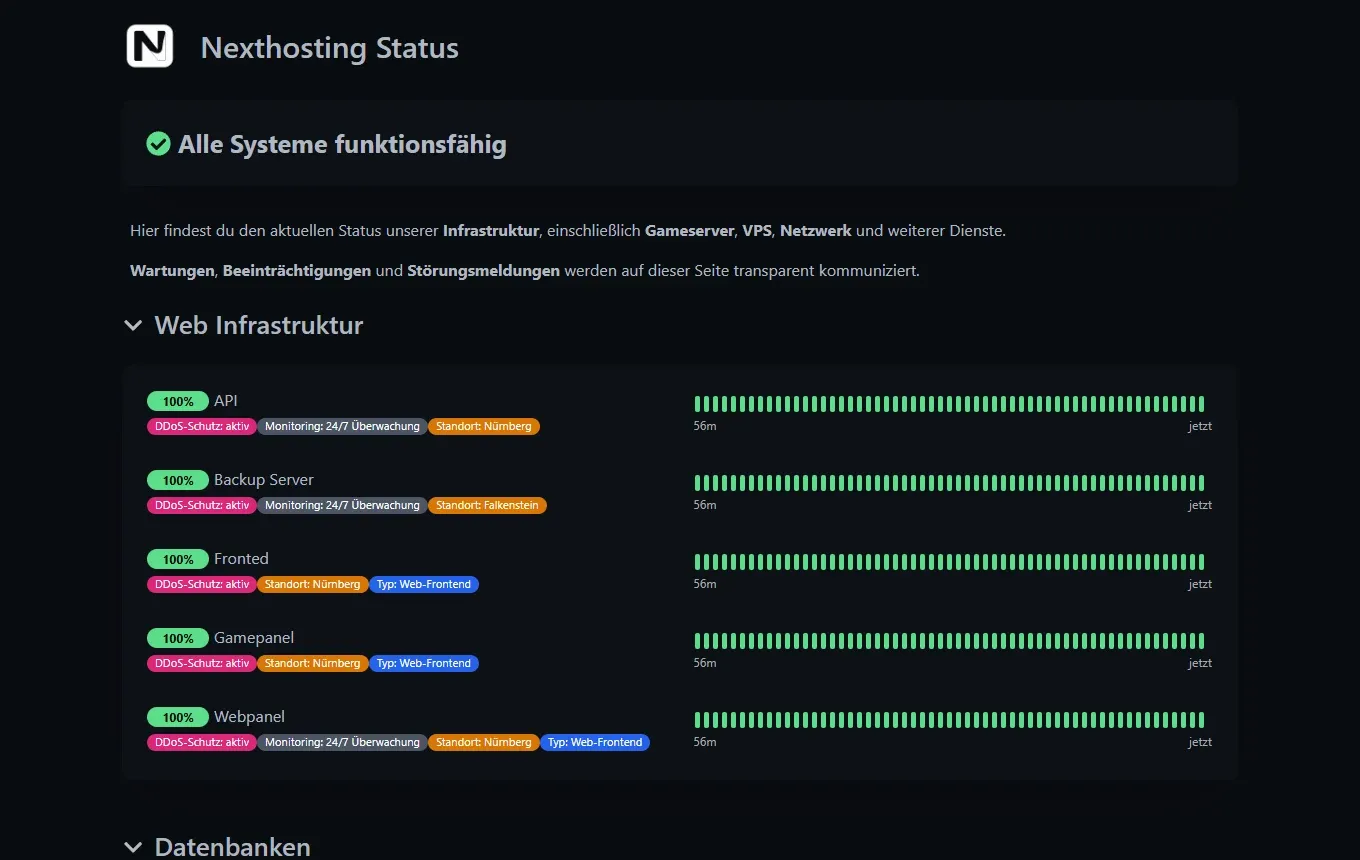
This is what the status page looks like when everything is running.
How to read it is explained under Status page and maintenance.
Loading screen tool
Section titled “Loading screen tool”With the GMod loading screen generator you build your own loading screen for your Garry’s Mod server. It is free for customers and also works on other servers. You log in with your customer account.
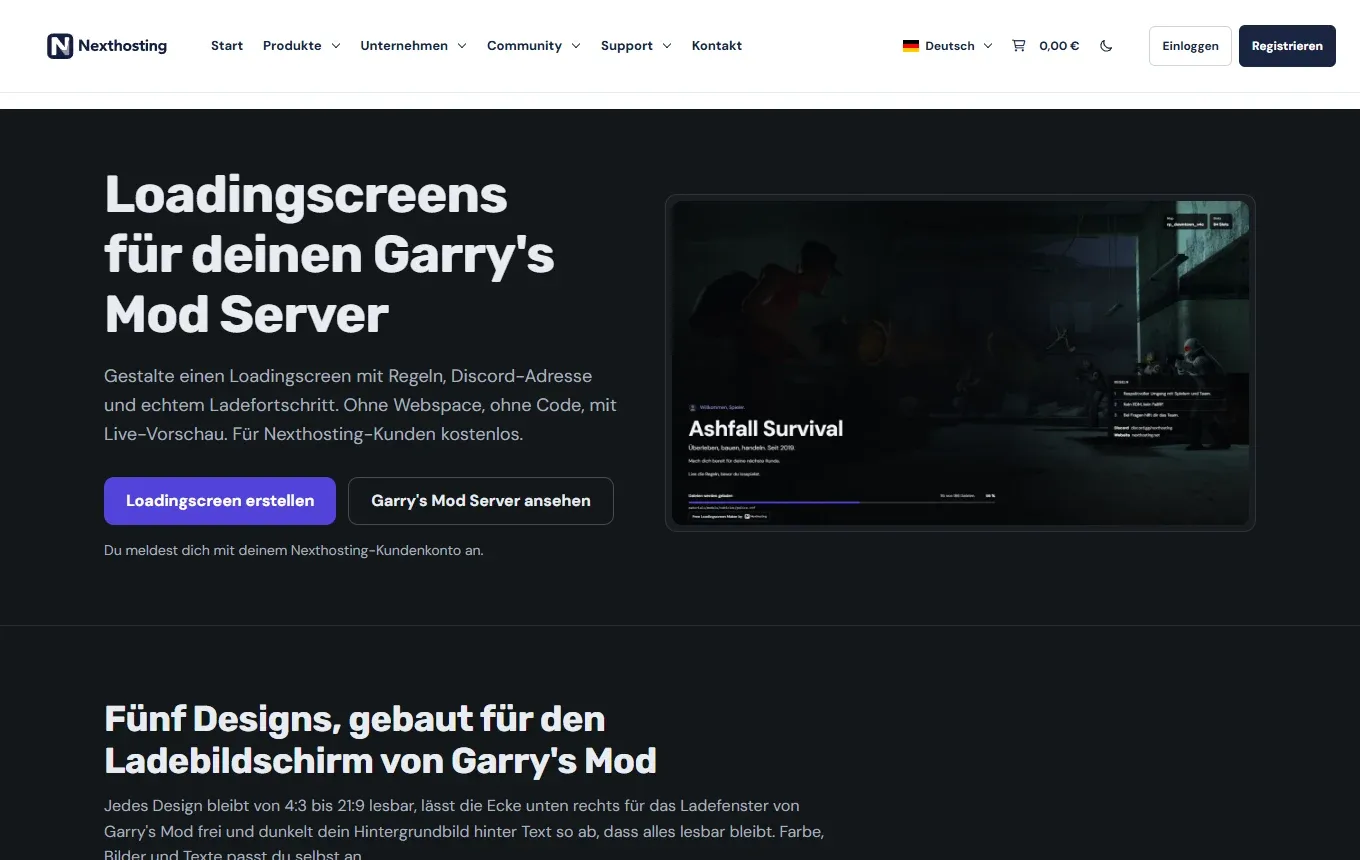
The introduction page of the generator in the shop. The tool itself is at tools.nexthosting.app.
A guide is available under Loading screen and FastDL.
Discord
Section titled “Discord”On the Nexthosting Discord server you chat with other customers. The link is in the shop in the Support menu. We do not promise a response time there; for anything concerning your contract, use a ticket. More: Support.
Where do I need to go?
Section titled “Where do I need to go?”Frequently asked questions
Section titled “Frequently asked questions”Why do I have several logins?
Section titled “Why do I have several logins?”The game server panel and the web panel are separate systems with their own login details. The customer account is the common entry point. From the customer account you get straight into the game server panel.
I never set a panel password. Now what?
Section titled “I never set a panel password. Now what?”That is normal, because you log in through the customer account. If you need one, set your own password with Forgot password? on the panel login page. The link in the email is valid for 60 minutes.
Where can I see whether there is an outage?
Section titled “Where can I see whether there is an outage?”On the status page. If everything is green there and your problem remains, write a ticket.