

03Game server panel
Invite friends – subusers in the game server panel
How to invite friends as subusers to your Nexthosting game server, assign suitable permissions and see in the log who changed what.
In short
Under Benutzer (users, in the Konfiguration group) you invite friends by email address and decide what they may do – for example console, files, restart or backups. You do not share your own login details. There is no limit on how many people you invite, and your friends do not need a contract of their own.
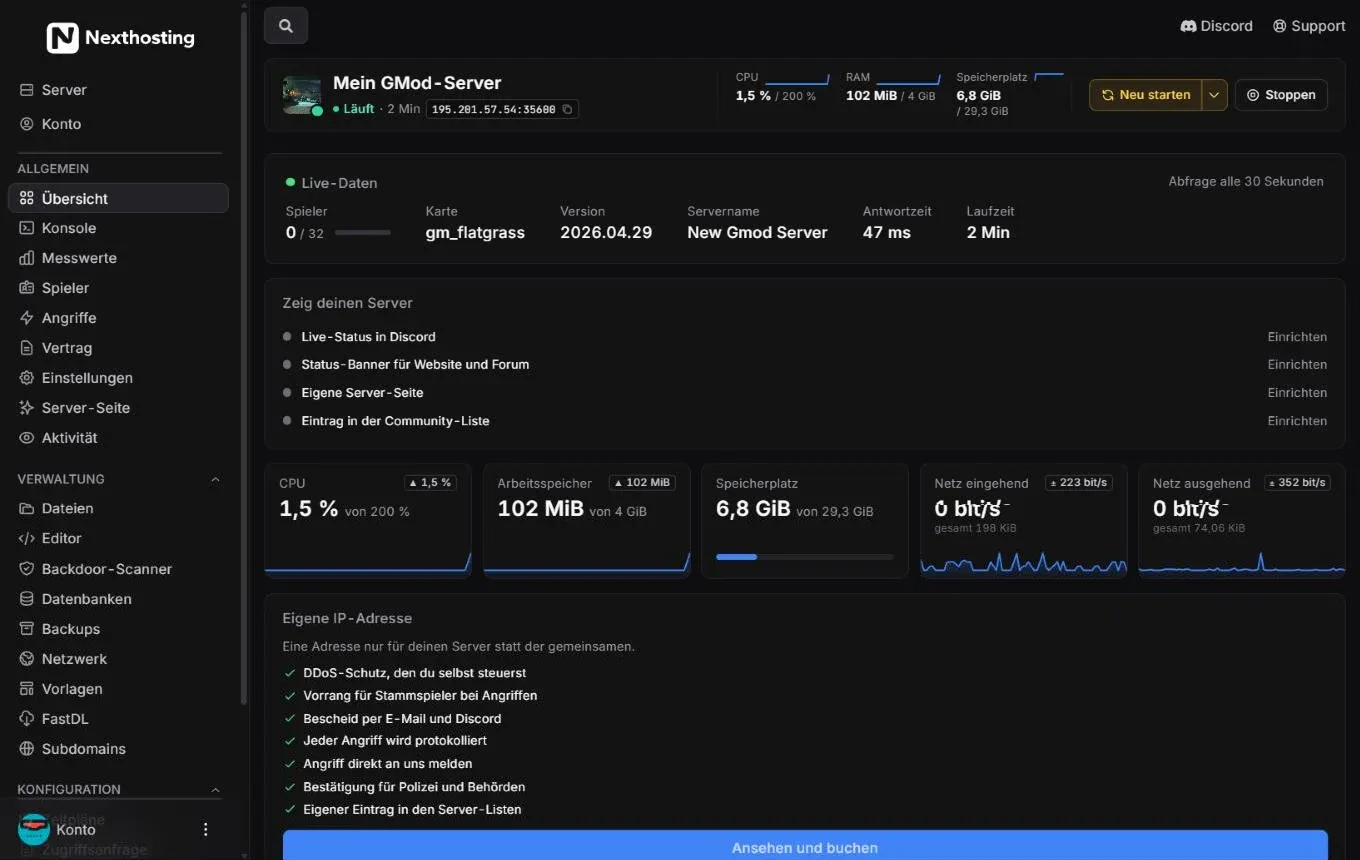
Benutzer (users) is in the Konfiguration (configuration) group at the very bottom of the sidebar. If it is collapsed, open it with a click.
- Group Konfiguration with Zeitpläne (schedules), Zugriffsanfrage (access request), Benutzer (users) and Start (startup)
- Aktivität (activity) – log of changes
Invite a friend
Section titled “Invite a friend”- You inviteemail address and permissions
- Friend receives an emailwith a link to the panel
- Friend sets a passwordif they have no panel account yet
- Server appears for themunder "Deine Server"
- Open your server in the panel and click Benutzer under Konfiguration.
- Create a new user and enter your friend’s email address.
- Choose the permissions they should get (see the table below). Only grant as much as they really need.
- Save. Your friend receives an email.
- If they do not have a panel account yet, they set a password via the link in the email. After that they see your server in their list.
Which permissions are there?
Section titled “Which permissions are there?”The permissions are sorted by area. Typical combinations:
| Role | Sensible permissions |
|---|---|
| Fellow player who should only restart | View the console, start, stop and restart the server |
| Admin for configuration | plus read and edit files, SFTP, startup variables |
| Person in charge of technical matters | plus backups, databases, schedules |
| Only you yourself | Manage users, settings, reinstall |
What subusers do not see
Section titled “What subusers do not see”The contract, invoices, cancellation and the Vertrag (contract) page in the panel stay with the owner. “Problem melden” (report a problem) also only appears for the owner, because the shop only assigns a contract for this server to them. Payment goes through one customer account – how you split the costs is up to you.
Change permissions or remove a friend
Section titled “Change permissions or remove a friend”- Open Benutzer.
- Click the friend whose permissions you want to change.
- Tick or untick boxes and save – or remove the user entirely.
A removed user loses access to this server immediately, including via SFTP. Their panel account remains.
Activity: who did what?
Section titled “Activity: who did what?”Under Aktivität (activity, in the Allgemein group) you see a log of what has been done on the server – for example starts and restarts, changed files or new backups, each with time and user. If a setting is suddenly different, you can quickly find out here who changed it.
Frequently asked questions
Section titled “Frequently asked questions”Does my friend have to pay anything?
Section titled “Does my friend have to pay anything?”No. Subusers do not need a contract of their own. The invoice goes to your customer account.
My friend did not get an email.
Section titled “My friend did not get an email.”They should check their spam folder. Check that the address is spelled correctly. Alternatively, they can set a password on the panel login page via “Forgot password?” with the same address.
Can a friend cancel the server?
Section titled “Can a friend cancel the server?”No. Cancelling and everything about the contract can only be done in the owner’s customer account – see Contracts and cancellation.
Is there a limit on how many I can invite?
Section titled “Is there a limit on how many I can invite?”No, you can invite as many friends as you like.