

03Game server panel
Nexthosting game server panel – overview
What you will find in the Nexthosting game server panel – every sidebar item briefly explained, with a screenshot and links to the detailed guides.
In short
You control your game server in the panel at panel.nexthosting.net. There you start the server, look at the console, edit files, create backups and invite friends. On the left you will find all areas in three groups: Allgemein (general), Verwaltung (management) and Konfiguration (configuration).
The panel is based on Pterodactyl, a widely used piece of game server software. Nexthosting has added many features of its own – for example metrics with export, the attack overview, a custom server page, the backdoor scanner and FastDL for Garry’s Mod. The screenshots in this help centre show a Garry’s Mod server named “Mein GMod-Server”.
How the panel is laid out
Section titled “How the panel is laid out”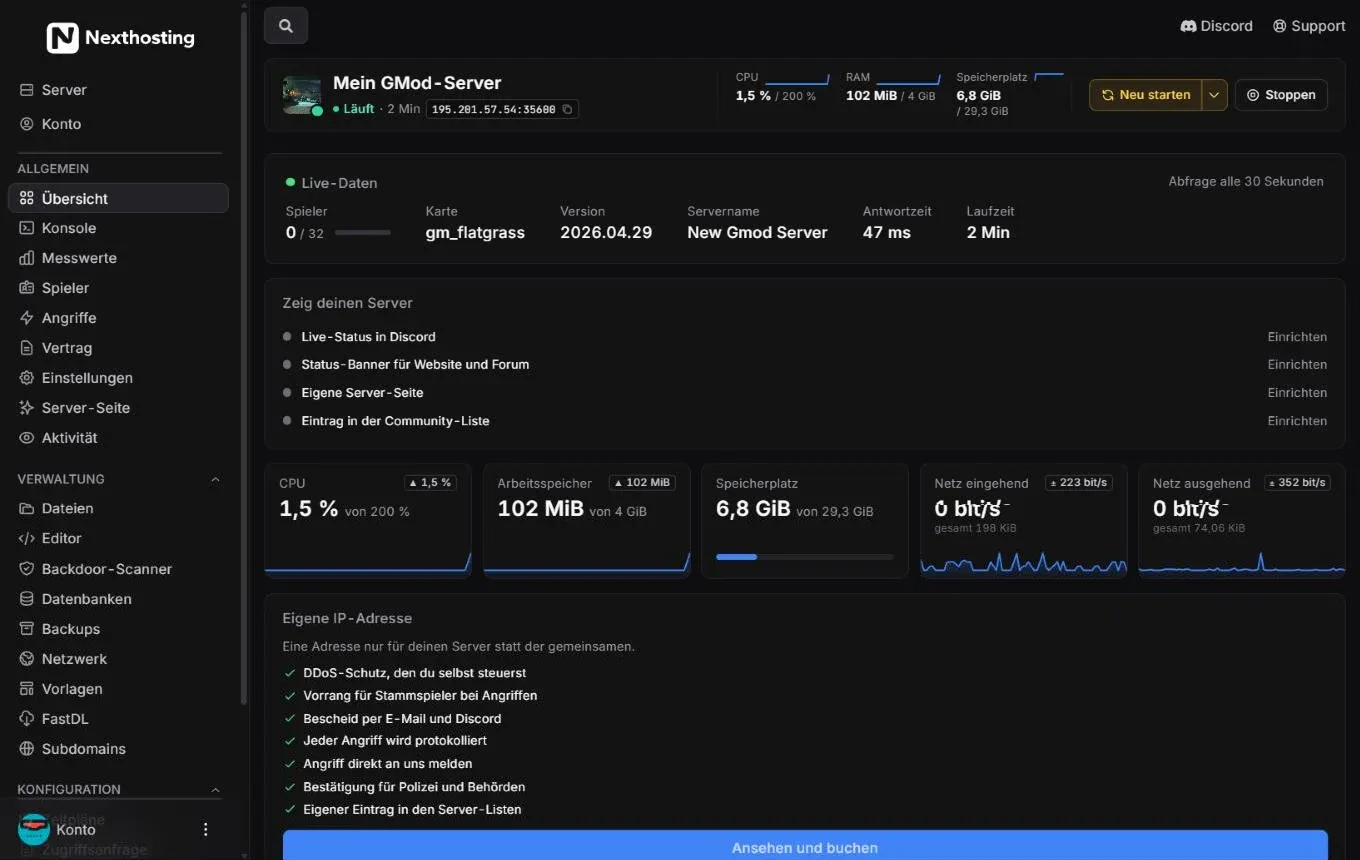
The overview of a server. The sidebar on the left holds all areas, the header at the top shows the status and the control buttons.
- Server (list of your servers) and Konto (account – your panel account)
- Group Allgemein (general) – everything about the running server
- Group Verwaltung (management) – files, databases, backups, network
- Group Konfiguration (configuration) – schedules, access request, users, startup
- Header with server name, status, uptime and the address to copy
- Control buttons Neu starten (“restart”, with an arrow for “schedule a restart”) and Stoppen (“stop”)
- Links to Discord and Support
- Search
- Account menu at the bottom left
The groups in the sidebar can be collapsed. Which items you see depends on the game: FastDL and Backdoor-Scanner (backdoor scanner), for example, appear for Garry’s Mod. If a friend has given you access to their server, you only see the areas you have been given rights for.
All menu items at a glance
Section titled “All menu items at a glance”| Group | Menu item | What it is for | Guide |
|---|---|---|---|
| Allgemein | Übersicht (overview) | Status, live data, load, one-click setup, history, SFTP access | Server overview |
| Konsole (console) | Read the server’s live output and send commands | Console and controls | |
| Messwerte (metrics) | CPU, RAM, network and players up to 30 days back, export as CSV or JSON | Metrics | |
| Spieler (players) | Player management: see who is online, kick, ban, send messages | Tools | |
| Angriffe (attacks) | Protection status and network traffic of your server | DDoS protection | |
| Vertrag (contract) | Plan, price and history of your server (owner only) | Upgrade your server | |
| Einstellungen (settings) | SFTP access, backup question, name, notifications, public status, reinstall | Settings | |
| Server-Seite (server page) | Design a public web page of your own for your server | Show your server | |
| Aktivität (activity) | Log of what has been done on the server | Friends and subusers | |
| Verwaltung | Dateien (files) | File manager in the browser, upload by drag and drop | Files and SFTP |
| Editor | Edit files as in Visual Studio Code, also together | Files and SFTP | |
| Backdoor-Scanner | Check Lua files for backdoors (Garry’s Mod) | Tools | |
| Datenbanken (databases) | Create MySQL databases (number depends on your plan) | Backups and databases | |
| Backups | Create, download and restore backups | Backups and databases | |
| Netzwerk (network) | Your server’s ports | Network and subdomains | |
| Vorlagen (templates) | Set up game modes and extensions with one click | Templates and mods | |
| FastDL | Fast downloads for your players (Garry’s Mod) | FastDL and loading screen | |
| Subdomains | Free address under .nexthosting.app |
Network and subdomains | |
| Konfiguration | Zeitpläne (schedules) | Run restarts, commands and backups automatically | Schedules |
| Zugriffsanfrage (access request) | Give the Nexthosting team access to your server when you need help | Report a problem | |
| Benutzer (users) | Invite friends and assign permissions | Friends and subusers | |
| Start (startup) | Startup parameters and startup variables | Settings and startup |
The start page “Deine Server”
Section titled “The start page “Deine Server””When you log in, you land on the list Deine Server (your servers). Each server is listed with its address, status (Online or Offline) and the load on CPU, RAM and storage. Click Server verwalten (“manage server”) to open it. Servers that a friend has shared with you appear in a separate group.
Below that you will find a link to the Status Seite (status page), the item Zugriffsanfrage stellen (make an access request) and an invitation to Nexthosting’s Discord server. With the access request you can, when you need help, let the Nexthosting team access your server too. For a screenshot of the start page, see Open the panel.
Frequently asked questions
Section titled “Frequently asked questions”Do I need a separate password for the panel?
Section titled “Do I need a separate password for the panel?”No, you get into the panel straight from your customer account (Dienste → Deine Produkte → Ansehen → Gameserver-Panel öffnen). You only need a separate panel password for SFTP or for logging in without the customer account. How that works is explained under Open the panel.
Why is a menu item missing for me?
Section titled “Why is a menu item missing for me?”The menu adapts to the game. FastDL and the backdoor scanner, for example, only exist for games they were built for. As an invited friend you only see the areas you have permissions for.
Can I use the panel on my phone?
Section titled “Can I use the panel on my phone?”Yes, the panel runs in the browser and adapts to smaller screens. For longer work on files, a computer is more comfortable.