

08Cloud Storage
Cloud Storage at Nexthosting: overview
Cloud Storage for files and backups with browser, drive, SFTP, WebDAV and S3. Plans, prices, bonus and login explained, plus what happens when storage is full.
In short
Cloud Storage is storage space for your files in a data center in Germany. You use it in the browser, as a drive, via SFTP, via WebDAV or via S3 (backup programs). Plans range from 100 GB to 10 TB, can be cancelled monthly and start at €1.99 per month (as of November 2026). You open the storage panel from your customer account without a password of its own.
What is Cloud Storage for?
Section titled “What is Cloud Storage for?”Cloud Storage is a data store, not a server. Nothing runs on it, it just keeps files ready. Typical uses:
- Downloads for your community: resource packs, maps or installers that you share via a link.
- Backups: backup programs such as restic or Duplicati, a NAS (Synology Hyper Backup, QNAP) or the WordPress plugin UpdraftPlus back up directly to it.
- Storing large files: videos, archives or folders that would take up too much space on your Webspace.
- Collaboration: you invite other Nexthosting customers, for example your team, into a folder area.
On its own, Cloud Storage is not a backup in the sense of a second, geographically separate copy. What “protected” means here is explained on the page Backups and data.
Four ways to your files
Section titled “Four ways to your files”All ways are included in every plan.
| Way | Address | Suited for |
|---|---|---|
| Browser | storage.nexthosting.net |
Uploading, organizing, viewing and sharing without any program |
| Drive (WebDAV) | dav.nexthosting.net |
Storage appears like a hard drive in Explorer or Finder |
| SFTP | sftp.nexthosting.net, port 22 |
Transferring files with WinSCP, FileZilla, Cyberduck or sftp |
| S3 | s3.nexthosting.net |
Backup programs, websites and software that speak S3 |
How to set up each way is shown in Access keys and connecting.
Plans and prices
Section titled “Plans and prices”Every plan includes download traffic equal to its storage, per month. Uploading does not count towards traffic. You pay monthly and can cancel monthly.
| Storage | Download traffic per month | Price per month |
|---|---|---|
| 100 GB | 100 GB | €1.99 |
| 250 GB | 250 GB | €3.99 |
| 500 GB | 500 GB | €5.99 |
| 1 TB | 1 TB | €9.99 |
| 2 TB | 2 TB | €19.99 |
| 5 TB | 5 TB | €49.99 |
| 10 TB | 10 TB | €99.99 |
Prices: as of November 2026, the shop page Cloud Storage is binding. Nexthosting is a small business under § 19 UStG (German VAT Act), so the prices are final prices. More about traffic, extra traffic and the “Flex” plan can be found under Billing and limits.
Bonus for Nexthosting customers
Section titled “Bonus for Nexthosting customers”For every active game server, Webspace or VPS contract with Nexthosting, your plan gets 10 GB extra, up to 50 GB. The panel calculates this by itself, you do not need to apply for anything. In the panel the bonus appears as “inkl. +10 GB Bonus” (incl. +10 GB bonus).
Flex: pay for what you use
Section titled “Flex: pay for what you use”Flex is a plan without a fixed storage limit: you pay the base price and then what you use. It is enabled on request and is mainly meant for changing needs. Details and prices are on the page Billing and limits.
How to get into the storage panel
Section titled “How to get into the storage panel”- Order a plan via the shop page or in the server center (see Ordering). With Flex you wait for it to be enabled.
- Log in to the customer account. You then have three ways: in the menu at the top right My Nexthosting ▾ the entry Storage panel, in the Server Center under Cloud Storage the button To the storage panel at your plan, or the same button in the Services card on the Account overview.
- The storage panel opens in a new tab at
storage.nexthosting.netand you are logged in directly. You do not need a password of your own. If you have several plans, the menu has a separate entry for each plan with its name.
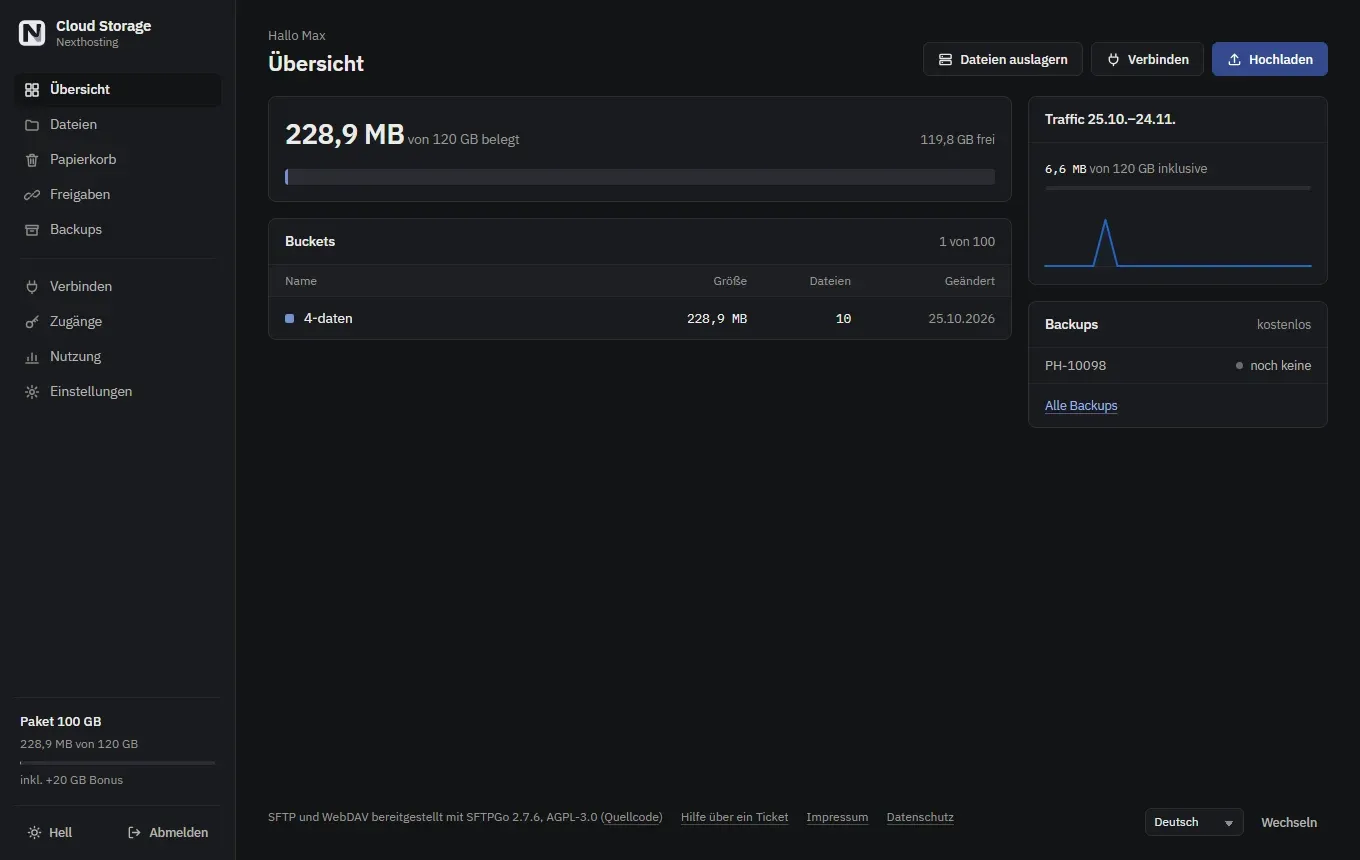
The overview in the storage panel, here with a 100 GB plan and one bucket.
- Menu with all areas of the panel
- Usage: how full your storage is
- Offload files (Dateien auslagern), Connect (Verbinden) and Upload (Hochladen)
- Traffic in the current contract month
What happens when storage is full or an invoice stays unpaid?
Section titled “What happens when storage is full or an invoice stays unpaid?”- Storage full: new files can no longer be uploaded. Viewing, downloading and deleting still work.
- Invoice unpaid: two days after the due date the storage is locked (no uploading, no downloading, no share links). Once you pay, everything is available again immediately. If the invoice stays unpaid, the contract ends after ten days and the files are deleted. We remind you by email beforehand. More under Late payment and suspension.
- Cancellation: at the end of the term all files are deleted, so download what you want to keep beforehand. We remind you by email seven days and one day before. See Data after the contract ends.
Frequently asked questions
Section titled “Frequently asked questions”Where are my files stored?
Section titled “Where are my files stored?”In a data center in Germany. Connections to the storage are encrypted (HTTPS and SFTP).
Do I need a server at Nexthosting to use Cloud Storage?
Section titled “Do I need a server at Nexthosting to use Cloud Storage?”No. Cloud Storage can be ordered on its own. With a game server, Webspace or VPS contract, however, you get the bonus storage, and you see the server backups in the same panel (see Backups and data).
How many buckets can I create?
Section titled “How many buckets can I create?”A bucket is a separate area in your storage (see Buckets and files). How many your plan allows, you can see in the panel on the overview next to “Buckets” as “x of y” (x von y).
Can I choose a bigger plan?
Section titled “Can I choose a bigger plan?”Yes, at any time in the customer account. The button “Paket ändern oder kündigen” (change or cancel plan) is in the panel under Settings (Einstellungen) in the plan section. General information on upgrades is under Changing plans and upgrades.