

08Cloud Storage
Trash – restore deleted files
Deleted or overwritten files in Nexthosting Cloud Storage stay in the trash for 7 days. Learn how to restore lost files with one click, and when it is too late.
In short
Everything you delete or overwrite in Cloud Storage stays in the Trash (Papierkorb) for 7 days and can be restored in the panel with one click. After that, it is permanently deleted. The trash is included in the package price and applies to every method: browser, SFTP, WebDAV, S3 and deletion rules. It is the only way to undo a deletion. There is no second copy.
What ends up in the trash?
Section titled “What ends up in the trash?”- Deleted files, no matter whether you deleted them in the file manager, via SFTP, as a drive or via S3.
- Older versions of a file when you overwrite it (for example by uploading again under the same name).
- Files removed by a deletion rule.
- All files of a deleted bucket.
For each entry, the list shows how it got there, for example “via S3”, “in the file manager”, “by the deletion rule” or “with the bucket”, and how many days are left.
- Day 0You delete the fileIt goes to the trash and disappears from the bucket.
- Day 1 to 7Restore possibleWith one click in the panel under Trash.
- After 7 daysPermanently deletedNo restore possible any more.
Restore a file
Section titled “Restore a file”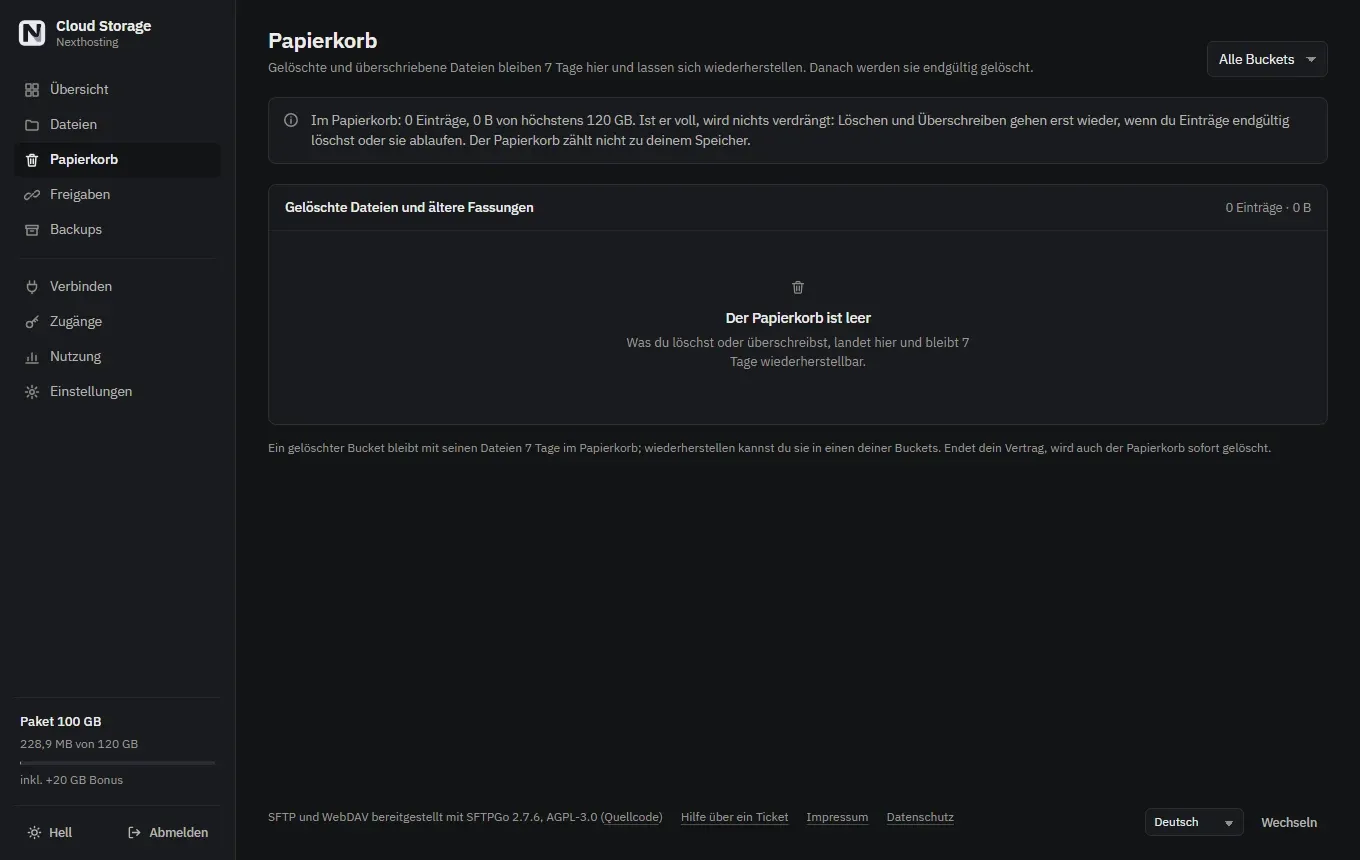
The trash, empty here.
- Bucket selection (“All buckets” or a single one)
- Note about how much the trash currently holds and that it does not count towards your storage
- List of deleted files and older versions; each entry has a Restore (Wiederherstellen) button
- In the panel, open the menu item Trash. At the top right, choose the bucket or “All buckets”.
- Find the entry. With All versions of this file (Alle Fassungen dieser Datei) you see older versions of an overwritten file.
- Click Restore. For entries from a deleted bucket, use Restore to (Wiederherstellen in) to choose one of your buckets as the target.
- Confirm the “… restore?” prompt.
If a different file currently exists under that name, it goes to the trash instead. You can bring it back from there as well. A restored file must fit within your storage limit.
Delete permanently and empty
Section titled “Delete permanently and empty”If you really want to get rid of something, click Delete permanently (Endgültig löschen) on an entry. With Empty trash (Papierkorb leeren) you clear everything, or with Empty for this bucket (Für diesen Bucket leeren) only one bucket. To confirm, type the word LEEREN. After that, the file is gone.
When is there no restore?
Section titled “When is there no restore?”The trash is not a replacement for a backup. There is no right to restore in these cases:
| Case | Explanation |
|---|---|
| After 7 days | The period has expired and the entry was permanently deleted. |
| Permanently deleted by you | You used “Delete permanently” or “Empty trash”. |
| End of contract | When the contract ends, the trash is deleted immediately as well. |
| Deletion by Nexthosting | For example for legal reasons or because of abuse. |
| Merged intermediate versions | Intermediate versions of a file can be merged, so not every single version exists. |
| Empty folders | Folders without content are not backed up. |
| Entries from deletion rules when the trash is full | They are the first to be dropped early. |
| Technical fault | Versions that could not be saved because of a fault or a temporary shutdown of the trash. |
| Locked storage | While storage is locked (for example because of an open invoice), restoring is not possible, but the 7 days keep running. |
The add-on terms (section on the trash) are binding; this page summarises them in plain words.
When the trash is full
Section titled “When the trash is full”The trash has an upper limit, shown at the top of the Trash page. By default it is as large as your package including bonus (or your highest usage so far, if that was larger), but at least 10 GiB. There is no maximum number of older versions per file; if the same access overwrites a file constantly, the trash keeps at most one version every 60 minutes. When it is full, nothing is pushed out: deleting and overwriting are then rejected until you permanently delete entries or they expire. Your program reports, for example, error 507 with the message “Papierkorb voll” (Trash full), and the file stays unchanged. The exception is entries from deletion rules, which make room first.
Solution: open the trash and permanently delete large entries, or wait until they expire. If that doesn’t help, write a ticket.
Frequently asked questions
Section titled “Frequently asked questions”Can support restore deleted files for me?
Section titled “Can support restore deleted files for me?”The idea is that you restore them yourself in the panel as long as the entry is in the trash. After the 7 days have passed, nothing is left. If this page doesn’t help, write a ticket right away, the sooner the better.
Does the trash cost extra?
Section titled “Does the trash cost extra?”No, it is included in the price of every package. By default it does not count towards your storage, and with Flex not towards the billed usage. The Trash page has a note saying whether it is counted against your storage for you (“zählt zu deinem Speicher” or “zählt nicht”).
I deleted a whole bucket. Is everything gone?
Section titled “I deleted a whole bucket. Is everything gone?”Not immediately. A deleted bucket stays in the trash with its files for 7 days. You restore them into one of your buckets. The files are restored, not the bucket itself.
What happens when I cancel?
Section titled “What happens when I cancel?”When the contract ends, everything is deleted, including the trash. Download what you want to keep beforehand. See Data after the end of the contract.