

02Account & billing
Share a server – give another account access to your VPS
Share a Nexthosting VPS with another account without handing over a password: roles Operate and Full access, invitation, revoking access, SSH keys.
In short
You can share a VPS with another Nexthosting account without giving away your password. In the Server Center you invite the person by email and choose a permission: Bedienen (Operate) (start, stop, view metrics) or Vollzugriff (Full access) (additionally console, root password, SSH keys, reinstall, backups, firewall). The contract, invoices and cancellation stay with you, and it costs the invited person nothing.
The labels below are the German ones, as in the interface. The English meaning is given in parentheses.
Share a server or share the account?
Section titled “Share a server or share the account?”There are two ways to give others access. They differ in scope:
| Share a server (Server freigeben) | Account access (Kontozugriffe) | |
|---|---|---|
| What is shared? | A single VPS | The whole customer account with invoices and contracts |
| Where? | Server Center, in the VPS area Zugang (Access) | Customer account, page Kontozugriffe |
| Suitable for | Friends, colleagues, service providers who should work on one server | Staff who help manage the account |
If someone only needs to work on one server, share just that server. They then see neither invoices nor your other services.
The two permissions
Section titled “The two permissions”| Permission | What the person may do |
|---|---|
| Bedienen (Operate) | Start, restart and shut down the server, force it off if it stops responding, and view the metrics (processor, memory, disk, network) and history. No access to the system itself. |
| Vollzugriff (Full access) | Full access to the system: console in the browser, set their own root password, store their own SSH keys, reinstall (choose the operating system), create and restore backups, configure the firewall. Plus everything from Bedienen. |
What the person can never do: contract, invoices and cancellation. That stays with you.
Invite someone
Section titled “Invite someone”- InviteChoose email address and permission
- Email arrivesInvitation, bound to this address
- AcceptLog in with the account of this address
- Server appearsUnder Für dich freigegeben (Shared with you)
- In the Server Center, open your VPS and its area Zugang.
- On the card Zugriff teilen (Share access), click the button of the same name. You see a list: person, permission, status and actions.
- Enter the person’s email address, choose the permission and click Einladen (Invite).
- Nexthosting sends an invitation by email. The link is also shown to you, and you can pass it on yourself if the email does not arrive. Copy it right away, because it cannot be retrieved later.
The invitation is bound to that email address and is only valid until the date in the email. After that the link expires and you can send a new one. The list shows the status: Eingeladen (Invited), Aktiv (Active) or Abgelaufen (Expired).
Accepting as the invited person
Section titled “Accepting as the invited person”- Open the email and click Einladung ansehen (View invitation).
- Log in with the account that belongs to exactly this email address. If you do not have one yet, create one with exactly this address, confirm it and open the link again afterwards. With a different account, the page tells you which address the invitation is for.
- Click Annehmen (Accept) (or Ablehnen (Decline)).
- The server then appears in your Server Center in the group Für dich freigegeben, with the note “Freigabe von …” (Shared by …).
If you did not expect an invitation or do not know the person, just ignore the email. Nothing happens without your consent. We never ask you for your password by email.
With full access you set your own root password under Zugang and can then store your own SSH keys on the server. With Bedienen you start and stop the server; access to the system is only possible with full access. If you no longer want the share, click Freigabe beenden (End sharing). The server is then no longer visible to you.
Create an SSH key in the browser
Section titled “Create an SSH key in the browser”If you want to connect to the server via SSH, you normally need a key. The Server Center can create it directly in the browser, with nothing to install:
- Open the SSH keys: for the server under Zugang, or in the Server Center under Werkzeuge (Tools) and SSH-Schlüssel (SSH keys).
- Click Neuen Schlüssel erstellen (Create new key).
- Download the private file: Für PuTTY (.ppk) (for PuTTY on Windows) or Für OpenSSH (for Windows, Mac and Linux). On Mac and Linux, run
chmod 600on the file once. - Keep the file safe and confirm Ich habe die Datei gespeichert (I have saved the file).
You can also store your own keys centrally once: in the Server Center under Werkzeuge (Tools) and SSH-Schlüssel (SSH keys) there is the button Schlüssel hinzufügen (Add key). For every installation of a VPS or dedicated server you then choose which keys are installed.
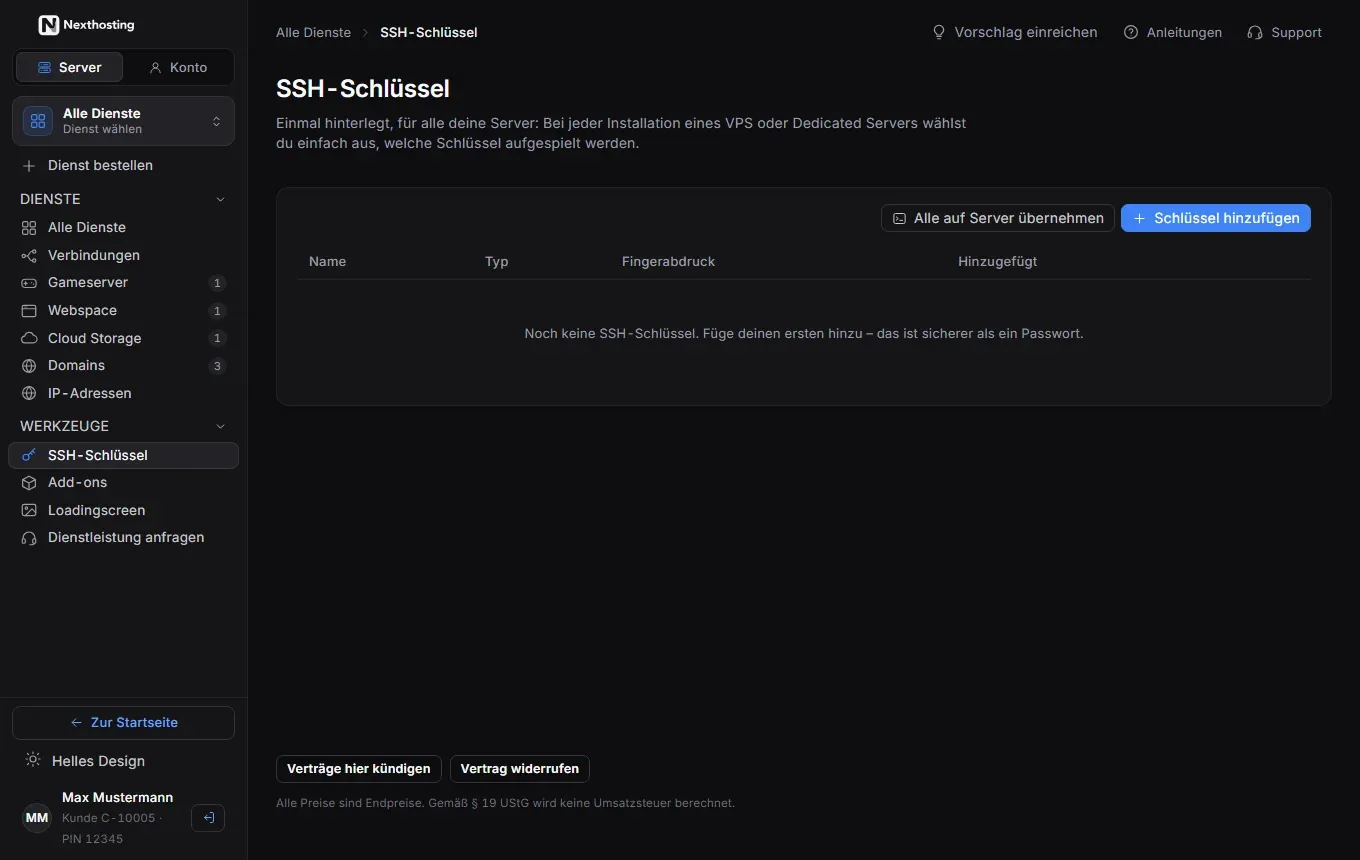
The central list of SSH keys in the Server Center (no keys yet in this example).
- Add key (Schlüssel hinzufügen)
Nexthosting only stores the public part. If the file is lost, simply create a new key. How to connect with the key is explained under VPS: first steps with SSH.
Change a permission and revoke access
Section titled “Change a permission and revoke access”In the list under Zugriff teilen you can at any time:
- change the person’s permission,
- withdraw (Zurückziehen) an open invitation – the link no longer works afterwards,
- revoke (Entziehen) access. The person can then no longer operate the server.
Frequently asked questions
Section titled “Frequently asked questions”Does sharing cost anything?
Section titled “Does sharing cost anything?”No, neither for you nor for the invited person. The contract and invoices stay with you.
The invitation does not work.
Section titled “The invitation does not work.”It only works with the account that belongs to the invited email address, and only until the date in the email. If it has expired, has already been answered or was withdrawn, ask the owner for a new one.
Can I share game servers too?
Section titled “Can I share game servers too?”For game servers, the game server panel has its own sub-users with individually adjustable permissions. See Friends and sub-users.
Can I hand a server over to someone else completely?
Section titled “Can I hand a server over to someone else completely?”Yes, with “Server übergeben” the whole contract moves to another account. See Handing over a server.
Can I share dedicated servers or webspace?
Section titled “Can I share dedicated servers or webspace?”Sharing in this form is available for VPS.