

08Cloud Storage
Storage panel and overview: what is where?
The Cloud Storage panel explained: menu items, usage, traffic, language, light and dark mode, notifications, and the lock when a payment is overdue.
In short
The storage panel at storage.nexthosting.net has nine menu items. On the Overview (Übersicht) you see at a glance how much storage and traffic you have used and which buckets you have. Everything else is one click away: Files, Trash, Shares, Backups, Connect, Access, Usage and Settings.
The menu items
Section titled “The menu items”| Menu item | What you need it for | More |
|---|---|---|
| Overview (Übersicht) | Usage, traffic, buckets, invitations, backups of your servers | on this page |
| Files (Dateien) | File manager in the browser: upload, organize, share | Buckets and files |
| Trash (Papierkorb) | Restore deleted and overwritten files for 7 days | Trash |
| Shares (Freigaben) | Manage share links, invite members to buckets | Buckets and files |
| Backups | Backups of your game servers and VPS | Backups and data |
| Connect (Verbinden) | Wizard for drive, SFTP, S3, backup program, WordPress | Access keys and connecting |
| Access (Zugänge) | View, create and revoke all keys and passwords | Access keys and connecting |
| Usage (Nutzung) | Storage and traffic per day, billing so far | Billing and limits |
| Settings (Einstellungen) | Notifications, appearance, plan, custom alerts | Alerts |
If an invitation is open, the menu item shows how many there are. The header shows your plan with its usage (“Speicher belegt”, storage used).
The overview
Section titled “The overview”At the top the panel greets you with the buttons Offload files (Dateien auslagern), Connect (Verbinden) and Upload (Hochladen). Below them are these sections.
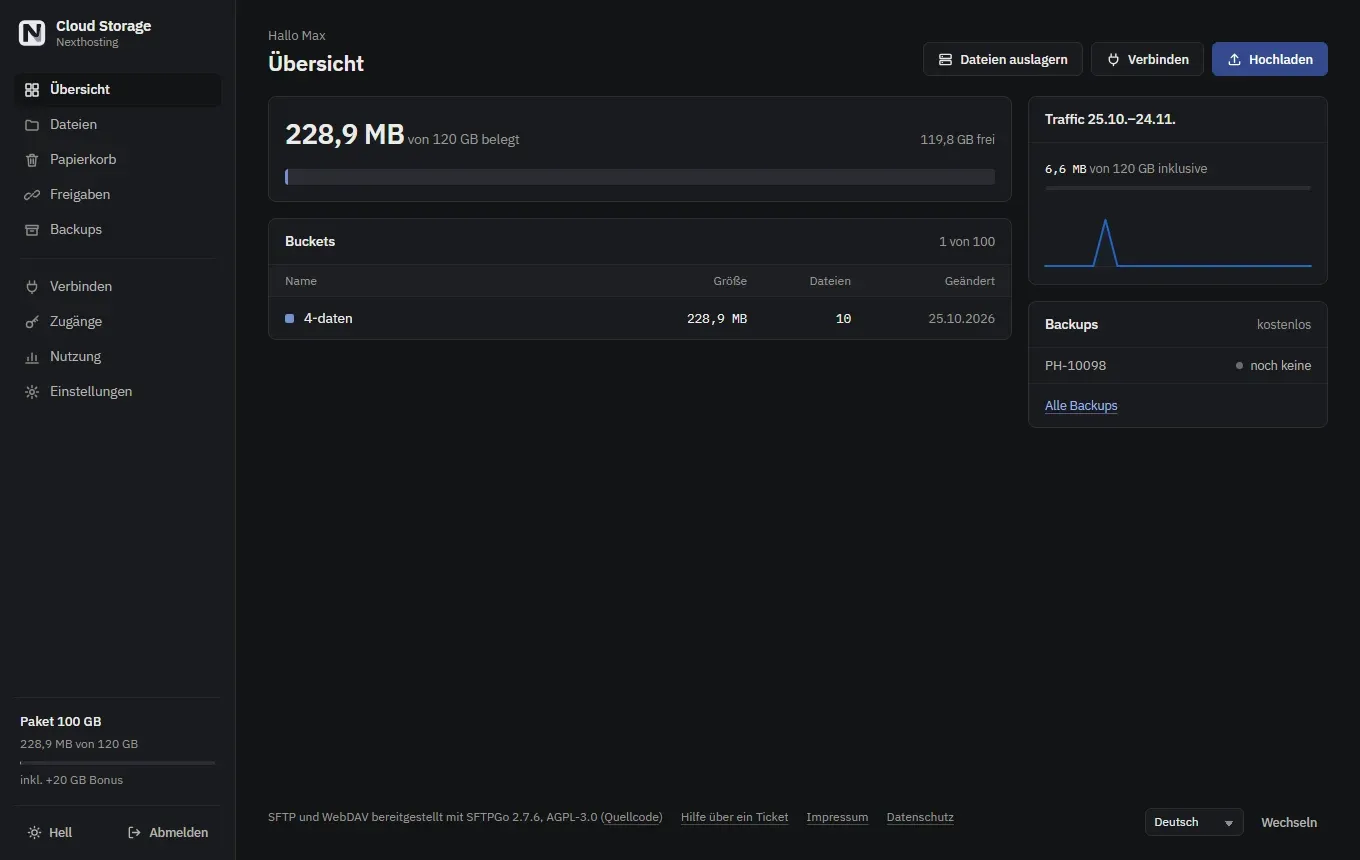
The overview in the storage panel.
- Offload files, Connect, Upload
- Usage (Belegung)
- Traffic in the contract month
- Buckets
- Backups of your servers
In detail:
- Usage: how much of your plan’s storage you have used. Any bonus is included. With Flex you instead see what has accrued since the start of the month, and your spending limit.
- Traffic: how much download traffic you have used in the contract month, compared to the included amount. From 80 % the panel points this out calmly. If the traffic is used up, downloads continue at 50 Mbit/s until the end of the contract month. With Book extra traffic (Zusatz-Traffic buchen) it is fast again immediately.
- Buckets: your buckets with size, number of files and last change, plus Create bucket (Bucket anlegen).
- Shared with you (Für dich freigegeben): buckets of other customers in which you are a member. The owner pays for storage and traffic there.
- Invitations (Einladungen): if someone has invited you to a bucket, you can Accept (Annehmen) or Decline (Ablehnen) the invitation here.
- Backups: the latest backup of each of your servers. It is free and does not count towards your storage.
- Recent (Zuletzt): what happened most recently.
Settings
Section titled “Settings”Under Settings you find these sections.
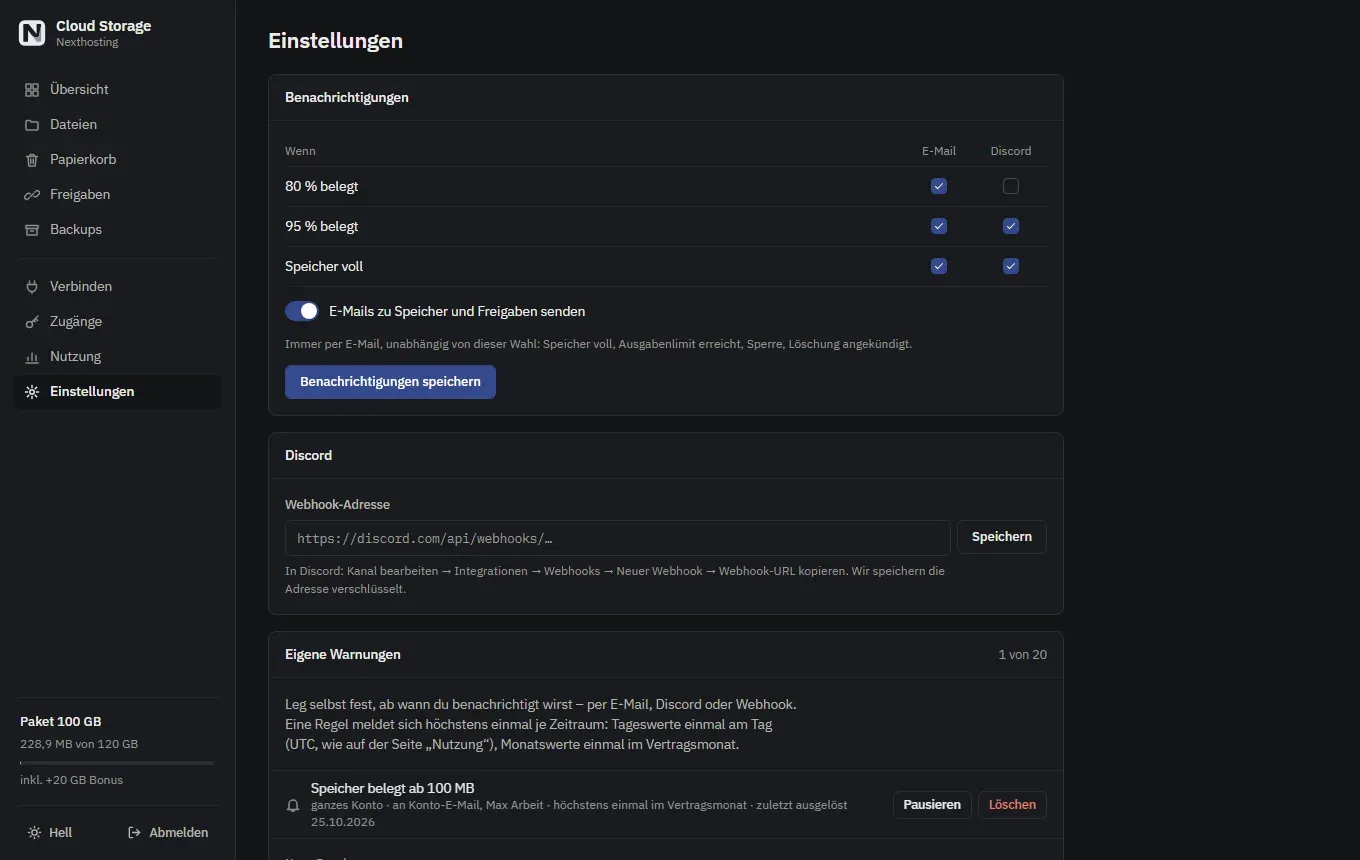
The settings with notifications, Discord and custom alerts.
- Notifications (Benachrichtigungen) at 80 % used, 95 % used and storage full, each by email or Discord
- Discord: webhook address of your channel
- Custom alerts (Eigene Warnungen): rules with your own thresholds
In detail:
- Notifications: the panel can notify you by email or in Discord at 80 % used, at 95 % used and when the storage is full. For Discord you enter the webhook address of a channel and can check with Send test message (Testnachricht senden) that it arrives. Important emails always arrive, however you set this up: lock, announced deletion and spending limit reached.
- Custom alerts: your own rules with your own thresholds and targets. The page Alerts explains them.
- Appearance (Darstellung): choose between “like the device” (wie das Gerät), Light (Hell) and Dark (Dunkel). Save your choice with Apply (Übernehmen).
- Plan (Paket): your booked plan, the bonus and the total storage. The bonus is +10 GB per active game server, Webspace or VPS contract, up to 50 GB. With Change or cancel plan (Paket ändern oder kündigen) you jump to the customer account.
- Spending limit (Ausgabenlimit): Flex only. Your usage may cost at most this amount per month. At 80 % you get an email, at 100 % uploads pause until the start of the next month.
- Deletion announced (Löschung angekündigt): appears only when a deletion is pending for your storage, for example after a cancellation, with the date.
Language and appearance
Section titled “Language and appearance”The panel is available in German, English, Polish, French, Italian, Spanish, Dutch and Danish. It takes the language from your customer account. You can switch it at the bottom in the footer via “Sprache” (language) and Switch (Wechseln); the panel remembers your choice in a cookie.
You set light or dark under “Darstellung” (appearance) in the settings.
When something does not look as usual
Section titled “When something does not look as usual”Error pages have clear texts: “Kein Zugriff” (no access) means the bucket or page does not belong to your account. “Diese Seite gibt es nicht” (this page does not exist) usually means that the bucket, file or link was deleted. “Zu viele Anfragen” (too many requests) resolves by itself after a minute. “Die Seite war zu lange offen” (the page was open too long) is fixed by reloading.
Frequently asked questions
Section titled “Frequently asked questions”How do I log out of the panel?
Section titled “How do I log out of the panel?”With the Abmelden (log out) button in the panel. You get back in via the customer account again.
Where do I get help if something does not work?
Section titled “Where do I get help if something does not work?”In the footer there is “Hilfe über ein Ticket” (help via a ticket). How to write a good ticket is explained in Describing errors well.
Why do I not see any backups in the panel?
Section titled “Why do I not see any backups in the panel?”The page shows only servers that you have at Nexthosting. As soon as you own a game server or VPS, its backups appear there. More under Backups and data.