

10Domains, DNS & SSL
Manage a domain in the Server Center
Manage your domain in the Nexthosting Server Center: nameservers, DNS records, transfer lock, auth code, DNSSEC and connecting the domain to your server.
In short
Everything about a domain that is at Nexthosting is done in the Server Center (Serverzentrale): at the top choose Mein Nexthosting, set the switch to Server and open the domain. There you see status and term, choose the nameservers, edit DNS records, connect the domain to a server or web space, and fetch the auth code when you move. What is possible depends on the ending and the nameserver mode.
How to get to your domain
Section titled “How to get to your domain”- Log in to the customer area and open Mein Nexthosting (Server Center overview).
- Set the switch in the header to Server. The Account (Konto) switch leads to invoices, contracts and payment methods.
- Open All services (Alle Dienste) or the Domains category and choose your domain.
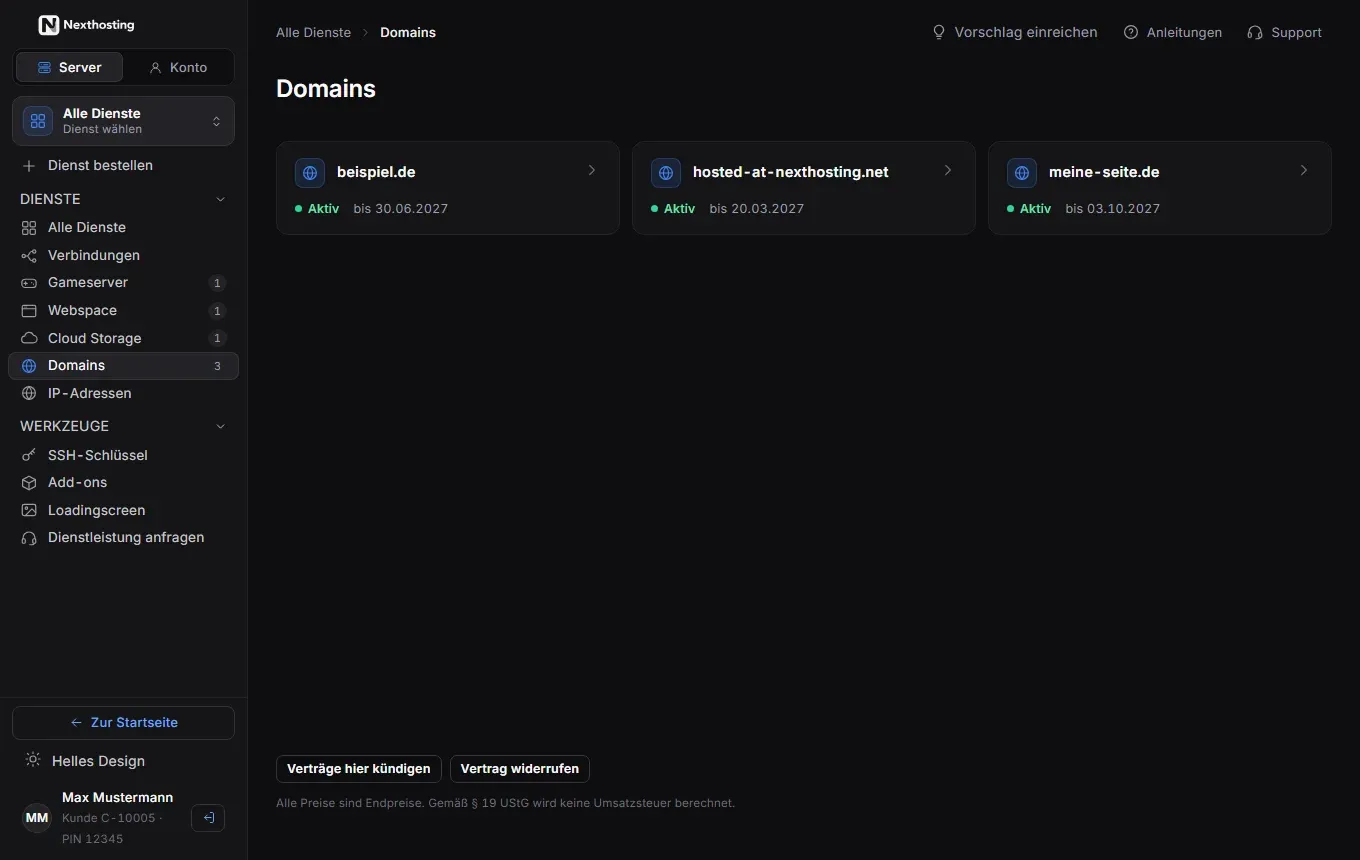
The Domains category shows each domain as a card with its status and term.
At the top you see a header with the status (Active (Aktiv), In progress (In Bearbeitung), Suspended (Gesperrt), Cancelled (Gekündigt) or Error – support informed (Fehler – Support informiert)), the “runs until …” date and a note about where your DNS records live. If the domain is included in the web space plan, it says Included domain (Inklusiv-Domain). As long as the status is not Active, changes are not possible.
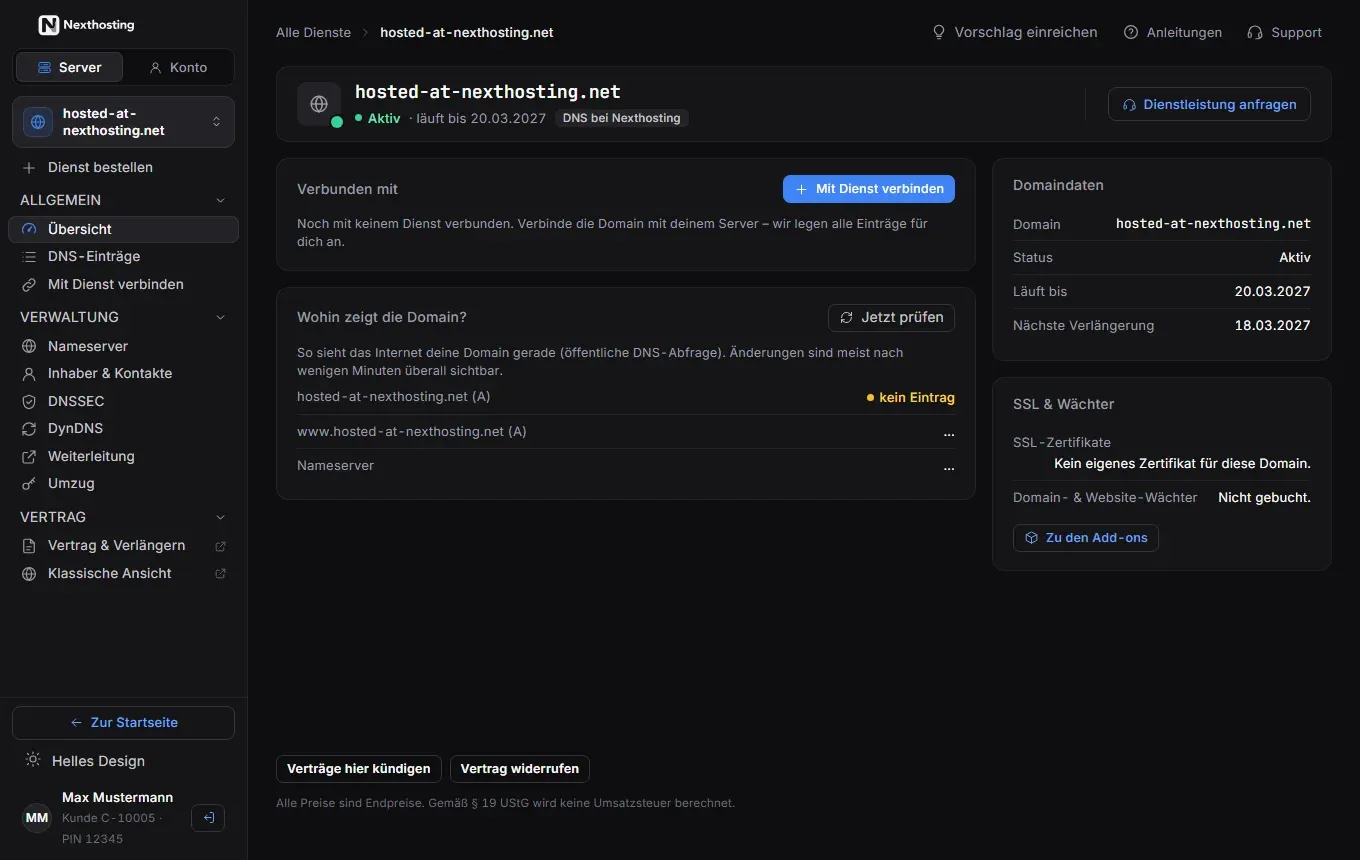
The domain page in the Server Center, here with an example domain.
- Status, term and nameserver mode (here DNS at Nexthosting (DNS bei Nexthosting))
- Connect to service (Mit Dienst verbinden)
- Check now (Jetzt prüfen) for the public DNS lookup
- SSL & Watcher (SSL & Wächter) with certificate and Domain & Website Watcher
Where are your DNS records? The four modes
Section titled “Where are your DNS records? The four modes”The label in the header tells you which nameservers (and therefore which place for DNS records) apply to your domain. This affects what you can change in the Server Center.
| Label | Meaning | You edit the DNS records … |
|---|---|---|
| DNS at Nexthosting (DNS bei Nexthosting) | The domain uses the Nexthosting nameservers. | directly in the Server Center |
| DNS in the web space management (DNS in der Webspace-Verwaltung) | The records live with your web space. | in the web space management (web panel); for a server, the Server Center shows you the records you need |
| Own nameservers (Eigene Nameserver) | You have entered your own nameservers. | at the provider of those nameservers |
| Domain at another provider (Domain bei anderem Anbieter) | The domain is at another provider with external nameservers. | at the other provider; the preview under Connect to service shows which records you have to set there |
What nameservers are is explained in DNS basics.
The tabs of the domain
Section titled “The tabs of the domain”Depending on the domain ending and mode, you see these tabs. If one is missing, that function does not exist for this domain.
| Tab | What for |
|---|---|
| Overview (Übersicht) | Domain data, term, Connected with (Verbunden mit) and the Where does the domain point? (Wohin zeigt die Domain?) lookup |
| DNS records (DNS-Einträge) | DNS editor for A, AAAA, CNAME, MX, TXT, SRV and other types |
| Connect to service (Mit Dienst verbinden) | Connect the domain to a VPS, dedicated server, game server or web space |
| Nameservers (Nameserver) | Choose or change nameservers |
| Owner & contacts (Inhaber & Kontakte) | Owner and contact persons of the domain |
| DNSSEC | Switch signing of DNS answers on or off |
| DynDNS | Subdomain for connections without a fixed IP address |
| Redirect (Weiterleitung) | Redirect a domain or subdomain to another address |
| Transfer (Umzug) | Transfer lock and auth code |
| Contract & renew (Vertrag & Verlängern) | Term and renewal of the domain |
| Classic view (Klassische Ansicht) | the previous domain page, including zone file import and export |
Overview: where does the domain point?
Section titled “Overview: where does the domain point?”On Overview, Check now (Jetzt prüfen) starts a public DNS lookup. You see which nameservers and records the internet currently knows for your domain. Changes are usually visible everywhere after a few minutes; with old records it can take up to an hour. For problems, see Fix DNS problems.
Connect to a service
Section titled “Connect to a service”With Connect to service, the Server Center creates the DNS records for you. You do not have to type an IP address.
- Where should the domain point?Choose a service
- What for?Website, subdomain or Minecraft
- Check the previewBefore and after
- Connect now
- Under Where should the domain point? (Wohin soll die Domain zeigen?), choose one of your services: VPS, dedicated server, game server or web space. For a server at another provider, choose Server at another provider (Server bei einem anderen Anbieter) and enter its IPv4 address, and if you like its IPv6 address. You find the address in that provider’s customer area.
- Under What for? (Wofür?), choose the purpose:
- Website on this server (Website auf diesem Server): the domain and
wwwpoint to the service. - Just a subdomain (Nur eine Subdomain): for example
app.your-domain.com. You enter the name of the subdomain. - Minecraft address without port (Minecraft-Adresse ohne Port): players connect with
mc.your-domain.com. You enter the subdomain and port, and the Server Center also creates the required SRV record.
- Website on this server (Website auf diesem Server): the domain and
- For a VPS and dedicated server, you can have the server’s reverse DNS (rDNS) set to the domain right away. This is recommended, especially for sending email from the server.
- Click Show preview (Vorschau anzeigen). In the Before (Vorher) and After (Nachher) columns you see which records are created (new), changed or removed, and which are already there.
- Click Connect now (Jetzt verbinden) and confirm. Afterwards the connection appears under Connected with.
It usually takes a few minutes until everyone sees the change. With Disconnect (Trennen) you remove the records again. Anything you changed yourself in the meantime is left alone by the Server Center. If only some of the steps succeed, it offers Undo (Zurücknehmen).
With a web space as the target, the Server Center adds the domain to the web space. The free https certificate arrives automatically once the domain points to the web space everywhere (see SSL certificates and HTTPS). Your email records (MX, SPF, DKIM) stay as they are.
More about the targets: Connect a domain to your website and Connect a domain to your game server.
Edit DNS records
Section titled “Edit DNS records”If the domain is in the DNS at Nexthosting mode, you edit all records on the DNS records tab.
- You can filter the list with Search records … (Einträge durchsuchen …).
- Add record (Eintrag hinzufügen): choose the type, enter the name (
@stands for the domain itself, otherwise for examplewwwormc), the target / content and the TTL. For the TTL you choose Auto or a time in hours or days. - With Edit (Bearbeiten) and Delete (Löschen) you change existing records. Before deleting, the Server Center asks for confirmation, because services that need the record are no longer reachable afterwards.
- Records labelled managed by us (von uns verwaltet) belong to DynDNS or to the nameservers and are changed there. Certain types are fixed for some domains.
The fields are the same as in the web panel. Examples and notes on A, CNAME, MX and TXT are in Manage DNS records.
Change nameservers
Section titled “Change nameservers”On Nameservers, you choose where the DNS records should live:
- Nexthosting DNS (recommended): you manage everything in the Server Center.
- Own nameservers: you enter nameservers of another provider. You then set the records there. The preview under Connect to service shows which records you have to set there.
The change is requested at the registry. Until it applies everywhere, it can take a few hours up to 24 hours. For some endings the change costs something; then you have to confirm the price explicitly.
Owner and contacts
Section titled “Owner and contacts”On Owner & contacts, you choose who is entered as Owner (Inhaber), Administrative contact (Administrativer Kontakt), Technical contact (Technischer Kontakt) and Zone contact (Zonen-Kontakt). You create new contacts via Manage contacts (Kontakte verwalten). Some contacts say set by us (von uns festgelegt). The owner’s email address must be reachable, because the registry’s confirmations go there.
DNSSEC
Section titled “DNSSEC”DNSSEC signs the answers of your DNS records so nobody can forge them on the way. You switch it on or off on the DNSSEC tab. Nexthosting then signs the zone and deposits the key at the registry. Some endings do not support DNSSEC; then it says so there.
Transfer lock and auth code
Section titled “Transfer lock and auth code”If you want to move the domain to another provider, you need two things on the Transfer (Umzug) tab.
- Switch off the transfer lock (Transfersperre). As long as it is on, the domain cannot be moved. Confirm the prompt Switch off transfer lock? (Transfersperre ausschalten?).
- Click Show auth code (Authcode anzeigen) and confirm. Enter the code at the new provider. Nexthosting does not store it.
- Switch the lock back on if the move is aborted.
The auth code is like a password: anyone who has it can move the domain. Pass it only to the new provider. Every time you toggle the transfer lock, a new code is generated. So fetch the auth code only after you have changed the lock, and use the one shown last. Some endings have no transfer lock. And for some domains the auth code is not available here; then support helps via a ticket.
The move in the other direction, to Nexthosting, is explained in Register a domain and transfer.
Domain & Website Watcher
Section titled “Domain & Website Watcher”As an add-on there is the Domain & Website Watcher (Domain- & Website-Wächter). It checks your website every 5 minutes, the DNS records hourly, and the certificate and expiry of the domain daily. If something stands out, it notifies you by email or, if you store a Discord webhook, by Discord. It only reports: it does not fix a fault and does not replace your own monitoring of your application. You can book and set it up in the Server Center in the add-on catalogue and in the SSL & Watcher section of the domain. The terms are in the add-on terms (section 9v).
Redirect and DynDNS
Section titled “Redirect and DynDNS”- Redirect (Weiterleitung): redirect a domain or subdomain under From (Von) to another address under To (Nach). Under Type (Art) you choose permanent or temporary. If the function does not exist for your domain, use a redirect on your server or web space.
- DynDNS: for connections without a fixed IP, for example at home. You create a DynDNS connection with a label and enter the displayed key in your router. The key is shown only once.
Frequently asked questions
Section titled “Frequently asked questions”Why do I only see some of the tabs?
Section titled “Why do I only see some of the tabs?”Not every ending supports everything. DNSSEC, transfer lock, DynDNS and redirect depend on the ending and the mode. If the DNS records are not at Nexthosting, the editor in the Server Center is not available.
My change is not accepted. What now?
Section titled “My change is not accepted. What now?”Wait a moment and try again: only one change at a time runs on a domain. If that does not help, open a ticket with the domain name and the exact message. How to describe the error well is explained in Describe a problem well.
Is the transfer lock a security feature?
Section titled “Is the transfer lock a security feature?”Yes. It protects the domain from an unwanted move. Keep it on and switch it off only for a planned move.
Can I manage a domain from another provider here?
Section titled “Can I manage a domain from another provider here?”Only partly. Registration, contacts, transfer lock and the DNS editor exist only for domains that are at Nexthosting. For a domain with external nameservers, Connect to service shows you the records that you set yourself at the other provider.