

02Account & billing
Server Center – manage all your services in one place
The Nexthosting Server Center (Serverzentrale) shows VPS, dedicated servers, game servers, webspace, domains and Cloud Storage in one app.
In short
Since 31 October 2026, the customer area at Nexthosting is one app titled Mein Nexthosting (My Nexthosting). At the top left you switch between Server and Konto (Account): under Server you manage your services (VPS, dedicated servers, game servers, webspace, email, domains, Cloud Storage), under Konto your invoices, contracts and settings. Both areas look the same.
The labels below are the German ones, as in the screenshots. The English meaning is given in parentheses.
The two areas
Section titled “The two areas”You reach the app through the Mein Nexthosting menu at the top of the shop (after logging in) or directly at nexthosting.net/account. The switch is called Bereich (Area) and has the entries Server and Konto (Account).
The “Mein Nexthosting” menu
Section titled “The “Mein Nexthosting” menu”The menu in the shop header contains:
| Entry | Where it goes |
|---|---|
| Dienste (Services) | To the Server Center (Alle Dienste, All services) |
| Rechnungen (Invoices) | To your invoices in the Account area |
| Support | To your requests and tickets |
| Einstellungen (Settings) | To your personal settings |
| Gameserver-Panel, Webspace-Panel, Speicher-Panel | Straight into the respective panel – you are signed in there immediately |
| Abmelden (Log out) | Logs you out |
You only see the panel entries if you have the matching product and it is not suspended. They open in a new tab. If you have several game servers, you land in the panel’s server list; with only one server you land directly in it. Which panels exist is explained in Where do I find what?.
The Server area
Section titled “The Server area”The start page of this area is called Alle Dienste (All services): “Your servers, domains and storage in one place.” Services are grouped by type, for example VPS, Dedicated Server, Gameserver, Webspace, E-Mail, Cloud Storage and Domains. On the tiles you see the status and a few live values, such as players online for a game server or usage for Cloud Storage.
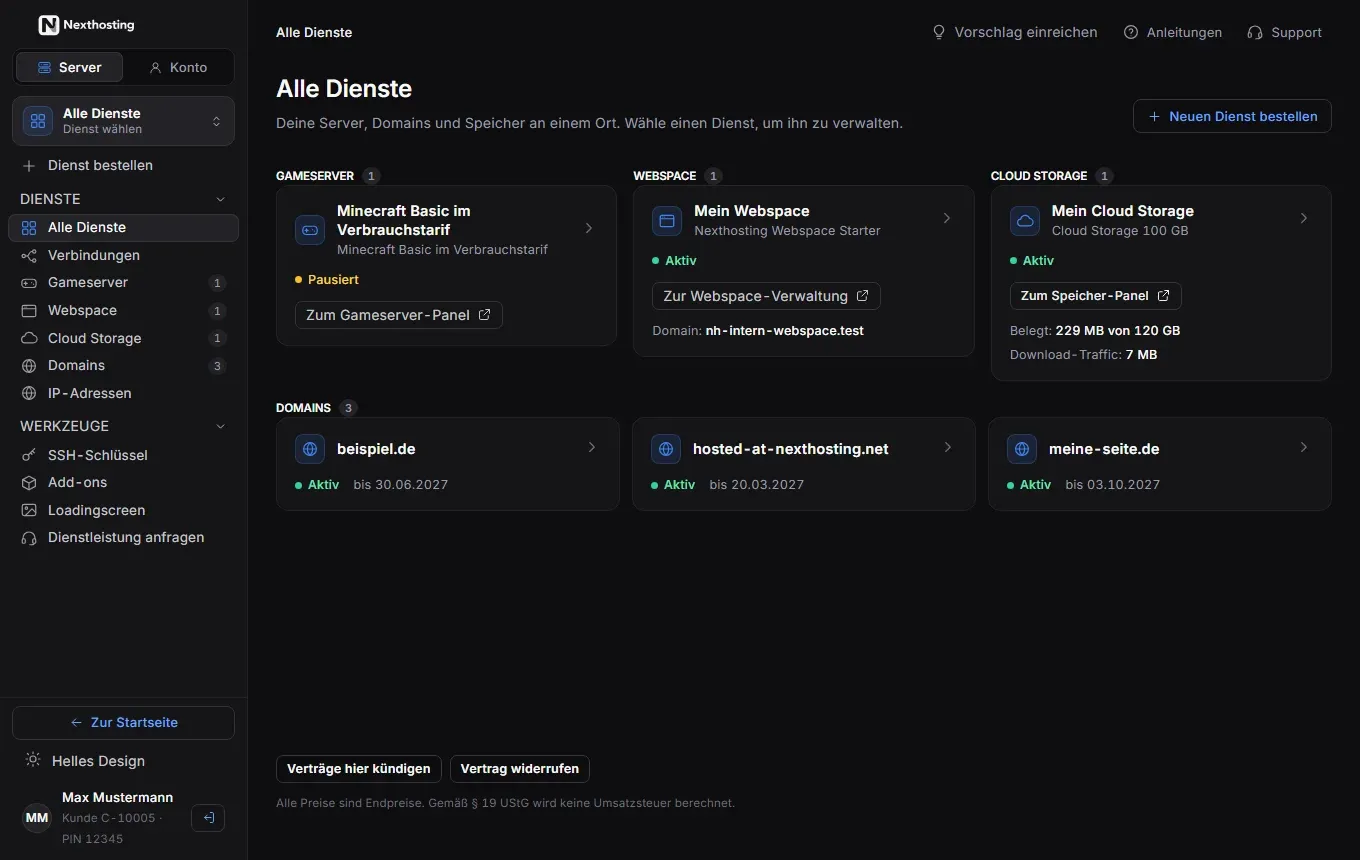
The Server area with the start page “Alle Dienste”.
- Switch Server | Konto (Account)
- Sidebar with your services and the tools
- One tile per service with status and a button to the panel
- Neuen Dienst bestellen (Order a new service)
What a click on a tile does depends on the product:
| Service | What you get in the Server Center |
|---|---|
| VPS and Dedicated Server | Its own management page – no detour through another panel. A VPS has, among others, overview, console, metrics, activity, reinstallation, templates, backups, network, firewall and access. A dedicated server has a rescue system instead of backups and firewall, plus overview, console, metrics, activity, reinstallation, templates, network and access. More under VPS overview and Dedicated server. |
| Gameserver | A simple page with status and contract and the button Zum Gameserver-Panel (To the game server panel). The panel is standalone and opens in a new tab. |
| Webspace | Status, contract and the button Zur Webspace-Verwaltung (To webspace management). This is the web panel for websites, WordPress and mailboxes. |
| A page of its own for mailboxes, setting up the domain and help for your mail program. | |
| Cloud Storage | A simple page with status and contract and the button Zum Speicher-Panel (To the storage panel). More in the Cloud Storage chapter. |
| Domains | Manage the domain right in the Server Center. More under Domains in the Server Center. |
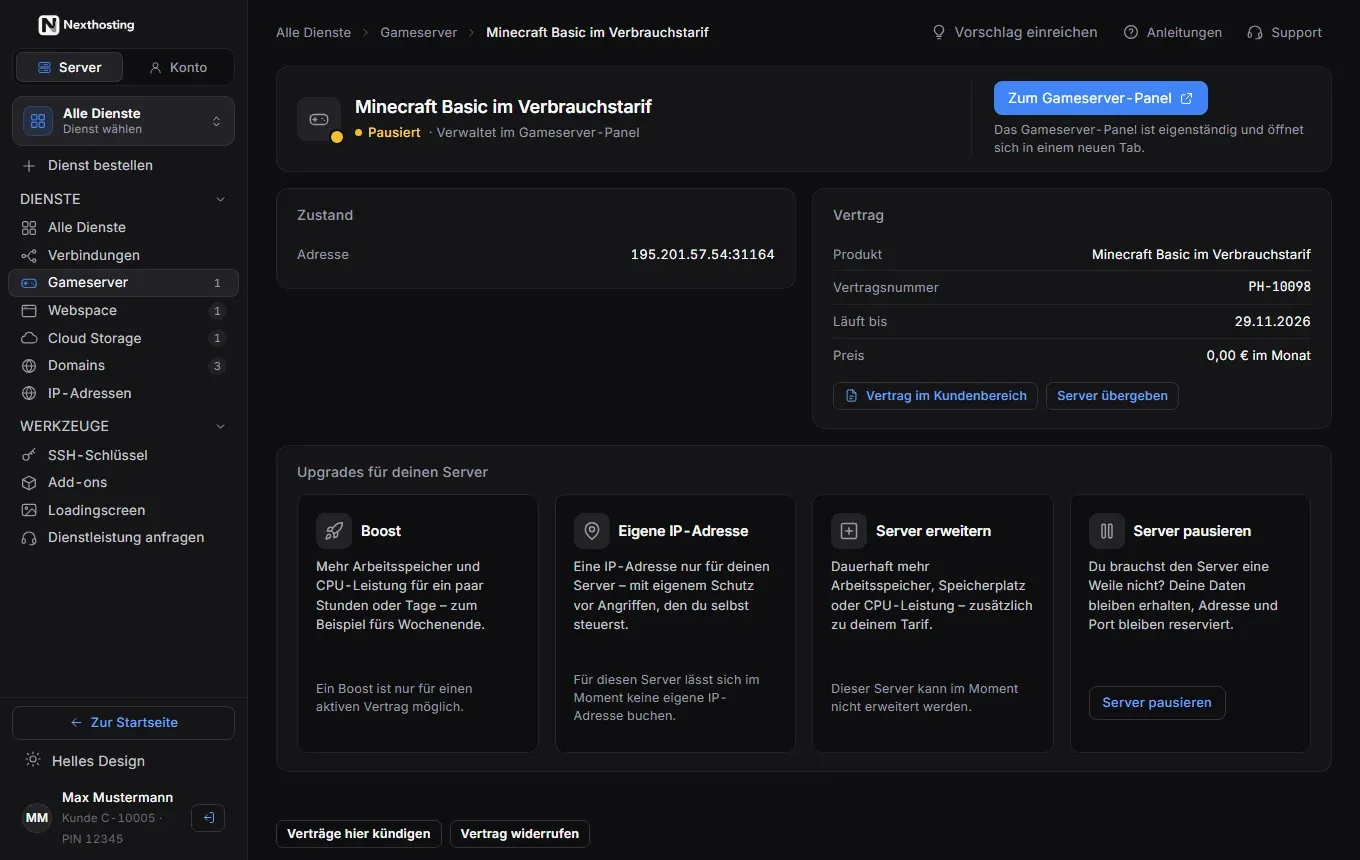
The game server page is deliberately simple: status, contract and the way into the panel.
- Zum Gameserver-Panel (opens in a new tab)
- Contract with contract number, term and price
- Upgrades for your server
Game servers, webspace and Cloud Storage deliberately stay in their own panels. The Server Center is the shared entry point and shows you in one place what is running and what it costs.
More pages in the Server Center
Section titled “More pages in the Server Center”- Verträge (Contracts) shows all contracts of your services.
- IP-Adressen (IP addresses) lists your IP addresses.
- Verbindungen (Connections) gives an overview of what is linked to what – for example which domain points to which server.
- Add-ons are extras for a server, such as a server watchdog, a private network, maintenance and updates or backup to Cloud Storage. The add-ons are visible to all customers, not only to a test group. What is available for your product and what it costs is shown with the product itself.
- Neuen Dienst bestellen and Zur Startseite (To the start page) are always at the bottom of the sidebar.
- Vorschlag einreichen (Submit a suggestion) leads to “Suggest a feature”, see Suggest a feature.
- With the switch Dunkles Design (Dark theme) or Helles Design (Light theme) you change the look. The setting applies to the whole shop.
Ordering a new service in the app
Section titled “Ordering a new service in the app”You do not have to leave the app to order. The button Neuen Dienst bestellen opens an order flow in the Server Center: first choose the type (for example game server, VPS, dedicated server, webspace, Cloud Storage, domains, Discord bots or SSL certificates), then the plan, configure it, then Prüfen & bezahlen (Review & pay). The search finds games and products by name.
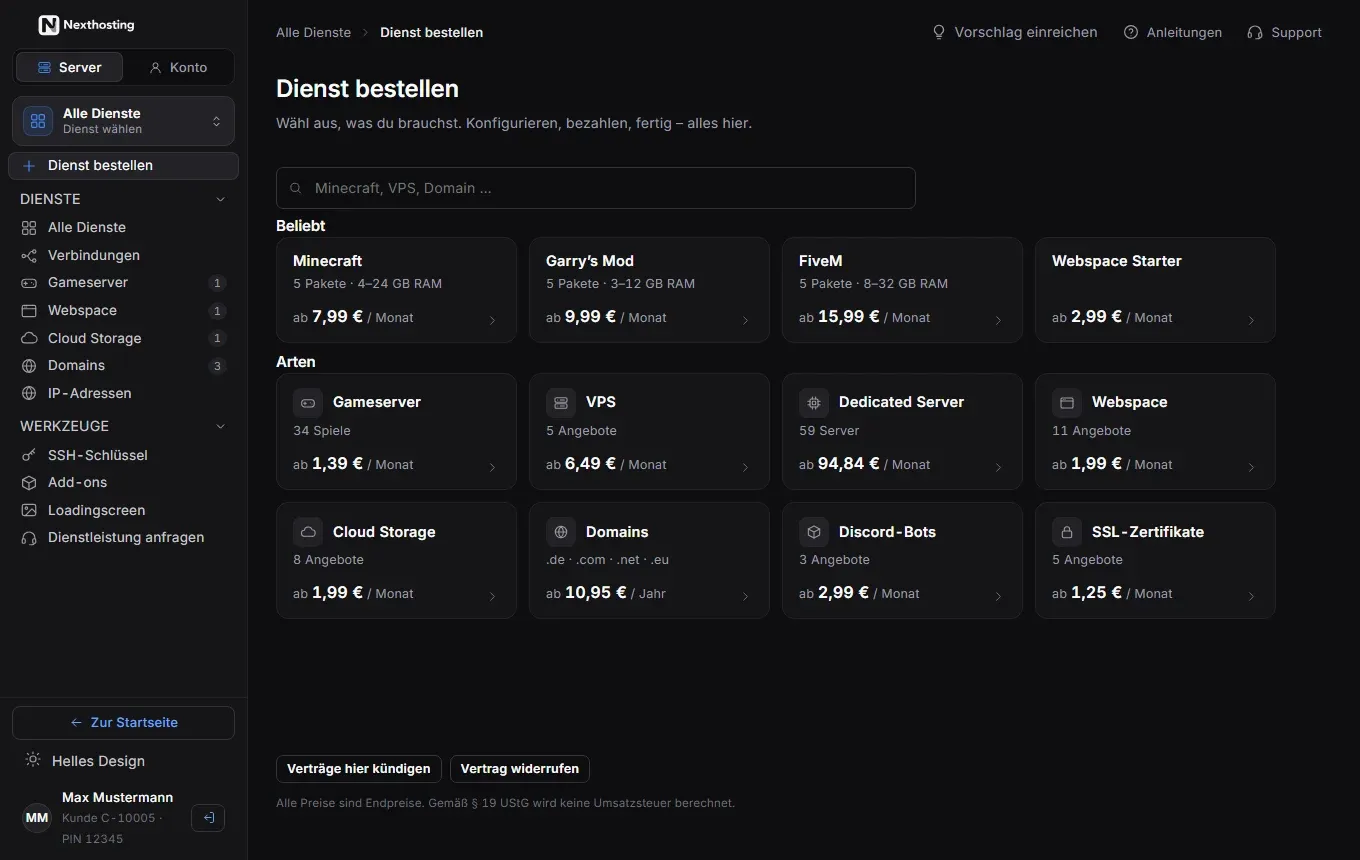
The order flow in the app. Prices in the screenshot are an example and can change.
- Search for games and products
- Choose the type, for example game server
- Click Neuen Dienst bestellen in the sidebar.
- Choose the type and the plan and set it up.
- Check the summary and pay in the app.
- After payment the new service appears under Alle Dienste.
The rules are the same as when ordering in the shop, and so are the prices. How the shop route works is explained under Ordering. For VPS and dedicated servers, a confirmation may still be needed after payment, see Confirm your order.
Cancelling and withdrawing
Section titled “Cancelling and withdrawing”At the very bottom of the Server Center and the Account area are the buttons Verträge hier kündigen (Cancel contracts here) and Vertrag widerrufen (Withdraw from contract). They work like the links in the shop footer. More under Contracts and cancellation.
Frequently asked questions
Section titled “Frequently asked questions”Where is my game server in the Server Center?
Section titled “Where is my game server in the Server Center?”Under Alle Dienste in the group Gameserver. You control it in the game server panel: click the tile and then Zum Gameserver-Panel, or use the entry Gameserver-Panel in the Mein Nexthosting menu.
Do I have to log in again in the panels?
Section titled “Do I have to log in again in the panels?”Not if you come through the button in the Server Center or the menu entry. The panel then opens already signed in. You only need a separate panel password if you log in there directly or use SFTP. See Opening the game server panel.
A service is missing or a button is greyed out. Why?
Section titled “A service is missing or a button is greyed out. Why?”The panel is only available once the contract is active. For a paused server you resume it in the Account area; for a blocked order you first settle the open invoice. If that does not help, write a ticket.
Can I share the server with someone?
Section titled “Can I share the server with someone?”Yes, you can share a VPS with another Nexthosting account without handing over the password. See Share a server.